
Presentation
An Opelist is a list of operations saved as a file to program a part and reuse on other parts. The order of operations, strategies, tools, and selections is preserved.
The Opelist is a single file, with the extension *.OPL or *.OPE, stored in the Opelist folder.
Opelists are available in Milling and Turning (*.OPL). In Wire-cut EDM, they are called Cutting Strategies (*.OPE) and provide options dedicated to this technology. Read the chapter Strategies for more details.
Using an Opelist automates the machining process; this can be partial automation (requiring only profile selection) or full automation using conditions to apply the Opelist automatically.
Menu Opelists
All the commands necessary to create, modify and manage the opelists are gathered in a menu of same name.

|
Opelist is now a dedicated menu in the ribbon, simplifying access and management of standard strategies. 
|
|---|
Menu Manage

|
Create |
Creation of an opelist by inserting the operations one by one. |

|
Create from GO2cam File |
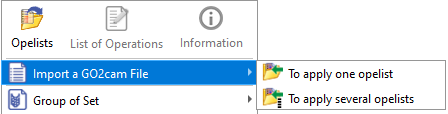
Creation of an opelist from a GO2cam file (PCE) The purpose is to read the list of operations of an already machined part and to save this list as an opelist. |

|
Modify |
Modification of an existing opelist. |

|
For extensive Opelist directories, the Analyze function produces a categorized compilation of all your Opelists. You may organize the list by selecting column headers such as Directory (folder location), Machine, Material Grade, Typology, among others. |
|

|
Tools Update |
When a tool is modified in GO2cam, you can apply the modification in the opelist(s) that you select. |

|
Total Tools Update |
When a tool is modified in GO2cam, you can apply the modification in all the opelists. It is recommended to do Tools Update/Total Tools Update frequently for your opelists. Failure to do so may lead to a syntax being added at the end of the tool name, hence defining it as a separate tool. This may further lead to more issue in the MTE environment. Click here for some details of this issue. |

|
Machine Grade Update |
You can define a machine grade and apply it to one or several opelists selected in the explorer. No need to edit the opelist(s) to modify it (them). |

|
Material Grade Update |
You can define a material grade and apply it to one or several opelists selected in the explorer. No need to edit the opelist(s) to modify it (them). |

|
Update Menus |
After the creation or copy of opelists, you can update the menus of selections in GO2cam. |
|
|
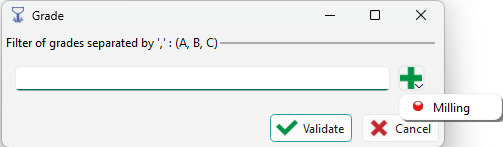
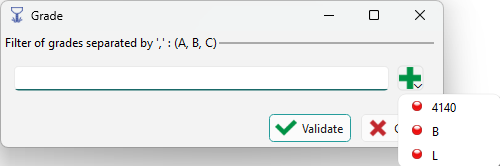
Machine and Material Grade Update Automatically scan your existing machines and materials to dynamically generate and toggle entire grade categories within the selection dialogue. The list of existing machine and material grades are accessible in the dialog with the plus icon. |
|
To Create an Opelist
Three methods of creation are available:
-
Creation by adding the operations sequentially. (Accessible in the Opelists menu as Create)
-
Creation of an opelist from a .PCE file (Command accessible in the Opelists menu as Create from GO2cam File)
-
Creation from the Machining tree by selecting cycles and right-clicking to access the Opelists function and export.
The methods are described in detail below:
|
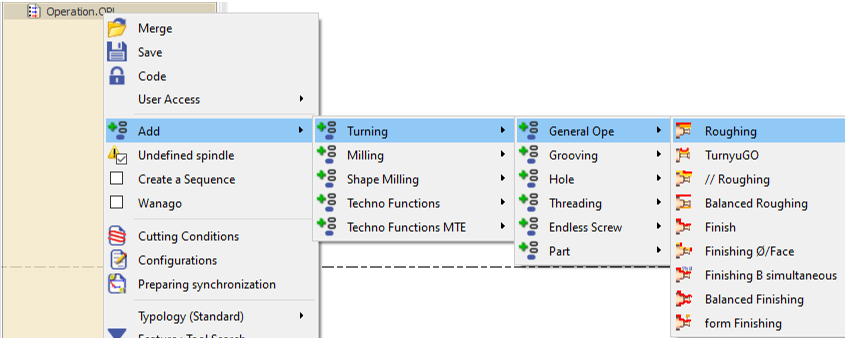
1/ Creation by adding operations Within the Opelists menu, select Create. This action opens a blank Opelist Manager tree labeled Operation.OPL, displayed with a beige background for distinction. The beige background serves to differentiate this view from the machining tree. To define operations, right-click on Operation.OPL, navigate to Add. The available operations are categorized under the machining environment, analogous to the machining menu. In addition to machining cycles, Techno functions may also be defined within the opelist. Select the desired cycle to include it in the opelist tree, repeating as necessary to add multiple cycles in the preferred sequence. It is imperative that the profiles for the cycles are indexed with unique numbers. If multiple cycles share identical numbering, right-click on one of the cycles and choose ‘Reset the selections’ to resolve conflicts. 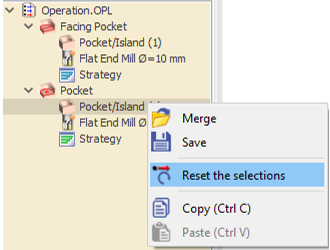
Upon completion, click on Validate to save the opelist. Assign an appropriate name as needed. |

|
|
|
2/ Creation of an opelist from a .PCE file Within the Opelists menu, select Create from GO2cam file. You will be prompted to select a .PCE file. After selecting the file, click open. All machining cycles contained within the .PCE file will be extracted and loaded into the opelist tree without requiring the file to be opened in GO2cam. 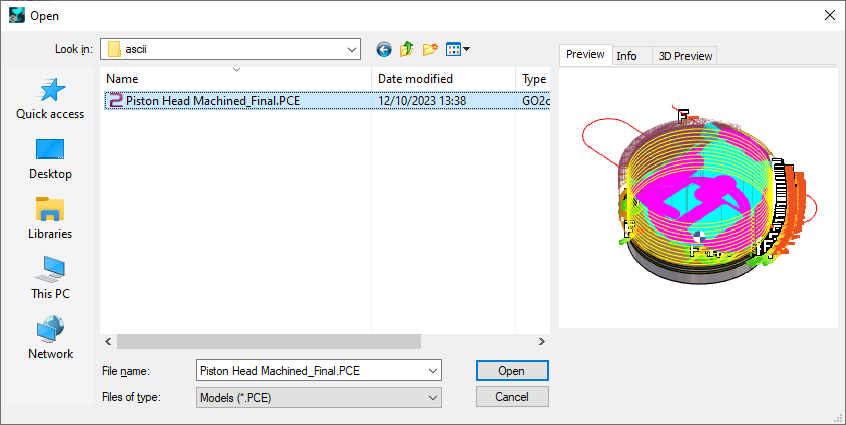
You may click Validate to save the opelist immediately or perform modifications prior to saving if necessary. If a .PCE file containing no machining cycles is selected, an error message will be displayed: No machining cycle in operation list! |

|
|
|
|
The command that enables to import a PCE file to transfer the machining operations into opelists has a new behaviour:
|
|
|
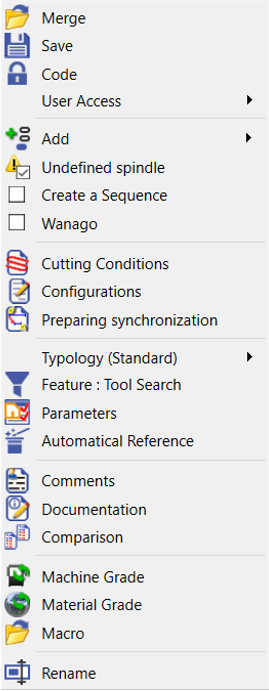
Main Options: Several options are available upon right-clicking the line 'Operation.OPL' (Opelist name):
Confirm and assign a name to your Opelist. The assigned name will be displayed in the machining tree. |
|
Tip: how to modify an Opelist:
Do a right-click on any operation of the machining tree, choose Opelist then Edit, choose the list you want to modify.
|
|
Create and standardize complex machining strategies by creating 5-axis expert Opelist. Click here to access the 5 axis Expert Page and watch the video. |
Analyze
|
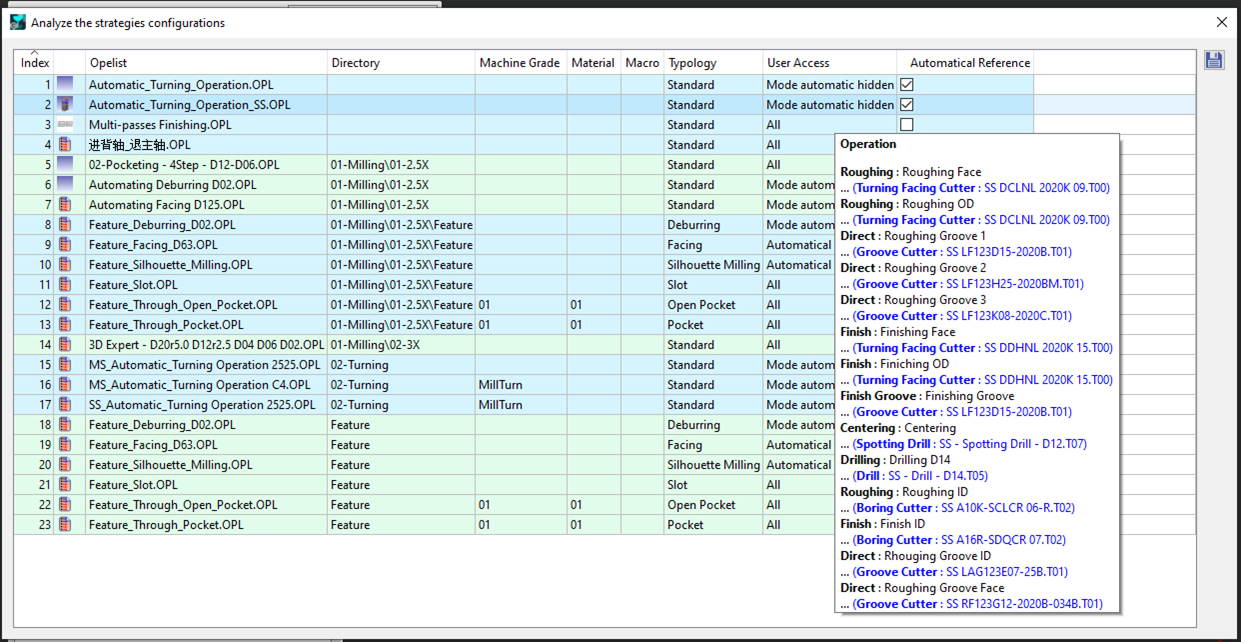
For large Opelist directories, the Analyze function lets you generate a categorized list of all your Opelists. Easily sort the list by clicking on column headers like Directory (folder location), Machine, Material Grade, Typology, and more.
|
|
|
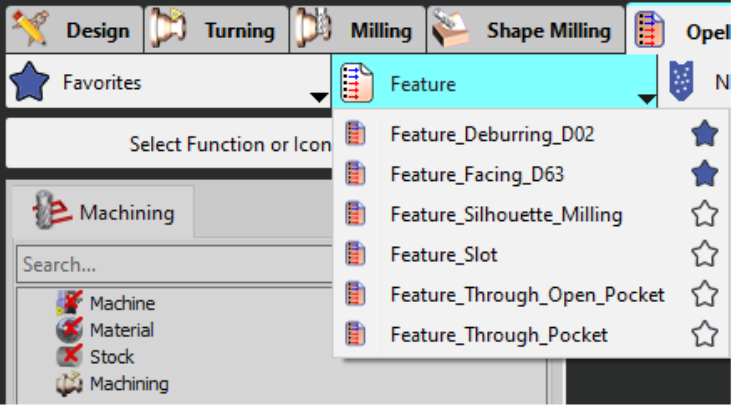
You can create a favorites list for your opelists. To create a favorite, simply click on the star, which will turn blue and a new Favorites tab will then be created in the menu, displaying a list of your opelists. |
|

|
|