
Presentation
The machining tree is a very complete tool, with 5 main functions :
-
define and choose a machine
-
define and choose a material
-
edit and modify the operations defined
-
move the operations, copy references already used
-
accede to many complementary machining functions
Main rules to use the machining tree
General Use
|
e.g : if there is no machine loaded, the icon is red crossed. |
Collapse/Expand cycles in the machining tree
|
|||
|
Shortcuts enable to collapse and expand the details of data displayed in the Machining Tree.
Let’s take this situation: |
|||
|
The folder Top Face contains 3 cycles, 1 is expanded: 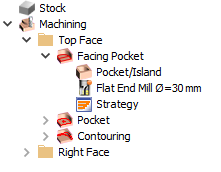
|
Pressing “-” or “/”key collapses the folder: 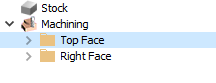
|
Then, pressing “+” key expands it as it was before…
|
… while pressing “*” key expands the folder and all the cycles inside: 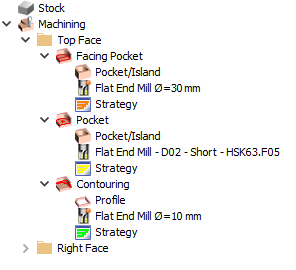
|
|
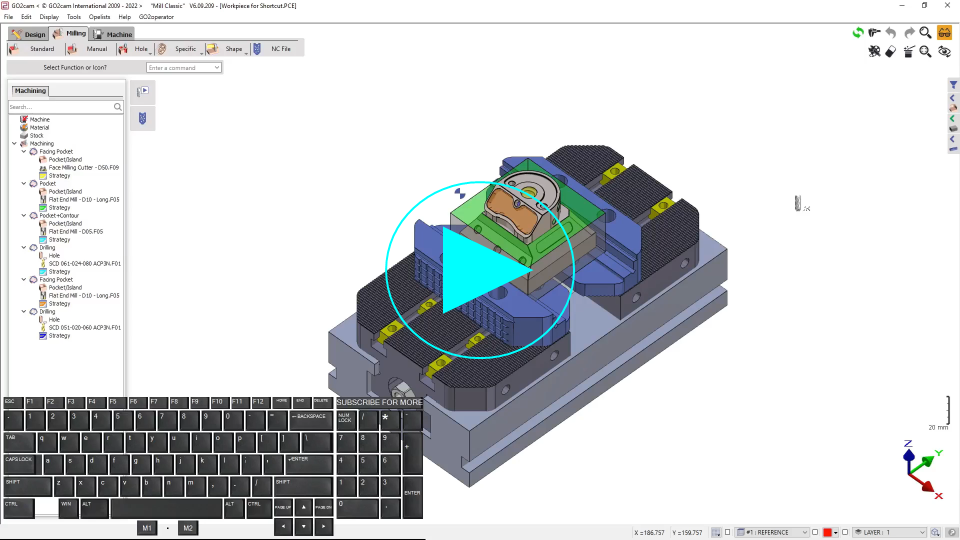
▶️ You can watch a video on the shortcuts for Collapsing and Expanding the machining tree:
|
Transparency
|
|
|---|---|
|
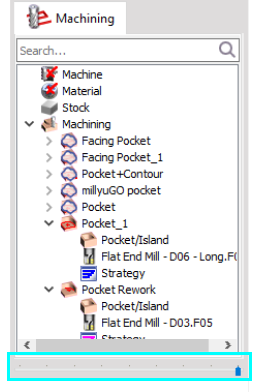
The transparency of the tree is dynamically adjustable at bottom of the tree. It is not anymore an ON/OFF option, you can select the ‘strength’ of transparency thanks to the cursor.
|
|
Drag and Drop Use
|
Drag and drop is available :
These manipulations are manual, which means that you need to tell GO2cam to re-calculate the operations : click on Update. |
|
|
You can also perform drag and drop actions while editing an existing cycle. To edit the tool, you were using:
|

|
|
When you move an element with drag and drop function, the text is transparent and the icon linked to the cursor gives you some information : |
|

|
the element is moved |

|
the element is copied (ctrl key) |

|
the motion is impossible |
|
▶️ You can watch a video about the application of Drag and Drop for tools:
|
The Wizard can also be used to copy strategies and settings: read the Wizard page.
Right-Click Use
|
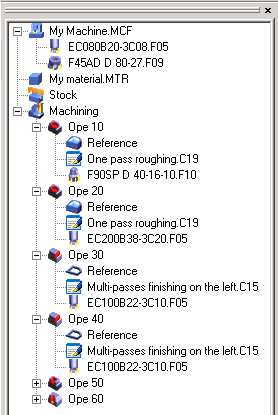
Right-click on a line opens a pop-up which offers different functions depending on the line :
|
|
|
Copying tool in multiple cycle simultaneously
|

|
|
▶️ You can watch a video on Copy/Paste in Machining Tree:
|