

|
The Web Portal is a unique access to all websites and services provided by GO2cam International. It is dedicated to Users under an official Production-Type license. |
Access & Creation of Account
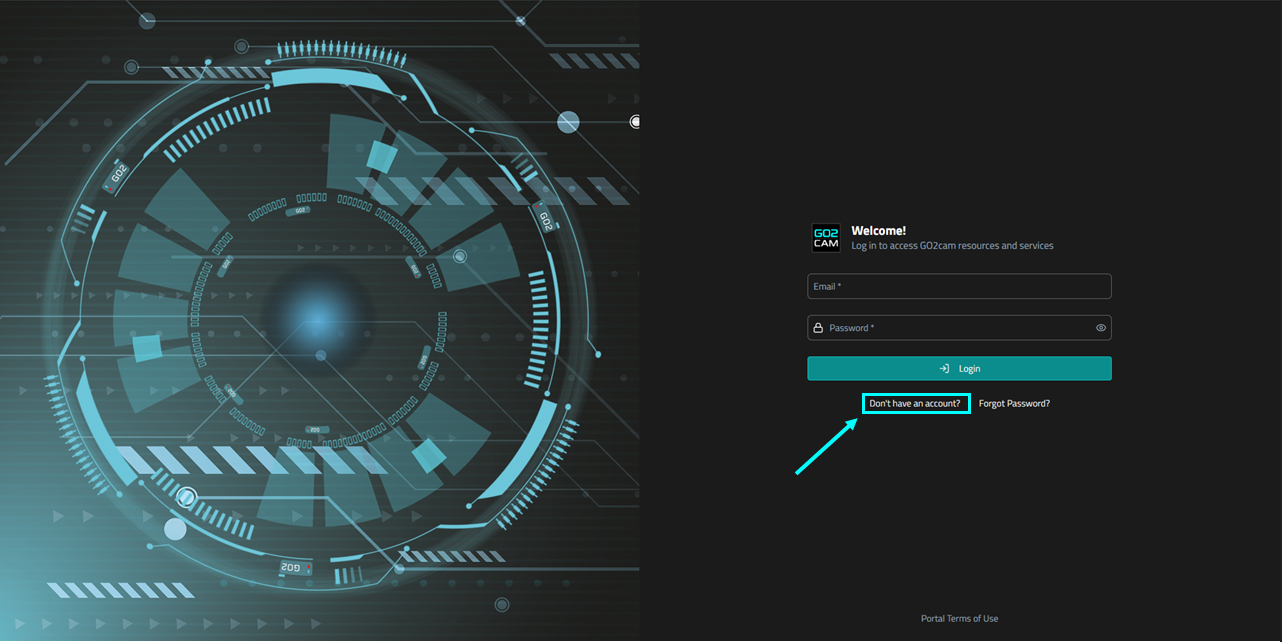
Access: you can find the Web Portal in the menu ‘Help’ of GO2cam. Enter your login and password to get in.
|
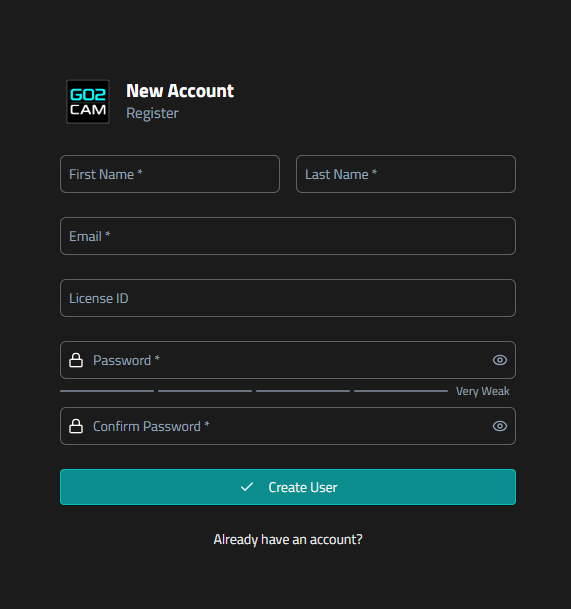
Account Creation: at first visit, you must create your account.
|
|
|
Fill out the Registration form with your details. To find your License ID, navigate to GO2cam_Intl/GO2camV612/system/LIC, then run GO2lic.exe and copy the Machine ID. After that, click Create User. A validation email will be sent to your registered email address; you must confirm it to complete registration.
Please use a professional email address for this purpose. |
|
Web Portal Contents
|
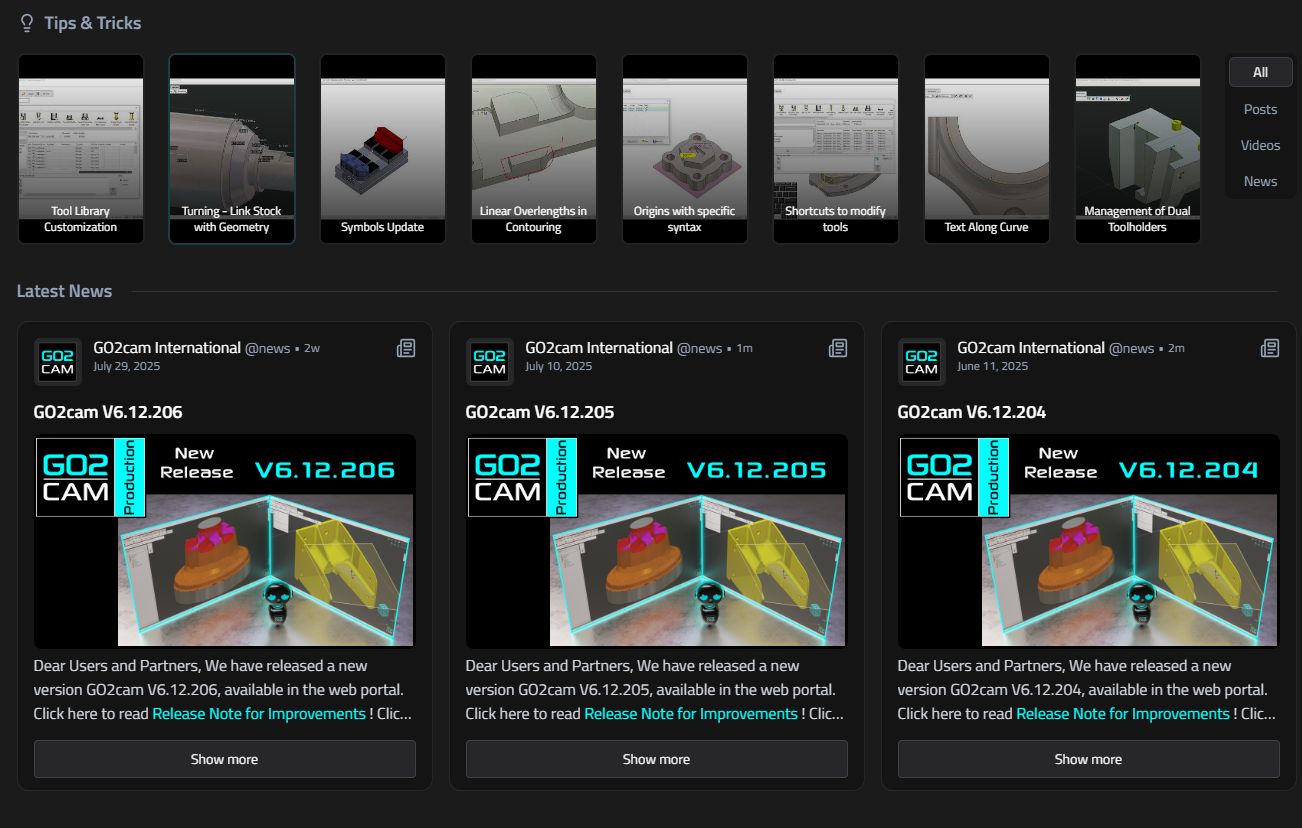
When you access the GO2portal, the main feed keeps you updated with:
Feel free to click for more detailed information.
|
|
|
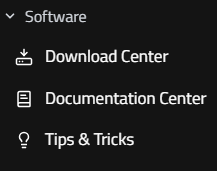
On the left side of the screen, a collapsible tree menu provides quick access to various functionalities: |
|
|
Software
The Software section of the Dashboard provides a centralized hub for all GO2cam software-related resources:
|
|
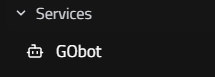
Services
The Services section offers convenient access to features designed to enhance your GO2cam experience:
|
|
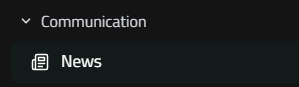
Communication
Stay informed and up-to-date with GO2cam. This section allows you to:
|
User Profile
|
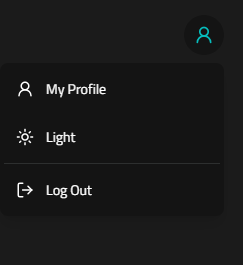
At the top right corner of the screen, the user's account icon is visible. Clicking this icon opens a dropdown menu with the following options:
|
|

|
Integrated Web Portal
The integrated Web Portal provides a direct gateway to essential resources and community tools directly within the software interface. By clicking the portal icon, you can access the GObot AI assistant, view "Tips & Tricks" tutorials, and download the latest JavaScript scripts or add-ons to enhance your workflow. Core Capabilities
|
|