
In Turning, we can consider 2 main methods for the selection of geometry:
-
the General operations & Grooving operations: profiles are needed
-
the holes machining operations: points are needed.
|
▶️ You can watch a video at the bottom of page, that shows : click here |
Selection for General Operations and Grooving
For either General Ope or Grooving cycles, the selection of geometry is carried out as follows:
|
|
General Ope |
Grooving |
|
To create your cycle, first click on Geometry Selection. 
Then determine the profile to machine by selecting the starting element up to the final element. |
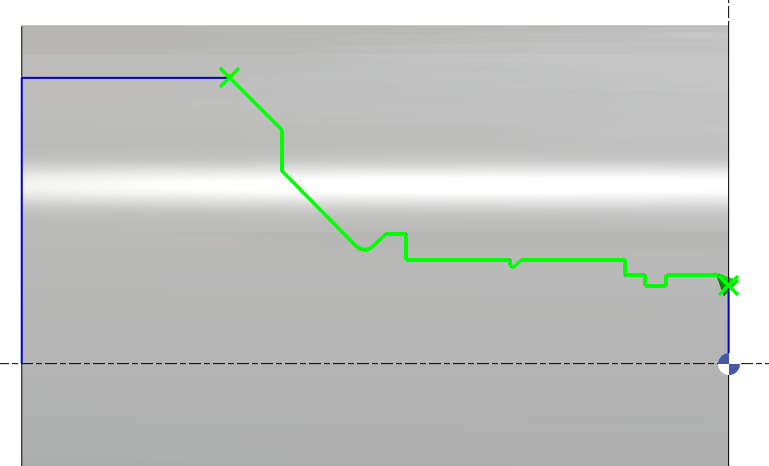
|
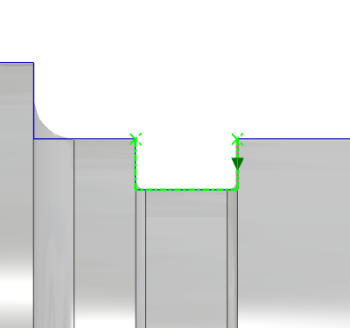
|
|
Validate using the green tick. |
|
|
|
You also have the ability to invert the toolpath, choose Next |
|
|
|
or Previous element. |
|
|
|
After this, we can manage the approach and return vectors which shows the entrance and exit based on the material to be removed. By default, the vectors are oriented in tangency with the first and the last element. We can modify them either by typing in angle values in the fields or dynamically on the screen. |
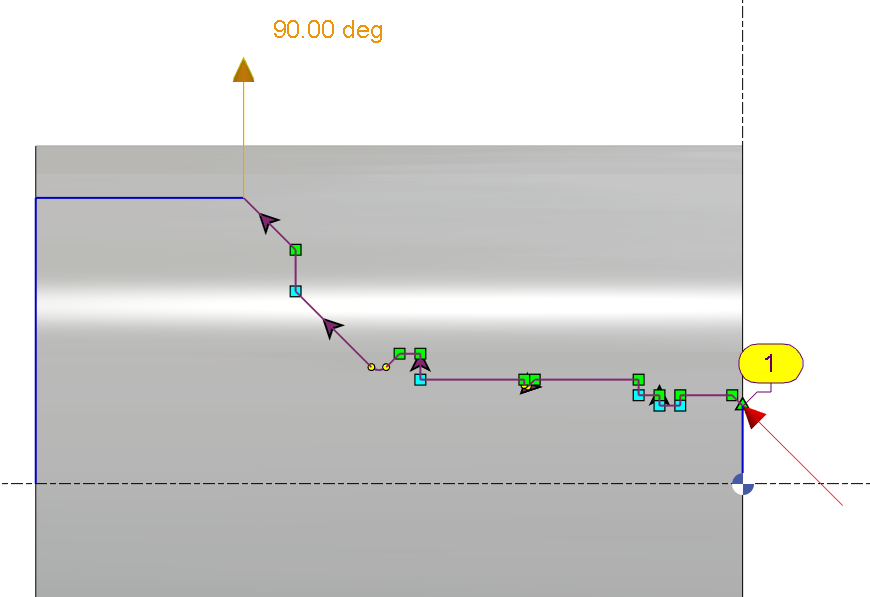
|
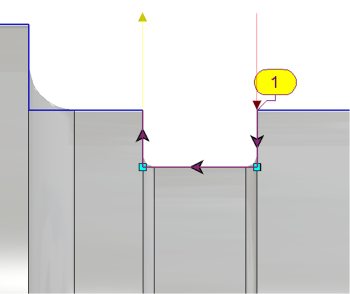
|


You can also do a facing in the opposite direction by inverting the direction of the profile using the “Activation of a profile” command.
|
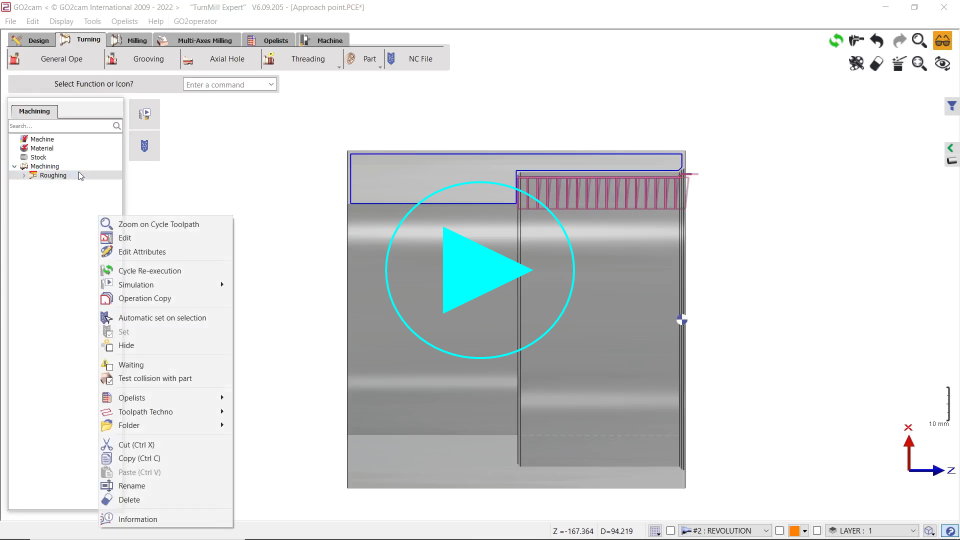
▶️ Special Case: you can watch a video on profile inversion for a facing operation in the opposite direction:
|
Selection of Holes
Cycles: Centering, Drilling, Tapping
|
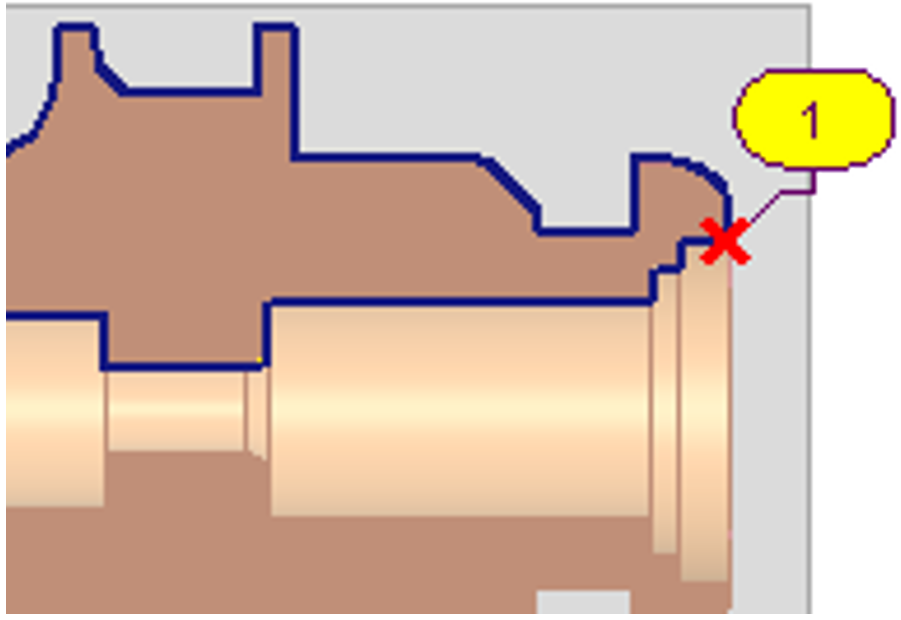
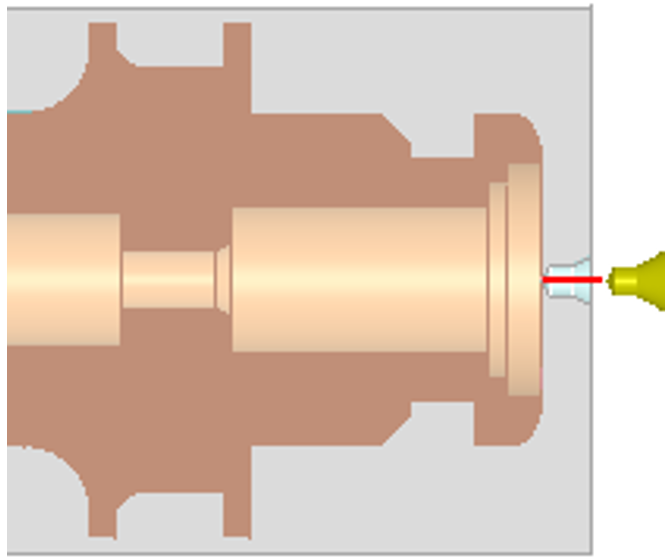
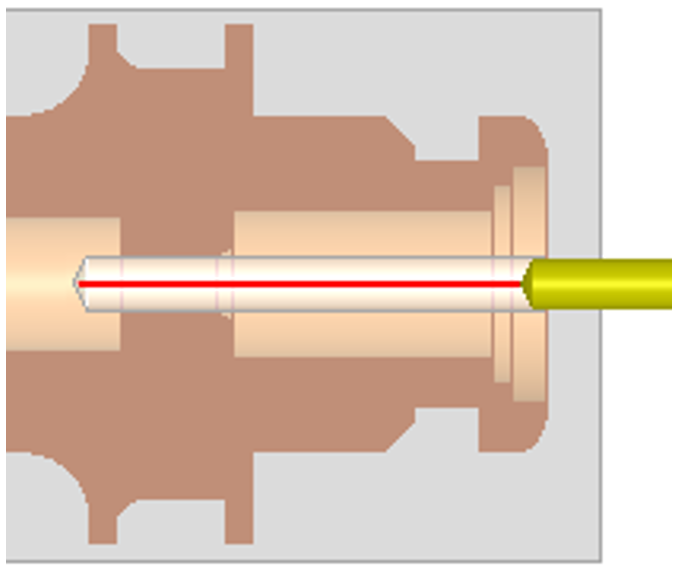
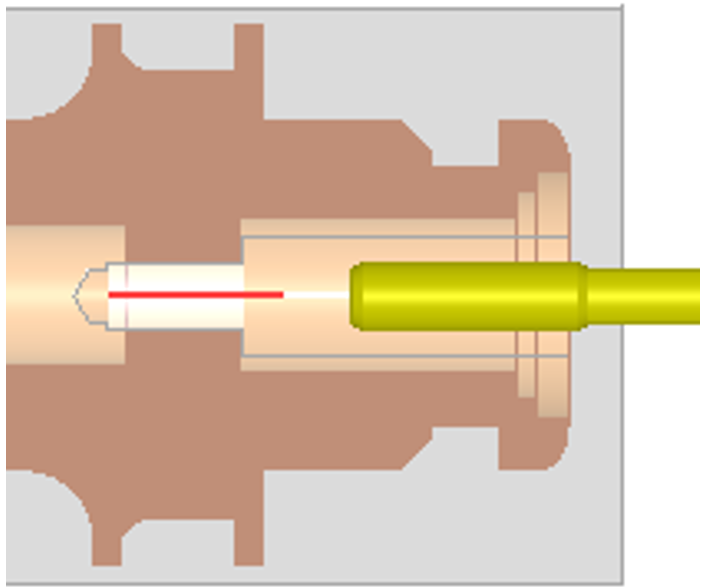
The selection of the geometry for these 3 cycles is specific: you simply need to show one point. It is not necessary that the point is located on the hole axis. It can be anywhere on the geometry, as shown on the image on the right. The depth is determined in the strategy page, with the following parameters: |
|
||
|
Centering operation: 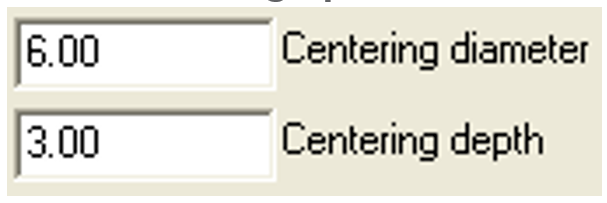
|
Drilling operation: 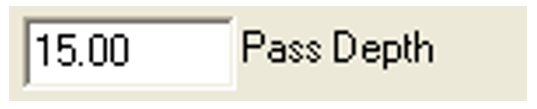
|
Tapping operation:
|
|
|
|
|
|

|
Axial Drilling We now have the ability to preselect the tool by filtering the tool diameter by the selection (same as the milling pocket). The list is reduced to capable tools with Tool Diameter <= Geometry Diameter The default diameter is calculated by the position of the picking point. |

|
|
▶️ You can watch a video about the Selection for General Operations and Grooving and Selection of Holes: .png?cb=1683f04538967888682ee254f1897297)
|