
|
How can I get the middle of a circle or an arc?
|
|
You should use the Ctrl and Shift keys of keyboard and click the circle or arc. The point or element you are creating is attached to the center of circle or arc. |
|
Can I validate rapidly some geometric creation?
|
|
|
Yes, wireframe fillets and chamfers have a convenient but hidden shortcut for validation: simply click in background to confirm the construction.
|
|
|
Can I find the point of intersection between 2 lines or arcs or other elements?
|
|
|
Yes, while using the point command, simply click on the 2 elements, either lines, arcs or edges in the case of solids and the intersection point will be created. See the video for an example.
|
|
|
In my solid model, some holes are recognized as cylinders and cannot be selected for machining. How can I fix this?
|
|
|
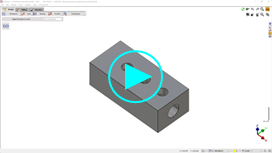
You can change the type of element from cylinder to hole in the command called ‘Solid Analysis’ The video below was done in V6.09, the location of the command changed in V6.10: it is now in the menu Solid>Features. |
|
|
When I modify a value between 2 faces of a solid, I would like to apply the modification symmetrically! How can I do it?
|
|
|
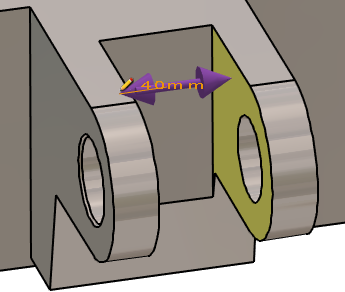
The Control command enables to modify some dimensions and also add tolerances. Click on the dimension to open a small dialogue called RapidEdit: 
|
|
|
If the user modify a value between 2 faces or in a cavity, by default only one face is moved! This is because this icon is set to this position, with 1 arrow: 
|
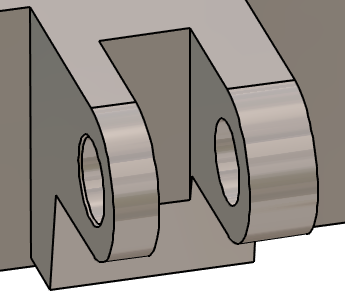
|
|
By clicking this icon, you switch to the symmetrical mode, where the modification will be applied on both faces! The icon now shows 2 arrows: 
Click here for more information about The Control |
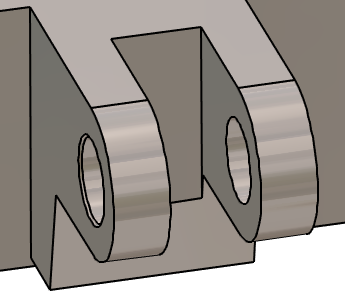
|
|
How to draw a detail view with a change of scale?
|
|
|
To start, you must create the frame of the detail view. Then you can duplicate the frame and the included geometry and rescale it. Note: if you want to set dimensions to this detail view, you can do it and define entities scale to 2. 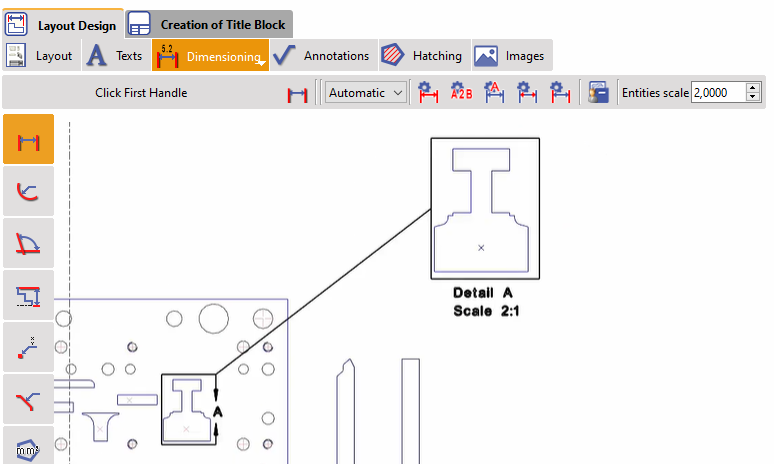
|

|
|
How can I disconnect 2 separate parts on a single solid?
|
|
|
If distinct parts of a single solid are recognized, the ‘Explode’ command is provided in the right-click contextual pop-up, which separates the solid in different objects.
Watch a video on the right showing such an example. |
|