Skip table of contents

Setting Stock-Chuck

2977.png

The Setting Stock-Chuck command is a specialized tool used to calculate the precise position of the stock within the chuck. This feature is essential for Bar Turning operations, ensuring the workpiece is correctly positioned for machining and parting cycles.

Accessing the Adjust Menu

To manage your workholding components:

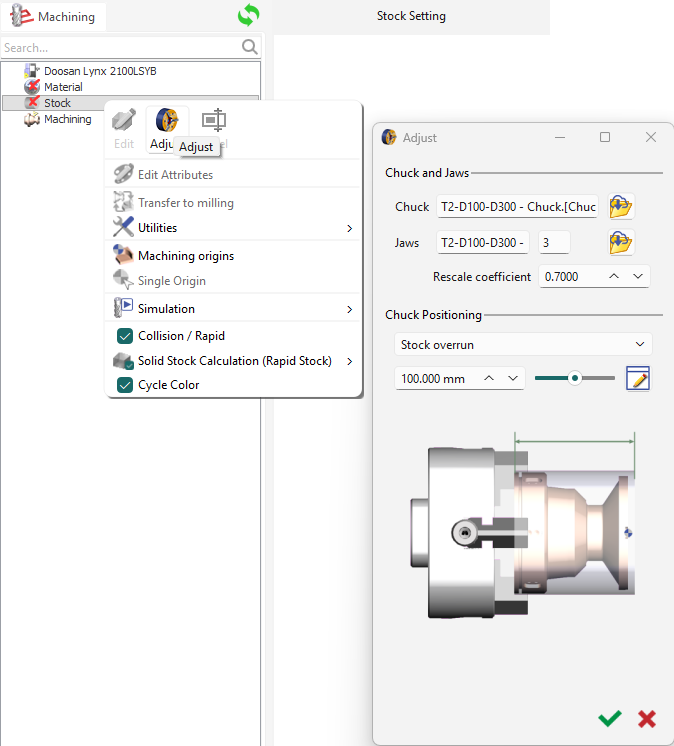
  1. Navigate to the Machining Tree.

  2. Right-click on the Stock option.

  3. Select Adjust from the context menu.

A dialog will automatically pop up, providing direct access to chuck and jaw management.

Chuck Settings

image-20260305-044204.png

The Adjust dialog is divided into two primary sections: component management and physical positioning.

Chuck and Jaws Management

This section allows for the direct import and scaling of your physical workholding hardware:

  • Chuck Selection: Click the File icon OpenCloud-20260225-080152.png to browse and select your specific chuck file.

  • Jaws Selection: Click the File icon OpenCloud-20260225-080152.png to import the corresponding jaw files for your setup.

  • Rescale Coefficient: This field allows you to modify the scaling of the imported chuck and jaws directly within the interface to ensure they match the digital workspace.

These can also be done through the Machine file.

Chuck Positioning

Once the components are loaded, you can define the relationship between the tool and the workpiece:

  • Positioning Modes: Use the dropdown menu to select the specific reference for your setup. Options include:

    • Stock Overrun: Defines the extension of the stock beyond the jaws.

    • Machining Origins: Aligns the chuck based on defined coordinate systems.

    • Shims Thickness: Accounts for the thickness of physical spacers used in the setup.

  • Advanced Parameters: The Edit (pencil) icon editor-20260225-080152.png opens the Position of stock / spindle (SL) menu. This window handles parameters such as safety distances, facing allowances, and parting tool widths to determine the final spindle position.

▶️ Watch this video to see how to directly access the "Adjust" menu and manage your chuck and jaw files for turning operations.

Turning Chuck setiings play.png

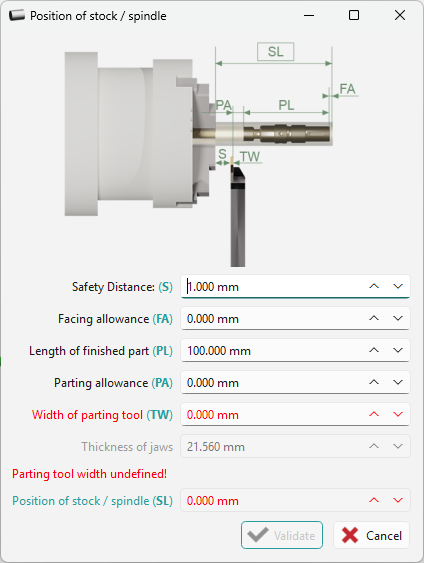
Position Stock/Spindle in Turning Modules

We calculate the distance between the chuck nose and the end of the part.

The following values are automatically gathered or manually entered to reach the result:

  • Safety Distance (S): A user-defined buffer to prevent the tool from approaching the jaws too closely.

  • Facing Allowance (FA): The extra material at the front of the part intended for the facing operation.

  • Length of Finished Part (PL): The actual final length of the workpiece.

  • Parting Allowance (PA): The clearance required for the parting cycle.

  • Width of Parting Tool (TW): The physical thickness of the blade used to cut the part from the bar.

If the parting cycle is not yet defined, the TW value will be 0 and highlighted in red with the message: "Parting tool width undefined!". In this case, the SL cannot be calculated correctly.

image-20260305-051028.png

When we validate the dialog, the value is automatically written in the dialog area.

This value can be considered as the minimum position necessary to machine correctly the part.

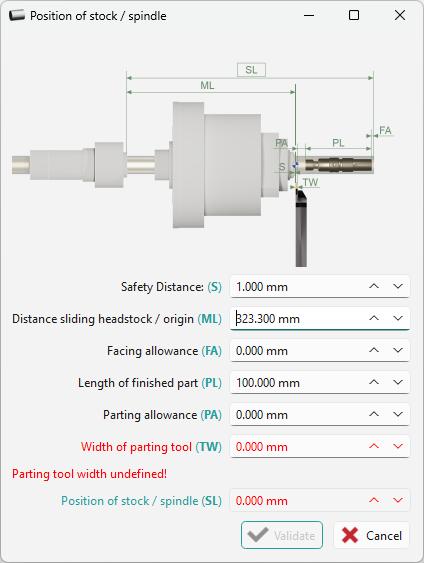
Position Stock/Spindle in Swiss Machining Module

The Swiss module follows the same logic as the Turning module, with one critical literal difference in the reference point:

Instead of measuring from a fixed chuck nose, the software calculates the distance between the sliding headstock in its maximum (maxi) position and the end of the part.

  • Machine Kinematics (ML): The system reads the specific kinematics for the sliding headstock.

  • MCG File Configuration: For the result to be accurate, the ML value must be defined at the maximum extension within the machine's MCG file.

image-20260305-051730.png

▶️ You can watch a video on setting Stock/Chuck in Turning:
Stock_Chuck setting.png

JavaScript errors detected

Please note, these errors can depend on your browser setup.

If this problem persists, please contact our support.