
The Undo 

They work on almost all actions in GO2cam and can be used multiple times in a row (up to 100 steps), so you can safely explore and correct your work without risk.
Access the commands
Three ways to run the Undo and Redo commands:
-
In the General Toolbar, at the top next to text menus.
-
In the Edit menu.
-
Using shortcuts Ctrl+Z (Undo) and Ctrl+Y (Redo).
Behaviour
-
Undo cancels one action at a time and can be repeated multiple times. Redo repeats actions similarly.
-
Undo and Redo each have a dropdown list in the General Toolbar to access action lists.
There are two types of lists:
-
Geometry list: actions in wireframe and solid geometry, plus workplane creation.
-
Machining list: creation and editing of operations, material actions, and techno commands.
These lists persist when switching between Design and Machining but reset after:
-
Saving the part file.
-
In Geometry, Update of geometry preserves the action list, while Total Update resets it.
-
In Machining, both Total Update and Update of machining reset the action list.
Undo List in Geometry
The actions are sorted in the chronological order, from bottom to top: last action is on the top.
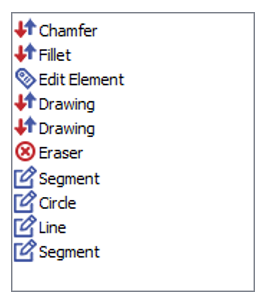
The icons give information about the type of action:

|
Commands of creation: segment, line, hole, etc. |
|

|
Deletion of element. |
|

|
Commands of modification of geometry: fillet, chamfer, drawing, etc. |
|

|
Modification of an element (commands Edit). |
|

|
Modification of solid with the command Control. |
|

|
Update by user: a command that runs complex calculation has been used, and the consequence is that the Undo is limited to one action. |
|

|
The part was updated automatically. Only one Undo action is possible after that. |
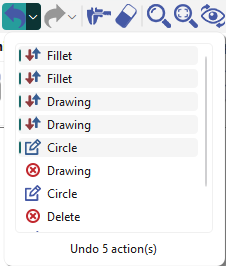
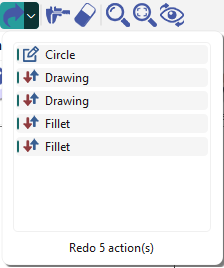
With this list, you can make a multiple selection and consequently cancel several actions at once! The actions cancelled are automatically switched to the list of Redo actions.
|
2. The selected actions appear in the list of Redo: |
|
|

When performing an Update Geometry, the undo action list remains unchanged. For Update Total, the undo list resets to show only an undo for Total Update.

|
You can watch a video on Undo/Redo on Wireframe Design: 
|
Undo List in Machining
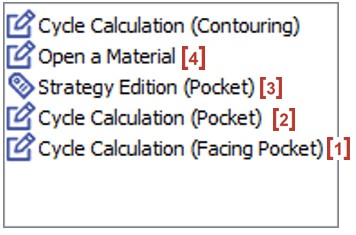
The behaviour is mostly the same as in geometry. You can make single undo and redo or make multiple selection with the lists.
The icons in the Undo and Redo lists are also the same as in geometry.
|
|
The list shows the name of the related operation for creating and editing operations.
Some complex machining commands keep only the last action.
In this case, the Undo list resets! Only one undo is possible. This applies to the following commands or actions:
-
update of calculation,
-
create or open a machine file,
-
part symmetry,
-
optimization,
-
load a symbol (vice, for example),
-
edit the stock if you confirm the update of calculation.
Undo and Redo commands in machining do not automatically recalculate toolpaths and remaining stock. This saves time but leaves stock and toolpaths outdated.
An orange balloon appears on the Update icon, indicating that an update is needed.
|
|
You can watch a video on Undo/Redo on Machining Interface:
|