GO2cam Dental Help

What's New in GO2dental V6.12

1new_news.png

List of new features and Improvements of GO2dental V6.12.200, released on 10th of Jan, 2025.


Icons used in the tables below

New611.png

New Features

improve5.png

Improvements


1new_mouse_left_24.png

Graphic User Interface

improve5.png

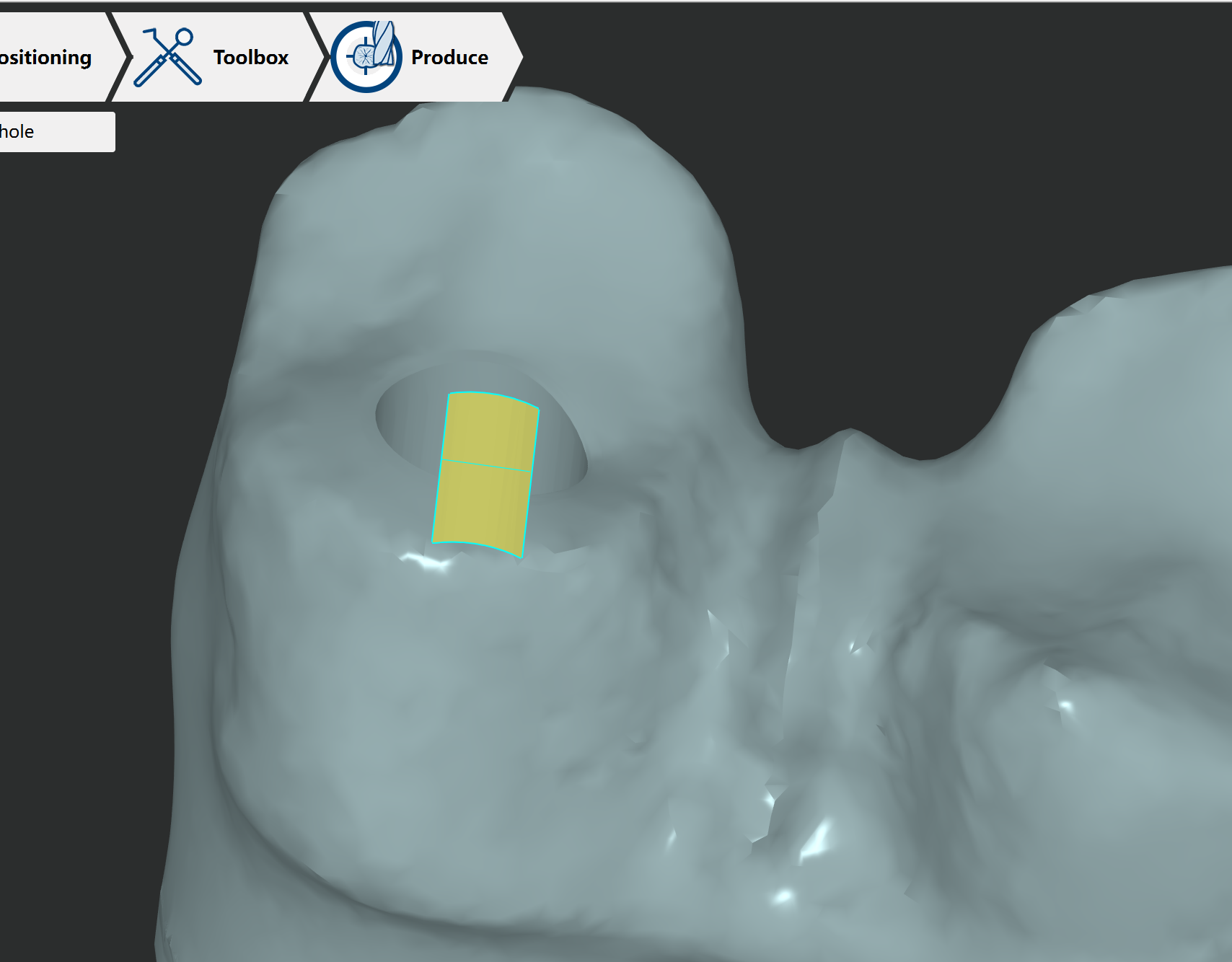
New module of mesh to recognize holes

  • The mesh is smoother and a complete surface in the hole.

To fix GO2DEV-3184

image-20241120-033741.png
New611.png

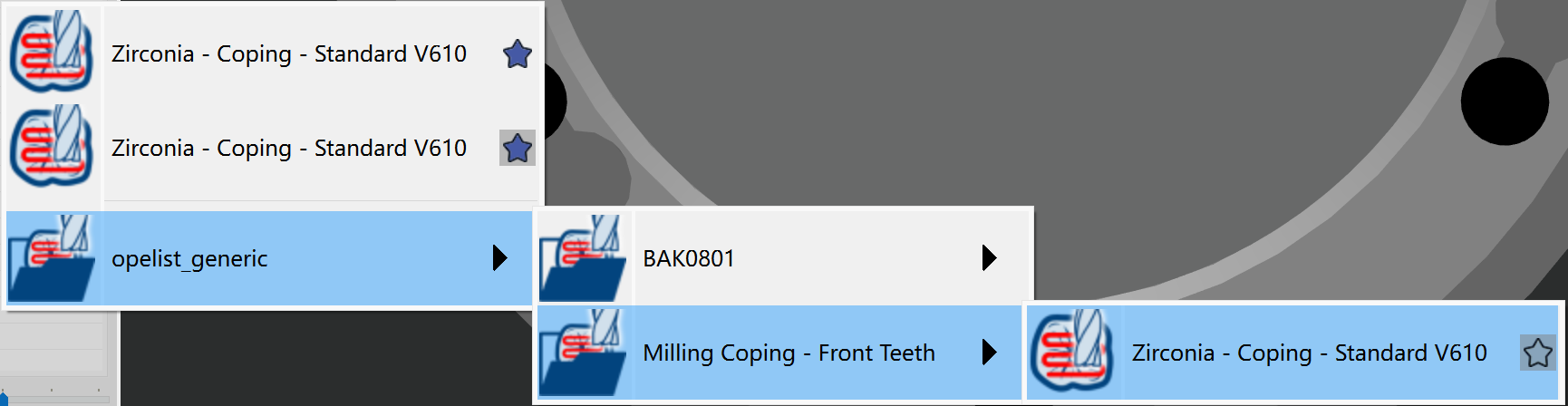
User can tag an OPL as favorite

  • During the selection of OPL, users can activate the star on the right to make this OPL as 'favorite'

  • When a OPL is activated as ‘favorite', it will be copied to the directory of 'OPELIST’, the favorite OPL is always shown on top.

GO2DEV3256


image-20241120-034723.png


improve5.png

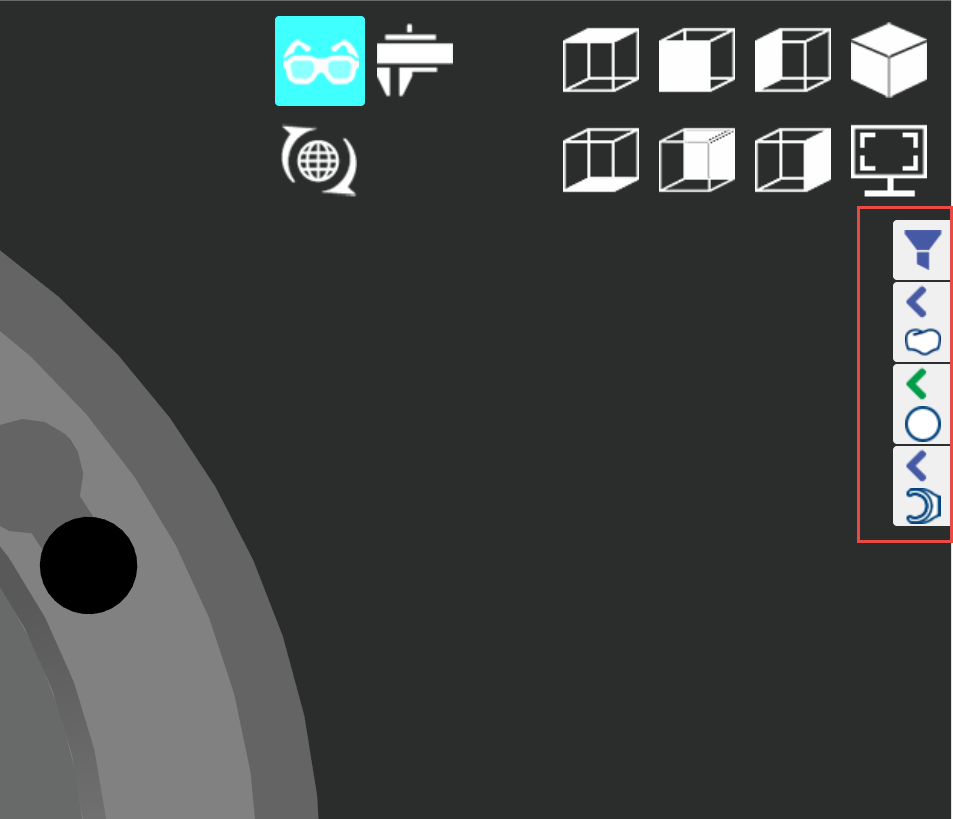
Icons on right side are bigger now.

GO2DEV3260


image-20241120-035000.png


improve5.png

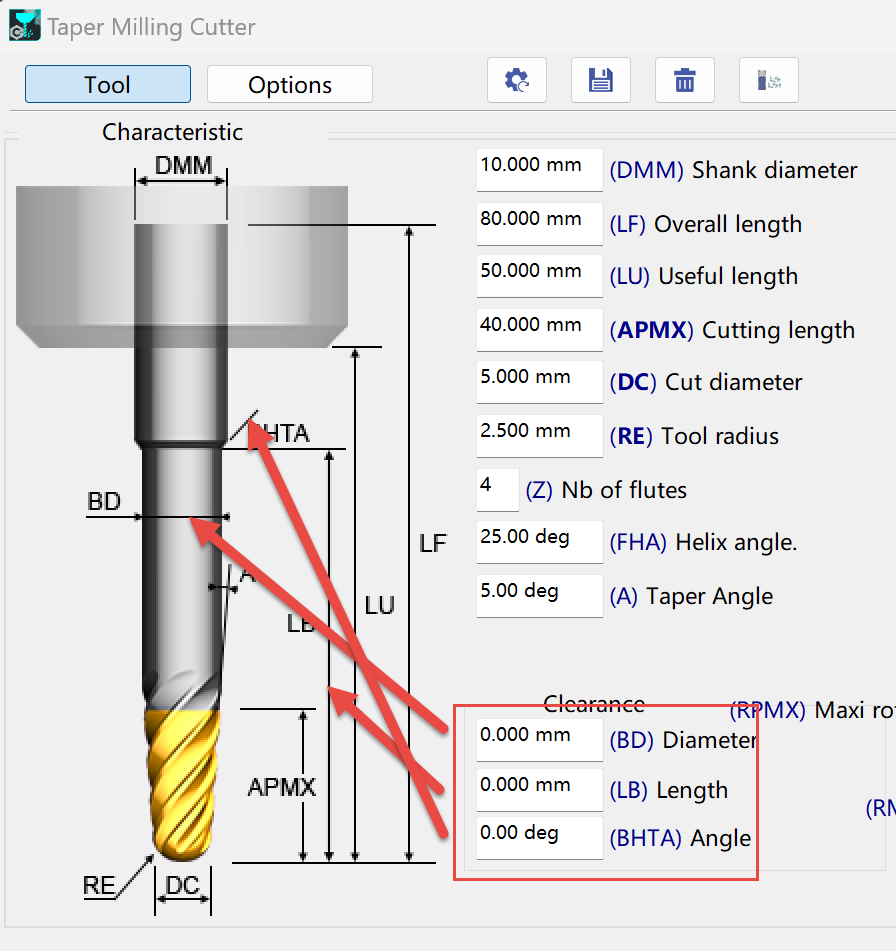
New tool definition of Taper Mill Cutter

  • 3 new parameters BD LB and BHTA are added now to define more details

GO2DENTAL-71


image-20241120-035744.png


1new_mouse_left_24.png

Pre-milled Configuration

improve5.png

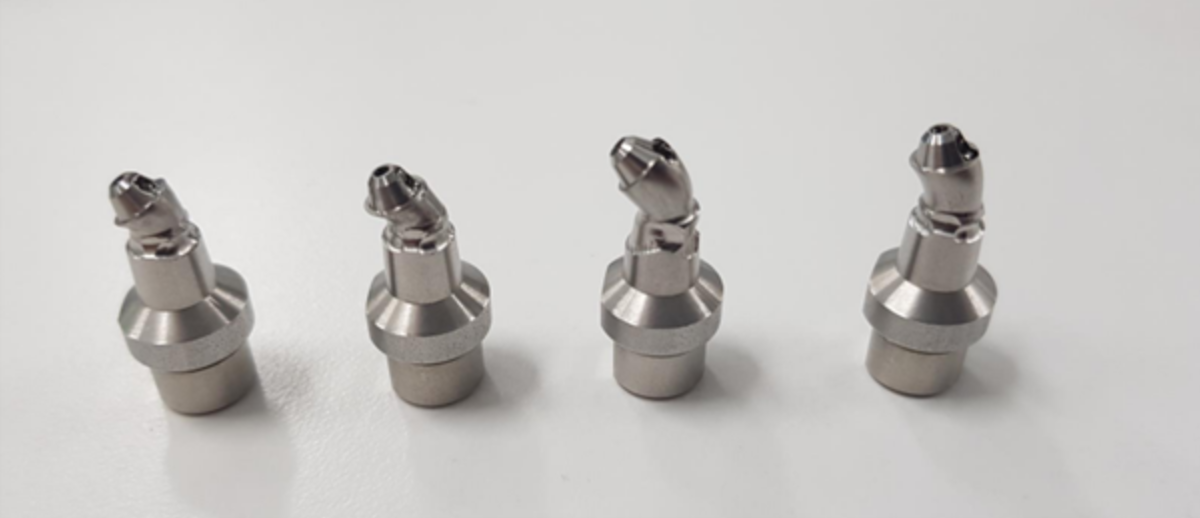
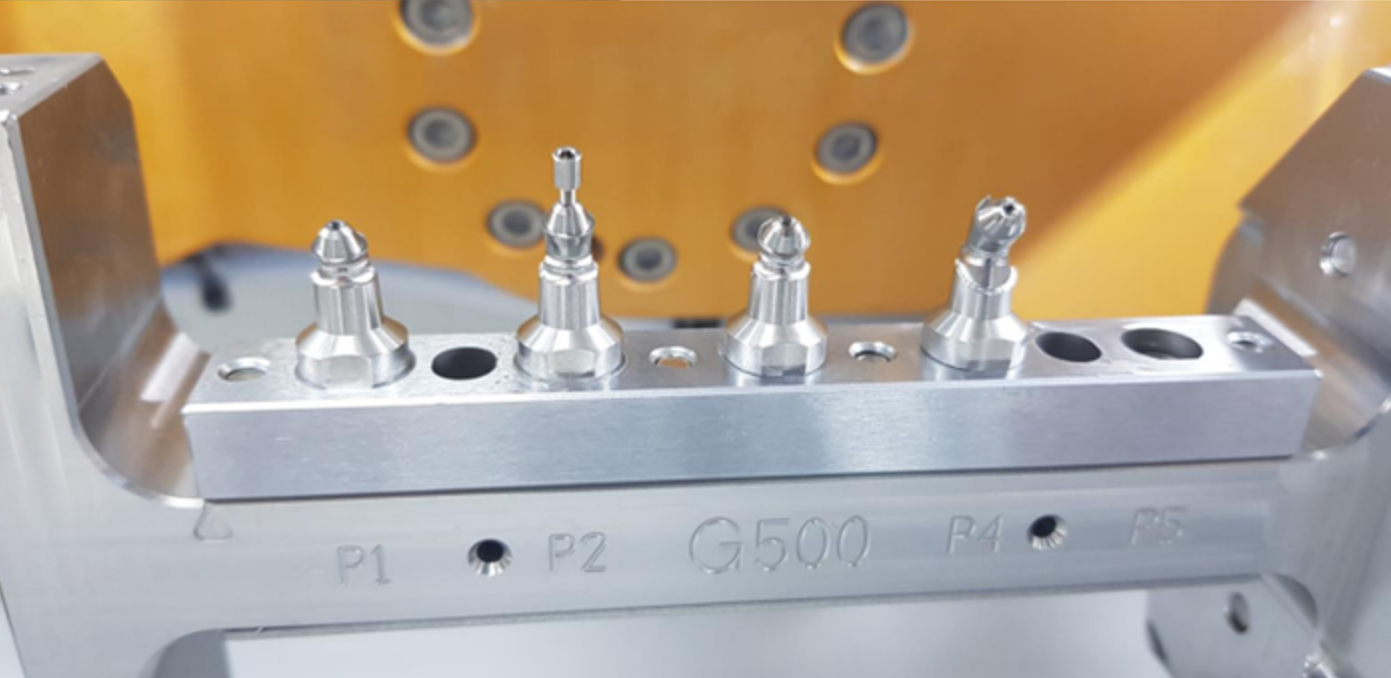
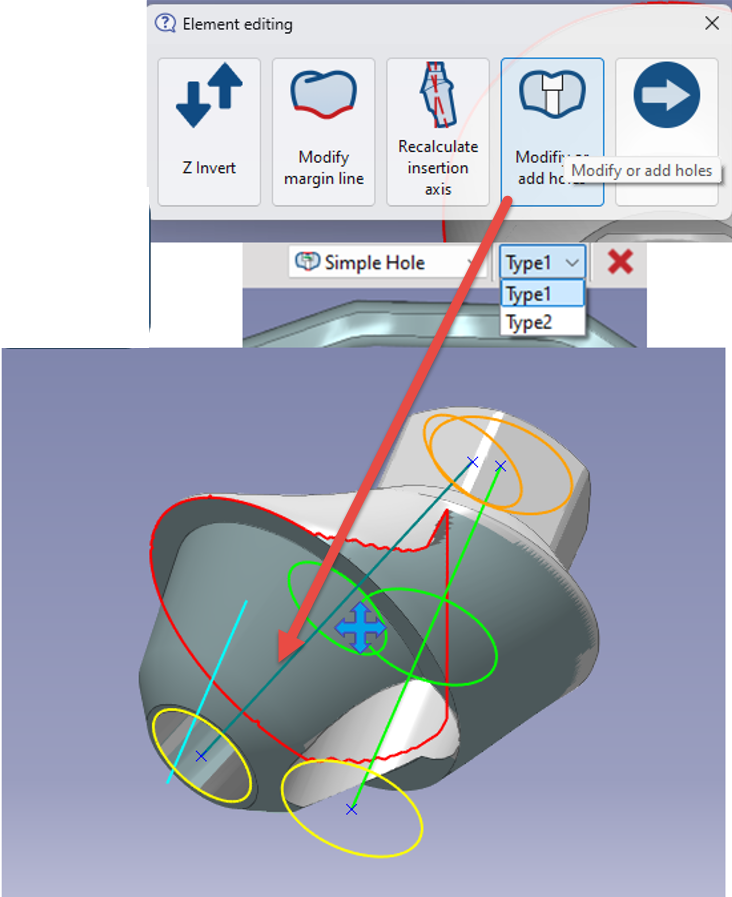
New function to add one more hole axis on MUA abutment

  • This function is available in analogue method only to mill 'MUA'

(GO2DEV3262)


image-20241120-050231.png
image-20241120-050607.png


image-20241120-050656.png


improve5.png

New function to recalculate insertion axis on abutment

  • This function is available in analogue method only

  • We can apply finishing toolpath along the new insertion axis to finish the undercut area


image-20241028-063133.png


1new_mouse_left_24.png

Toolbox

improve5.png

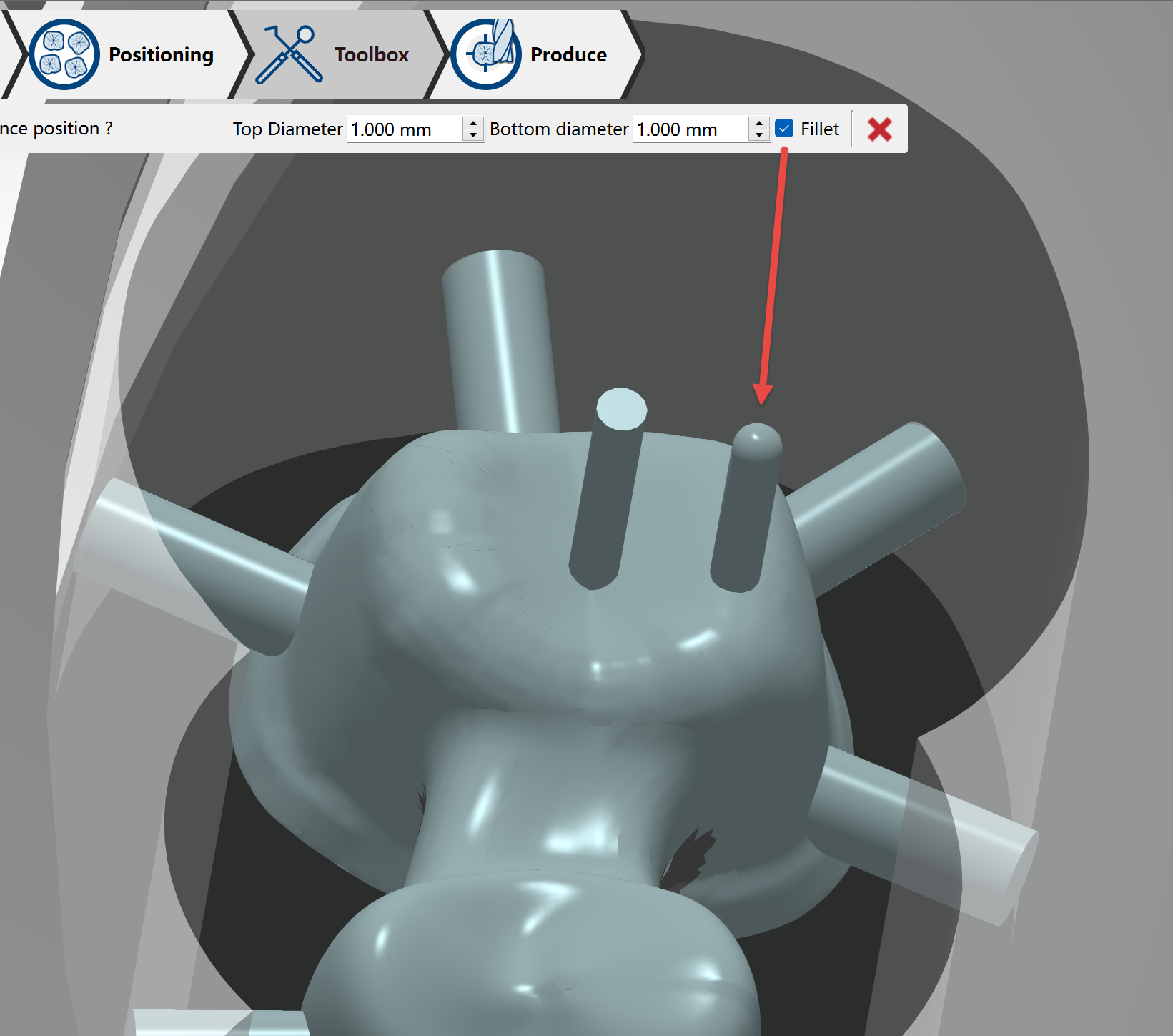
Have radius on the top on the Sintering PIN

  • Now if we activate 'Fillet', the created pin will have fillet on the top

GO2DEV3257


image-20241120-052828.png


New611.png

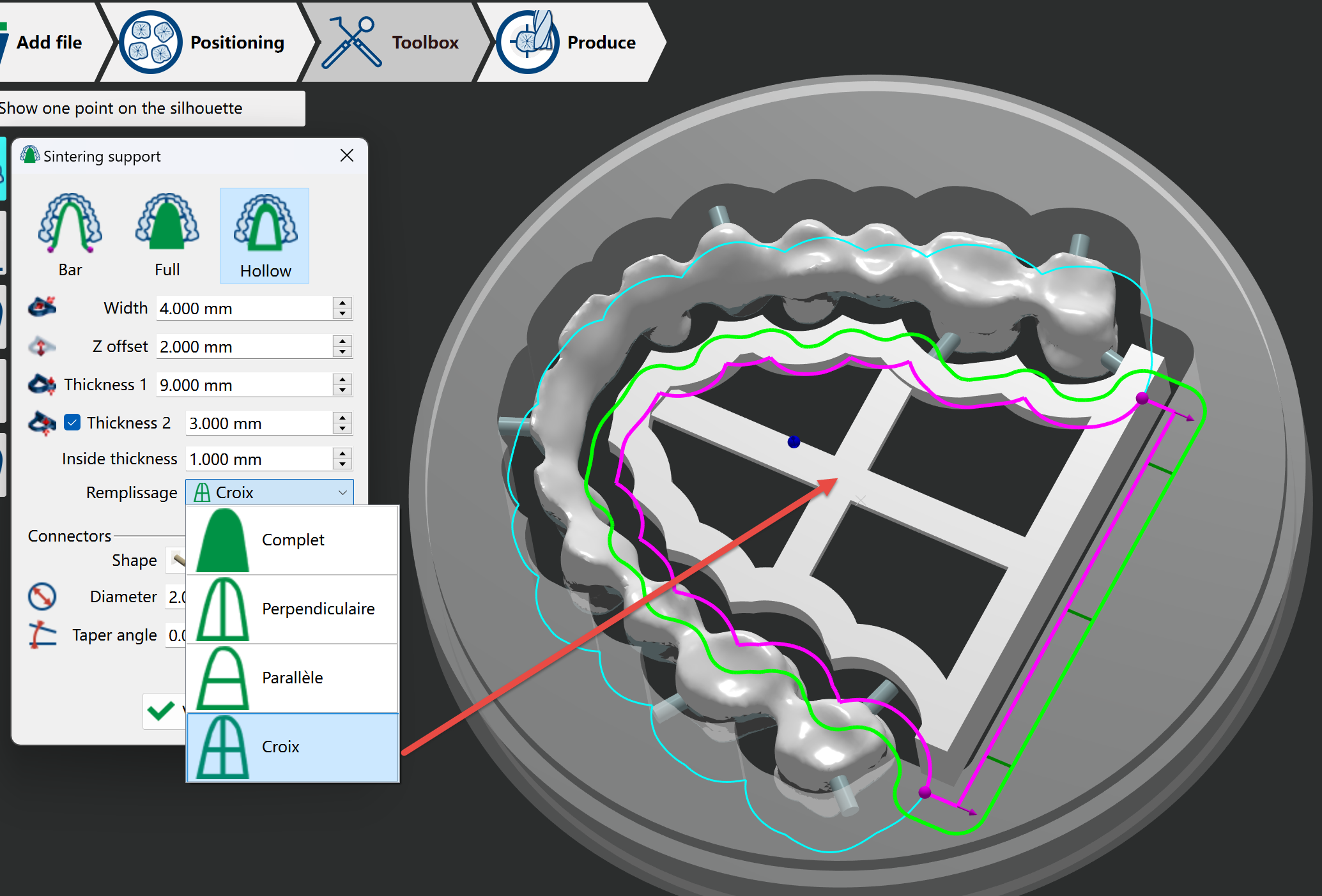
New function to define Ushape connector

  • User can have 3 new sub-types of U shape connector

GO2DEV3258


image-20241120-053037.png


1new_mouse_left_24.png

Positioning

improve5.png

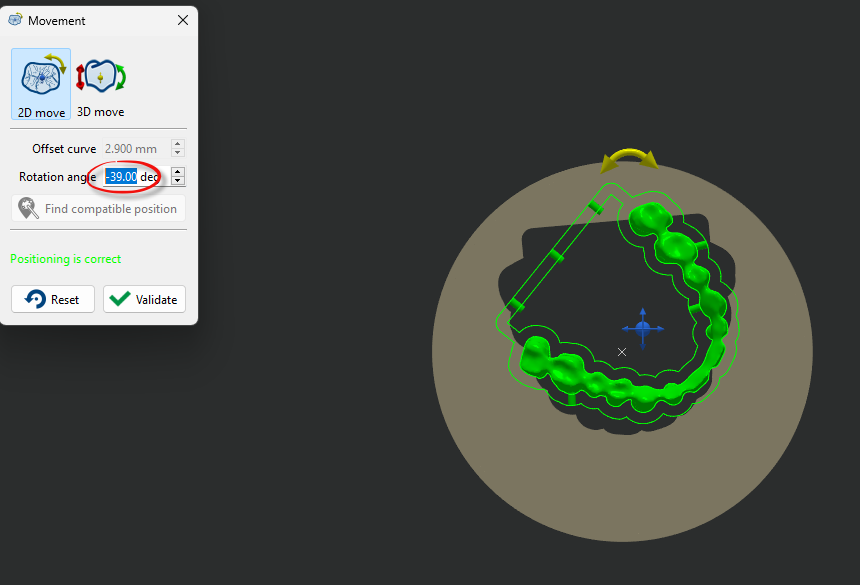
Use mouse “scroll” to control 2D move

  • Activate rotation angle in the dialog then you can use “scroll” on mouse to control the angle

  • Press Ctrl key to have bigger angle sensitivity

  • Your mouse cursor must be stopped in the value of rotation angle to activate this function

GO2dental-74


image-20240731-090529.png


1new_mouse_left_24.png
New611.png

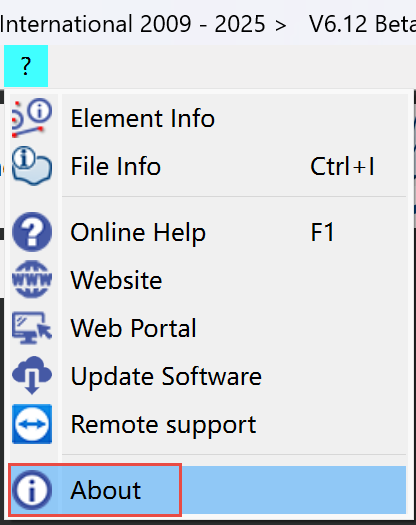
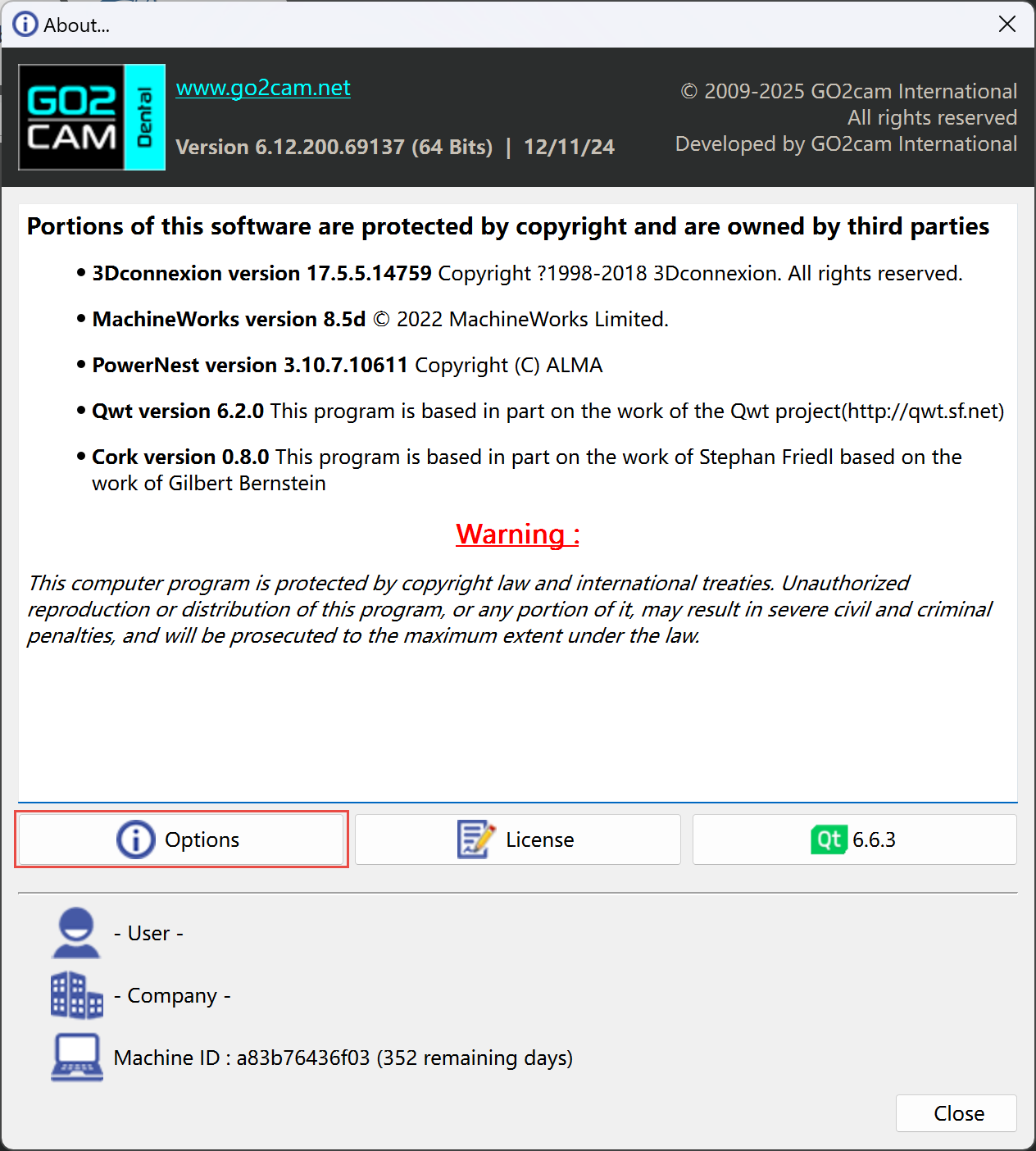
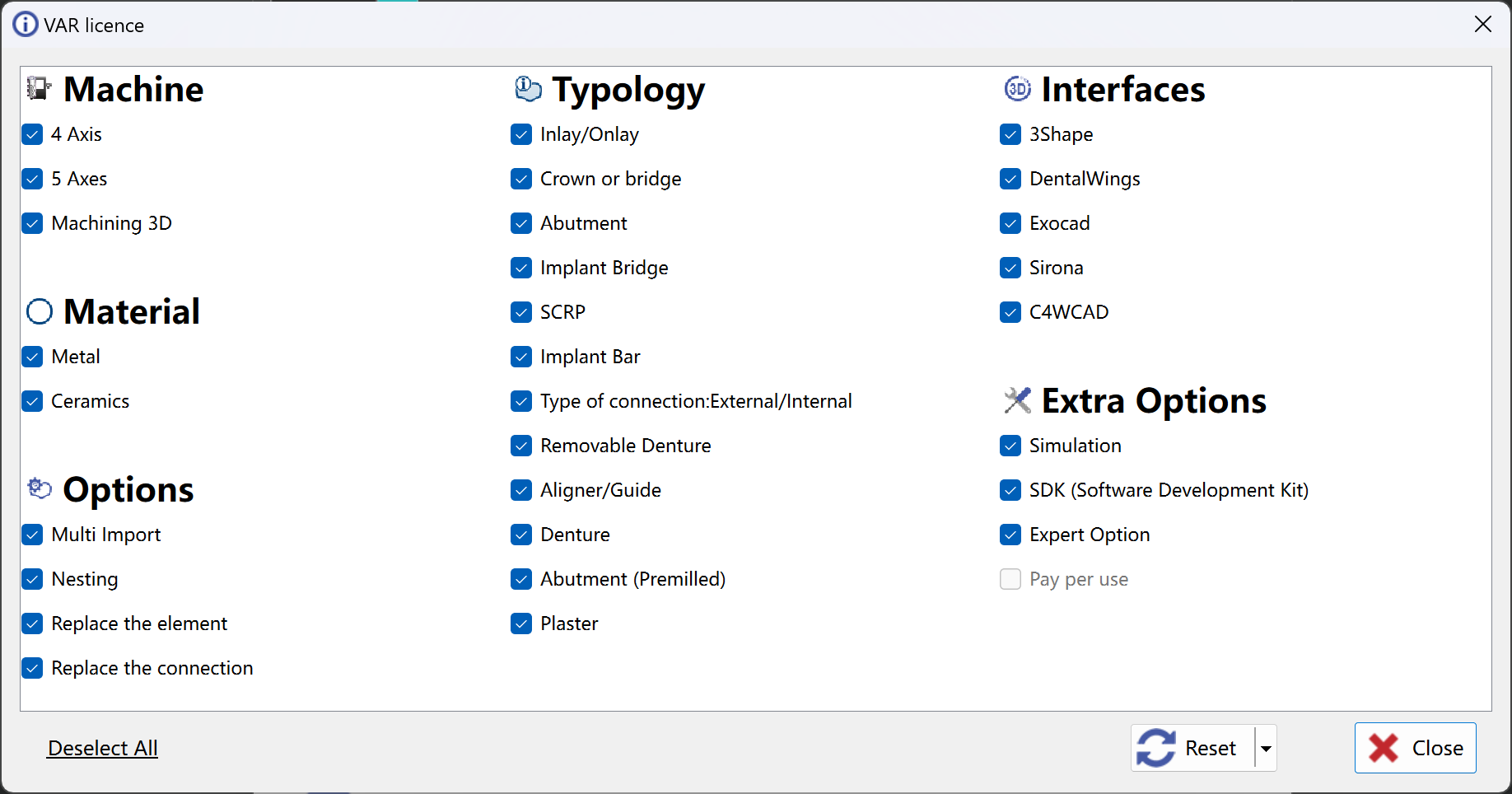
About – Option to control bits of license

  • In the menu ‘?' → ‘About’ → ’Options', you can enter in a window to control the bits of your license.

GO2DEV3270


image-20241120-055434.png
image-20241120-055458.png


image-20241120-055521.png


improve5.png

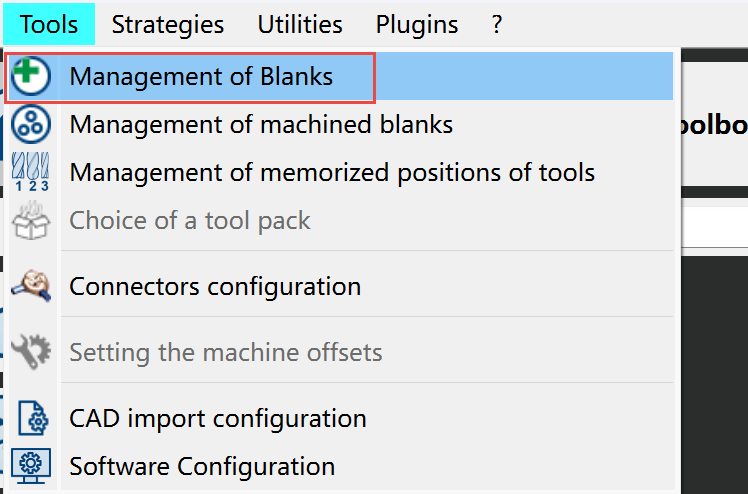
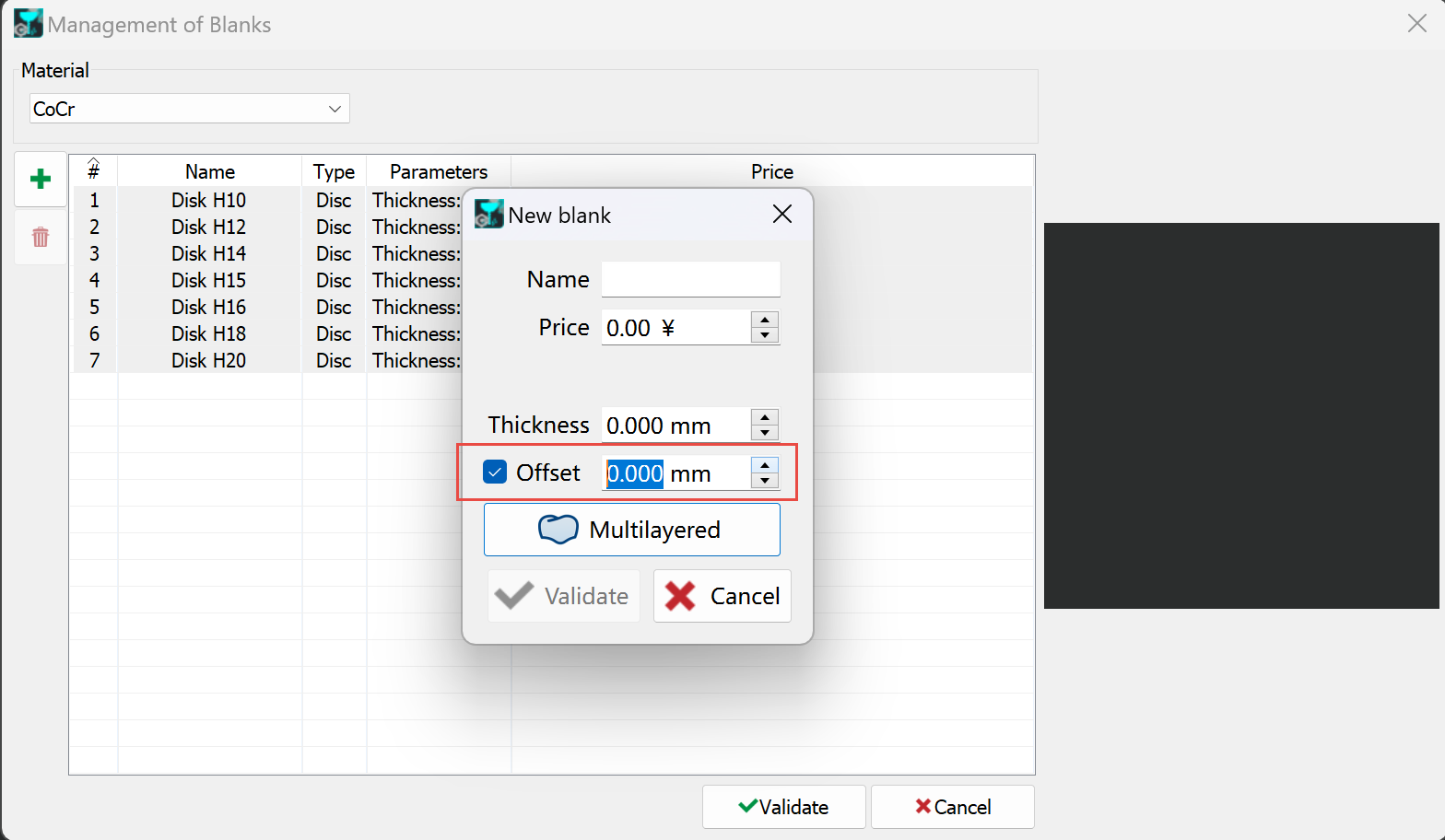
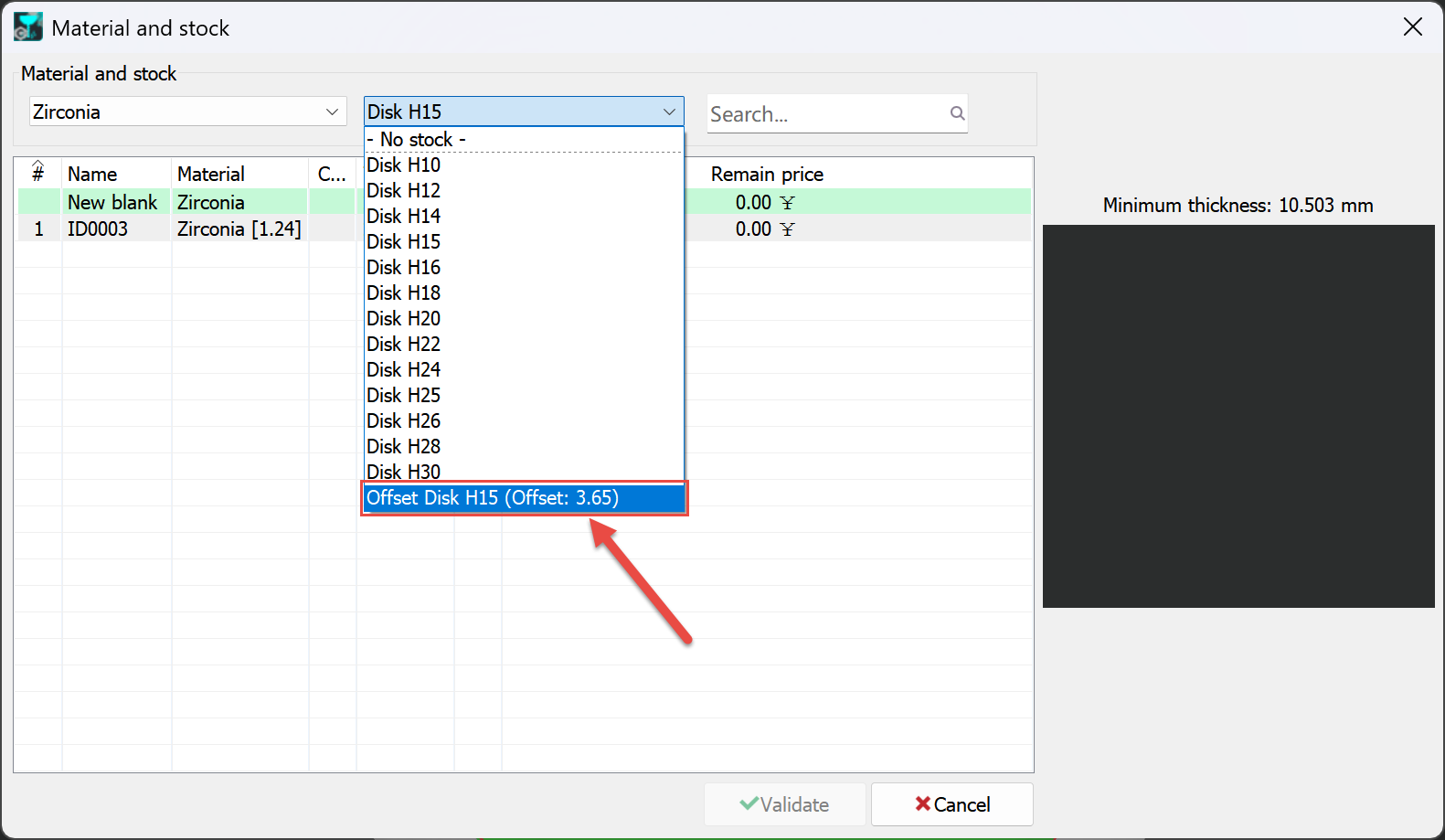
User can add Offset value of each created new blank

  • In the menu Tools → Management of Blanks you can add a new blank in your library

  • For each new blank you can add a value of 'Offset'

  • The defined offset value will be displayed when this new blank is shown in the list

  • If this value is filled, this offset is taken instead of a default offset(2.9 for Zirconia e.g.) found in opelist

GO2DEV3259


image-20241120-055755.png
image-20241120-055854.png
image-20250616-063254.png


New611.png

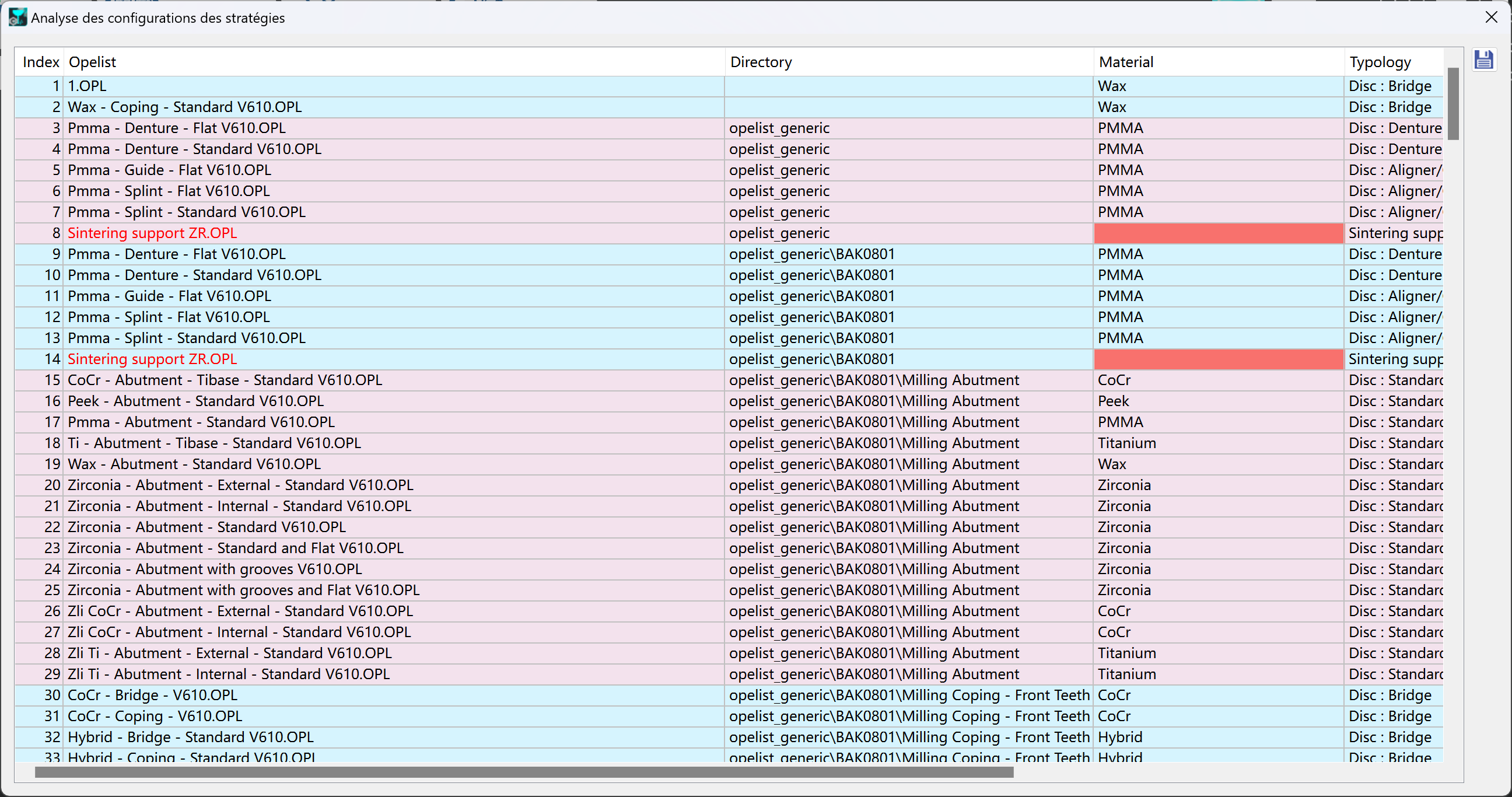
Analyse of OPL

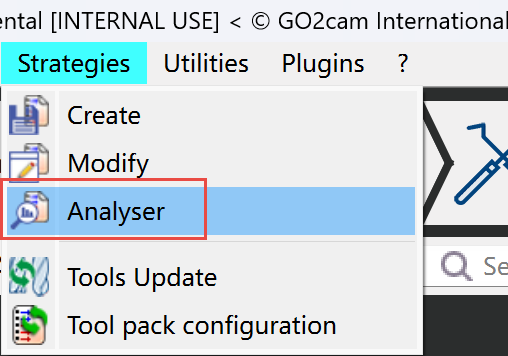
  • In the menu Strategies → Analyser you can open a window to show all detailed information of your OPL

  • The OPL which has missed information will be displayed in RED

  • You can double click at the OPL, then the editor of this OPL will be displayed that you can modify this OPL.


image-20241120-060228.png


image-20241120-060345.png