
Presentation

|
The command ‘Edit Element’ enables to modify a geometric element already designed. Several ways to access to ‘Edit element’:
|
|
Geometric entities with names are displayed with their names in the title during editing. |
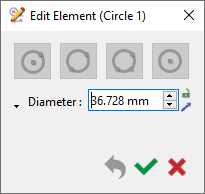
|
GO2cam implements parametric design principles in the creation process. As a geometrical element is created, the history of creation is kept in a database. This methodology makes it possible for the selected element to have a link to all construction previously made.
Parameterizing is a powerful functionality of GO2cam, you can find more information about it by clicking here!
|
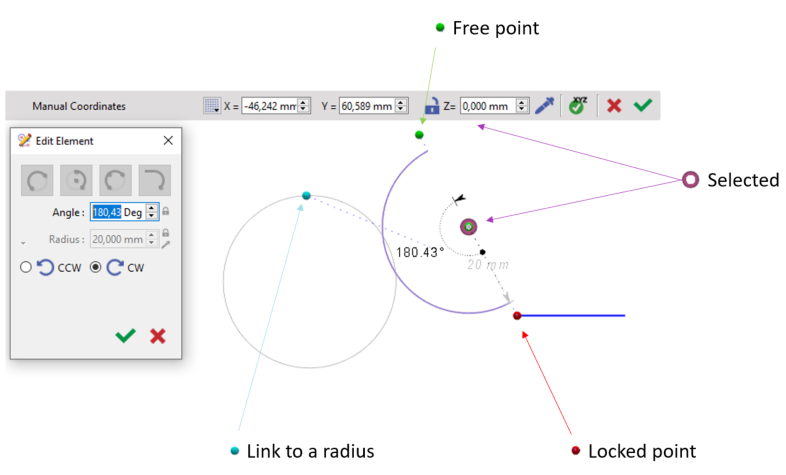
The parametric relationships between the elements in 2D geometry is defined by a series of points that can be manipulated to modify the entity as shown below: |
|
|
|
|
Link [Blue] |
Linked to another radius and will reflect any changes carried out on the original. This link can be broken by clicking on the lock icon upon selecting it. |
|
Locked Point [Red] |
The initial point through which all others are linked. Displacing this point will move the whole structure. |
|
Selected [Purple Outline] |
The current point that is selected. |
|
Free Point [Green] |
Can be moved freely without affecting the other points. |
Radius of an Arc
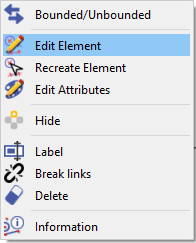
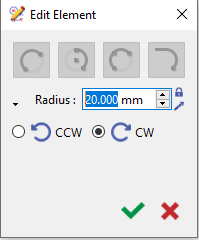
Below are the steps to edit the arc element:
|
|
|
|
|
|
|
▶️ You can watch a video on editing the radius of an arc: 
|
Editing a Fillet
Below is an example video showing how to edit a fillet.
|
▶️ You can watch a video on editing a fillet:
|
Color of Editing Element
|
As from V6.11, the colors of an element being edited and the elements after are distinct. These colors can be user defined in Tools> options> Theme. For more information, check the page Theme. |