
Many commands are available through the popup menus. These menus are accessible with a right-click on the screen.
They are contextual, which means that they are different from a context to another and from a type of an element to another.
When you use a command in which validation is necessary (deletion, move, selection etc.), the validation is usually available in the popup. In the popup are also gathered general commands, such as Edit Element, Edit Attributes, Hide commands, etc.
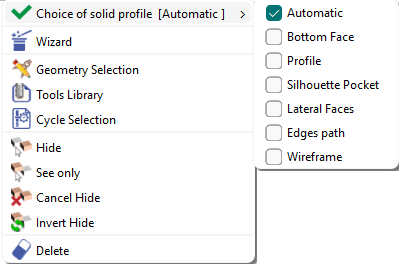
Finally, you will also find special options needed for a menu or a command (for example, you can invert the direction of a profile in contouring selection) or the only way to access the functions for texts is via the pop-up.
Examples of Background Popups
|
Milling Geometry |
Turning Geometry |
After cycle calculation |
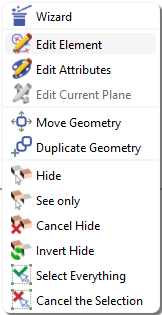
|
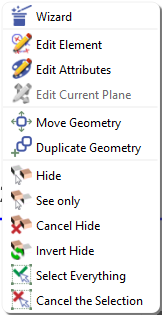
|
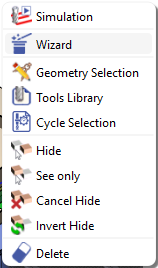
|
Elements Popups
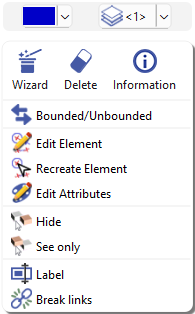
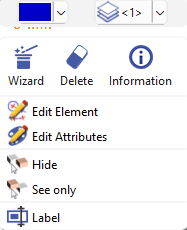
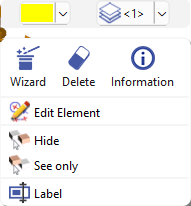
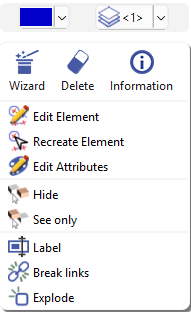
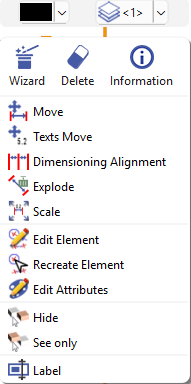
Popups menus relative to the type of elements are available. Directly right-click on some elements to open dedicated menu.
Some example of element Pop-ups are found below:

|
‘See only’ Option A new See Only option is available in the elements popup via right-click. This option displays only the selected part, feature, annotation or entity. The See Only mode can be deactivated by using the Cancel Hide option. |

|
|
‘Explode’ Option If distinct parts of a single solid are recognized, the ‘Explode’ command is provided in the right-click contextual pop-up, which separates the solid in different objects.
Watch a video on the right showing such an example. |
|
|
Wireframe Geometry |
Holes |
Profiles |
|
|
|
|
System of Axis (Toolholders) |
Texts |
Annotations |
|
|
|