
Overview
The library of tools is accessible in all the machining menus. The icon in the toolbar is different in each menu and the list of available tools depends on the type of operations you can program. This help page is meant to explain how to select a tool from any type, and how to sort and search the tools in the library.
Note that all tool shapes such as taper cutters and barrel tools are managed in the cycles. GO2cam also manages tools with conic shank.
|
▶️ Watch a video at the bottom of the page: Click Here |
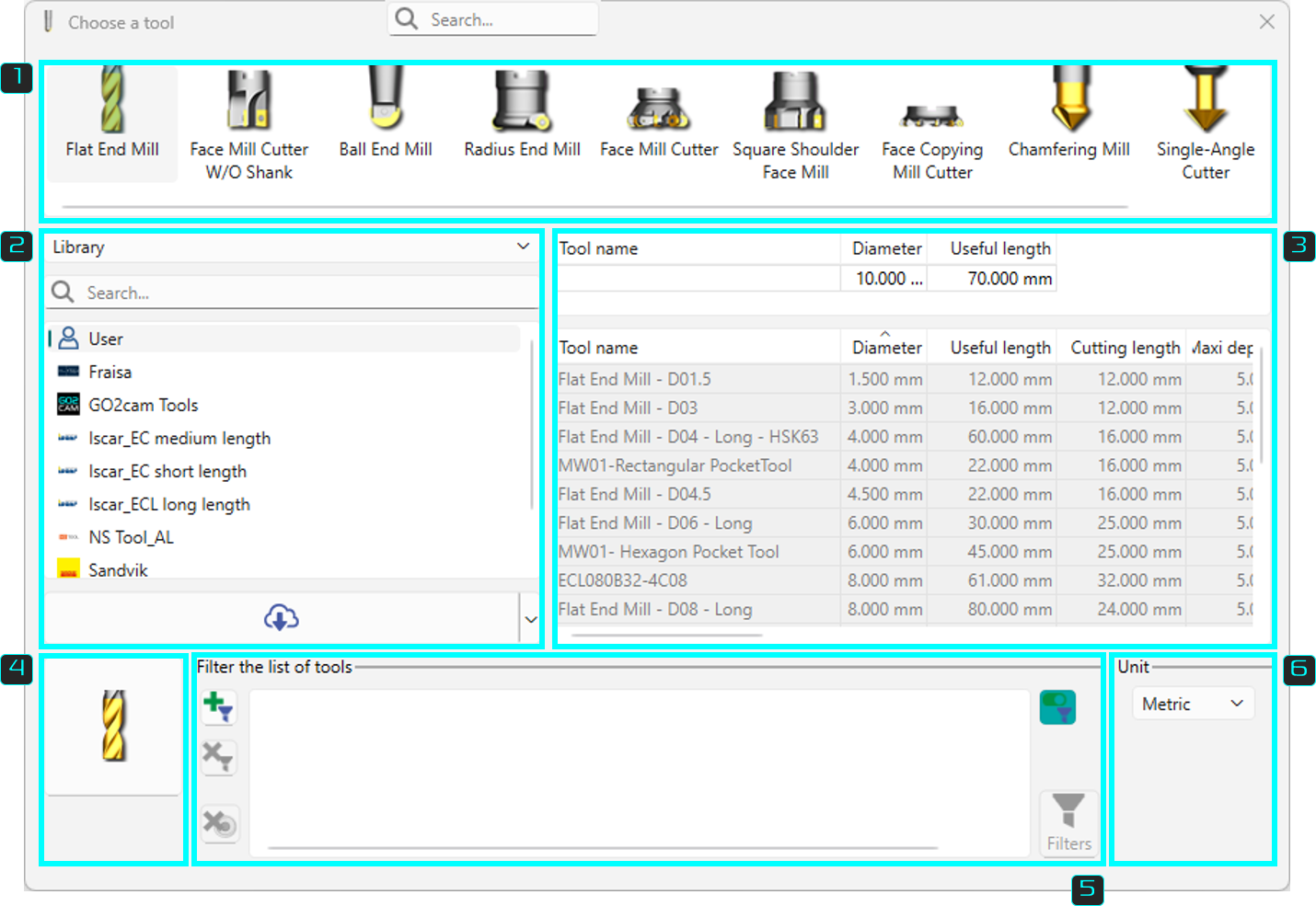
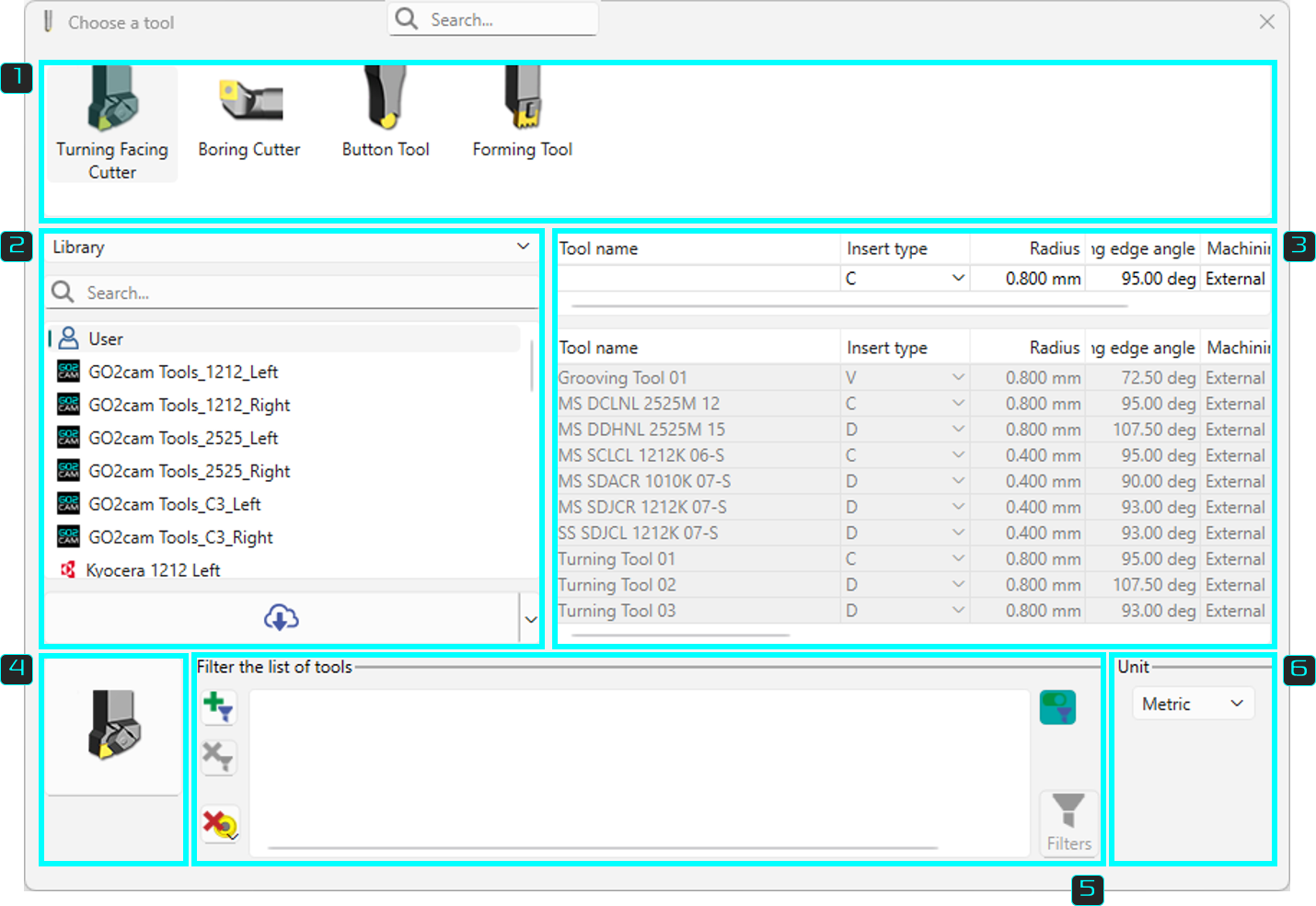
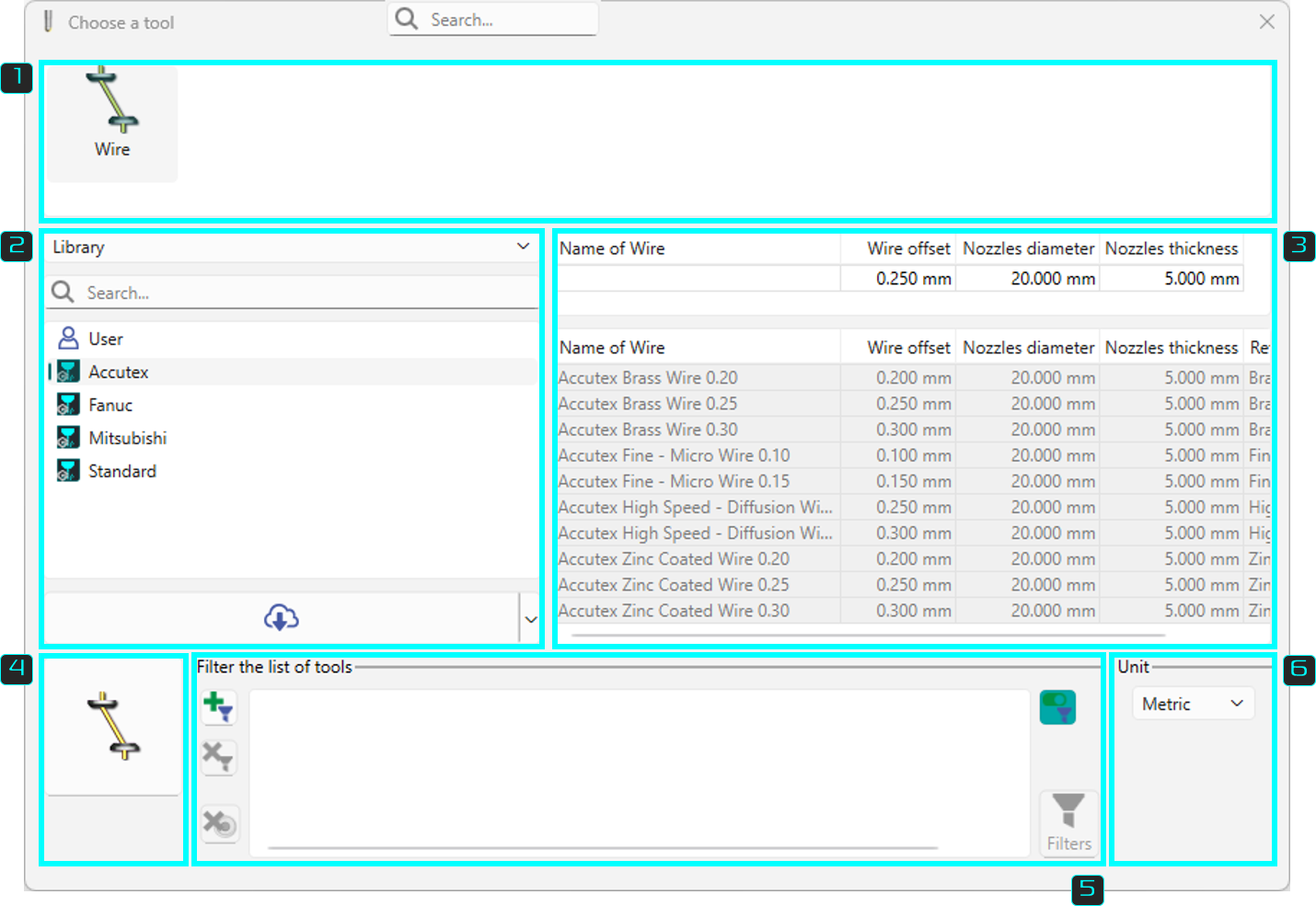
Milling, Turning and Wire EDM Libraries
|
|
|
Library Areas

|
Types of tools |
Click the required Tool Family to open the corresponding tool library. The available tool list is also filtered according to the selected machining operation, if the operation has already been defined. For example, in the Hole menu, selecting the Tapping operation limits the list to Tap and Forming tools only. |

|
List of tools for each Tool Type |
By default, a placeholder tool with predefined values is provided. In this case, the toolbar icon displays an orange indicator. When a tool is selected from the library, its details are displayed in this area, and the toolbar icon changes to a green indicator. The displayed tool parameters can be modified if required, including those of tools already stored in the library. The Download icon provides access to tool libraries from various tool manufacturers. |

|
Download of Wires The Wires Library Dialog gives now access to the GO2tool library, with 14 libraries available for download. This is the exact same window than in milling and turning. |
|
|

|
Library |
A list of available tools is displayed according to the selected source:
|

|
Tool Page |
Access the tool characteristics and ability to define a complete tool with its holder(s): click here. Also accessible from Types of Tools section by doing a Right Click>Tool on the tool family. |
|

|
Filter the list of tools |
Tools can be filtered and sorted in the library using multiple selection criteria to simplify the search process. An automatic tool preselection feature, called Tool Finder, is also available. Tool Finder suggests suitable tools based on the geometry of the pocket being machined. For more information, Click here to refer to Tool Finder. |

|
Unit |
Select either Metric or Imperial unit. |
|
|
New Search bar within ‘Choose a tool’ and ‘Choose a machining cycle’ box to allow search for specific tool or machining cycles. 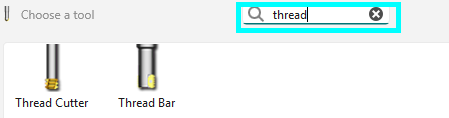
|
▶️ Watch a video on search and diameter filter. 
|
|
The default sorting of the list of tools shown as options is now diameter wise rather than name wise. |
||
|
|
The elements of the libraries of tools and cycles are written in grey and the background is a lighter grey. |
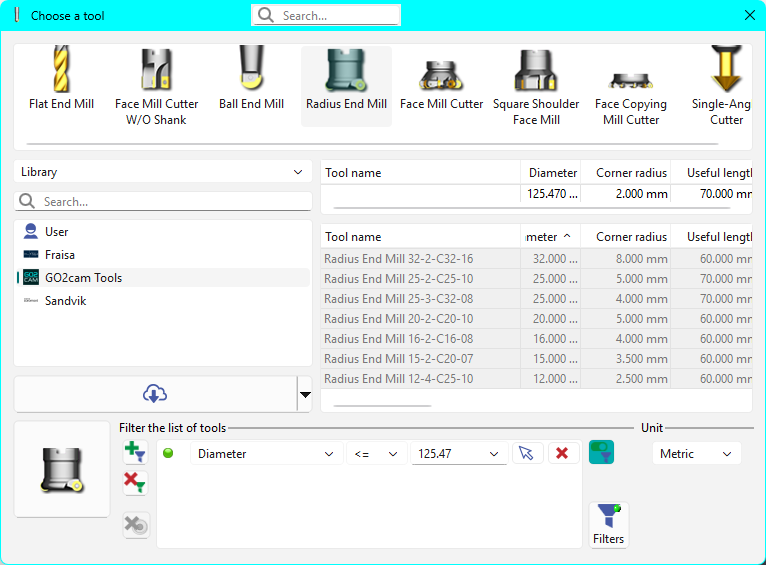
|
Duplicate a Tool
|
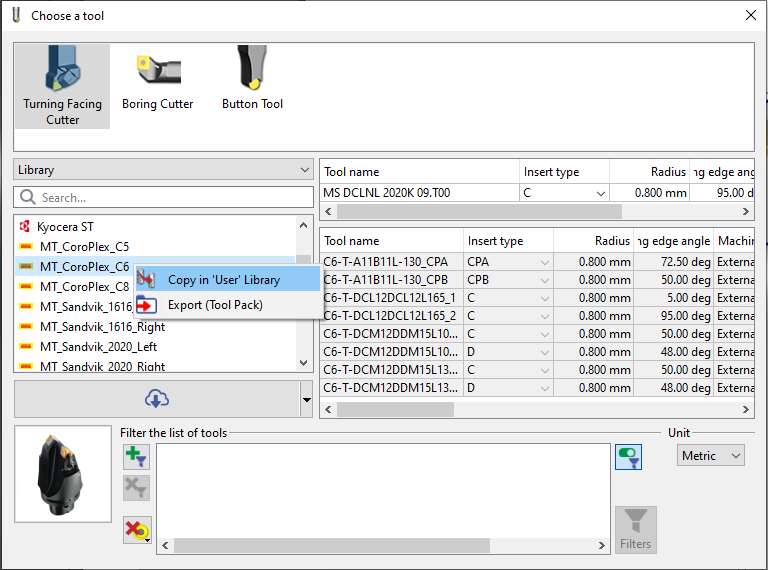
For tool catalogs and manufacturer tool files (GO2tool), the Copy function can be used to transfer a complete tool, or multiple tools, to the local tool database. The copied data includes the cutter, holder, and associated symbol files, which are stored in the corresponding directories (such as tool, sym, and forme). Once copied, the tools can be modified and managed locally without affecting the original catalog data
|
|
|
▶️ Watch a video on how to copy a tool/tool catalogues. 
|
|
Tool Package
|
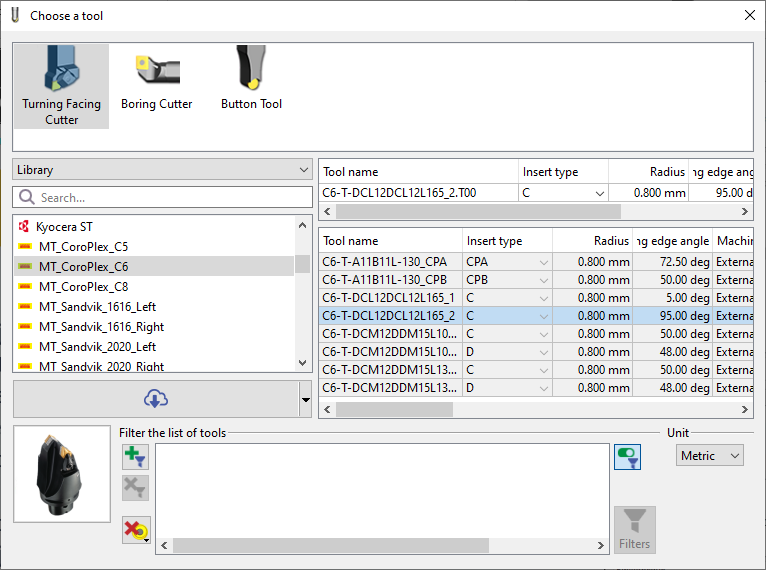
GO2tool now supports importing and exporting user tool configurations using GTZ files. A GTZ file is a compressed archive containing all the necessary data for a specific tool, including its shape, symbols, cutting parameters, and tool holder information. To share your custom tool settings with others, simply export them to a GTZ file. Recipients can then easily import this file into their own GO2tool instances with a simple drag-and-drop or by using the dedicated import function. |
|
User tool Library and GO2Tools
|
▶️ Watch a video on User Tool library and the GO2Tool. 
|