
|
When we click at the icon Produce, we will enter the machining environment. All necessary actions of machining such as choose of strategies, toolpath creation, tool number definition and NC file output are taken in this environment. |

|
|
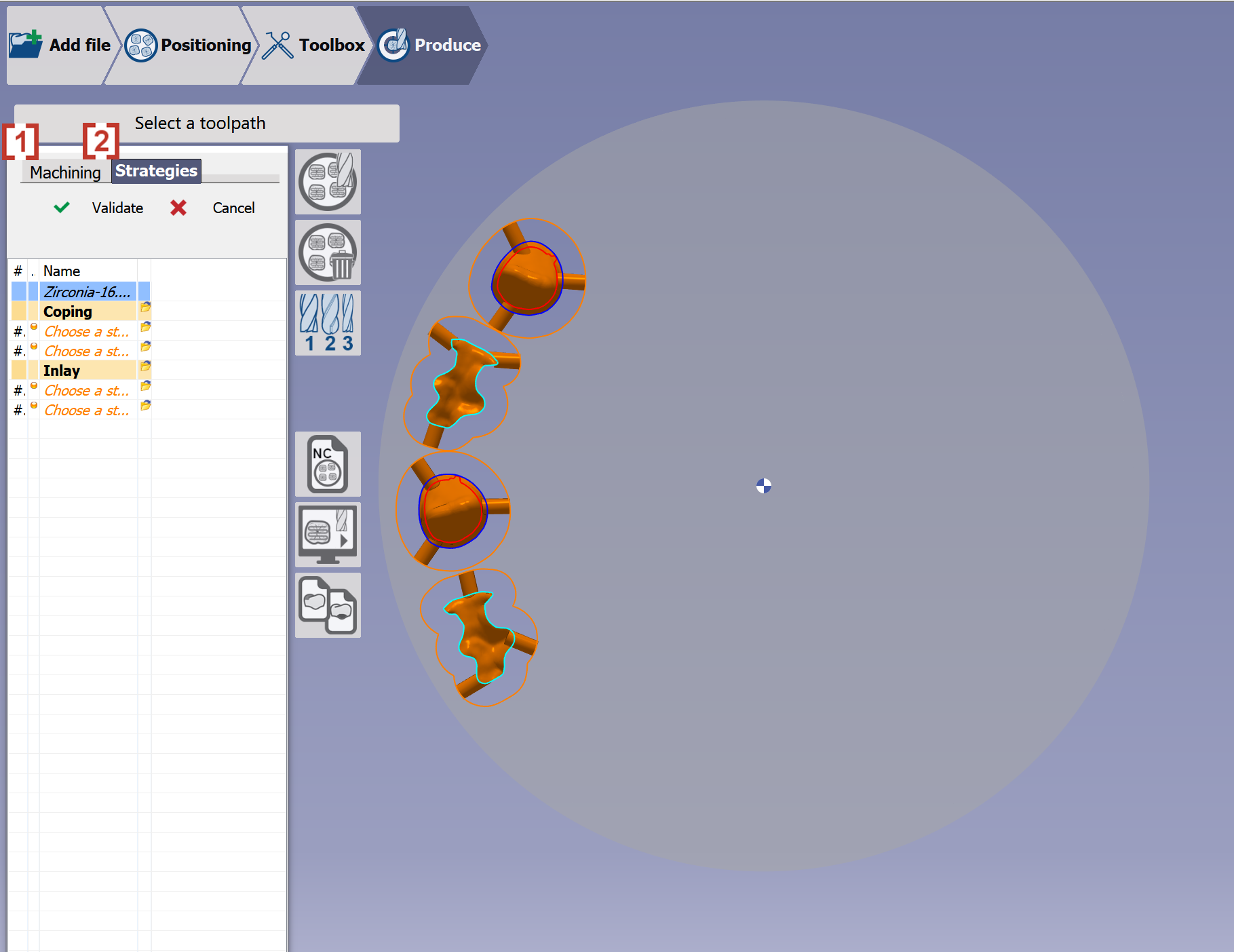
A machining window will be shown on the left, we can enter Machining tree[1] and Strategies tree[2] in this window. |
|
|
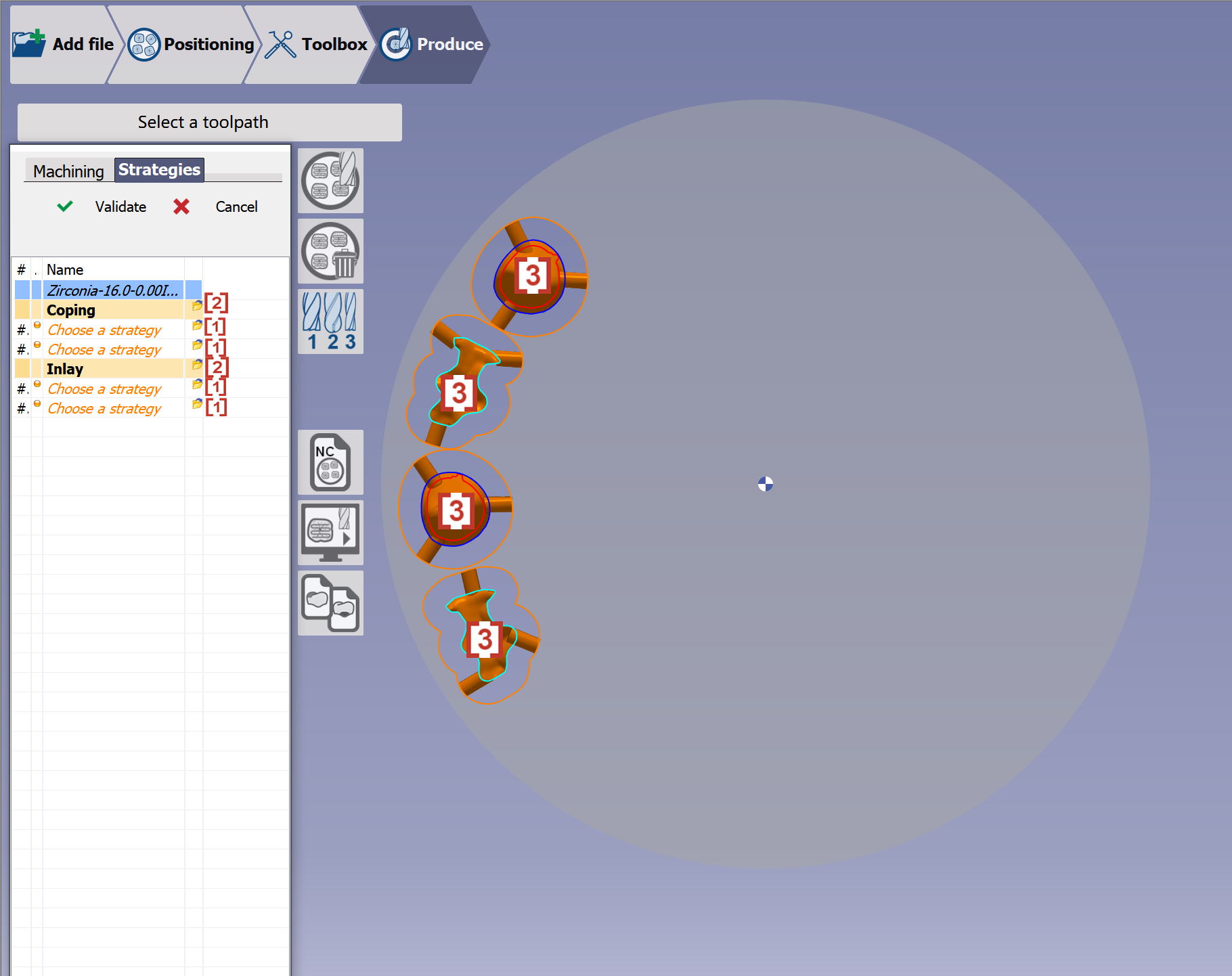
In the strategy tree, we can assign strategies for the imported stl files by ways below:
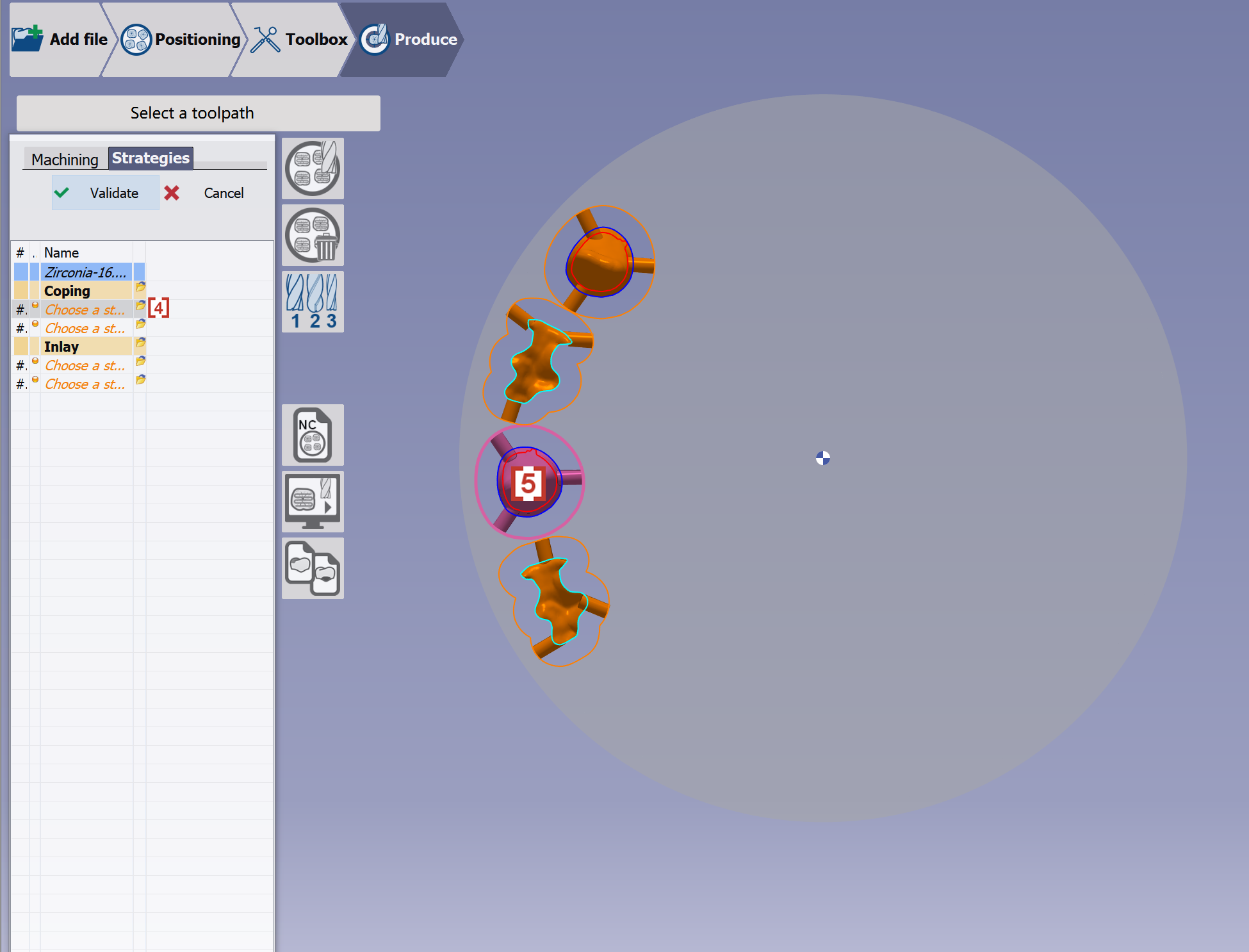
When you click at one folder icon or a line [4] in strategy tree, the matched element will be highlighted in purple color [5], so that you will know which element you are assigning the strategy on. |
|
|
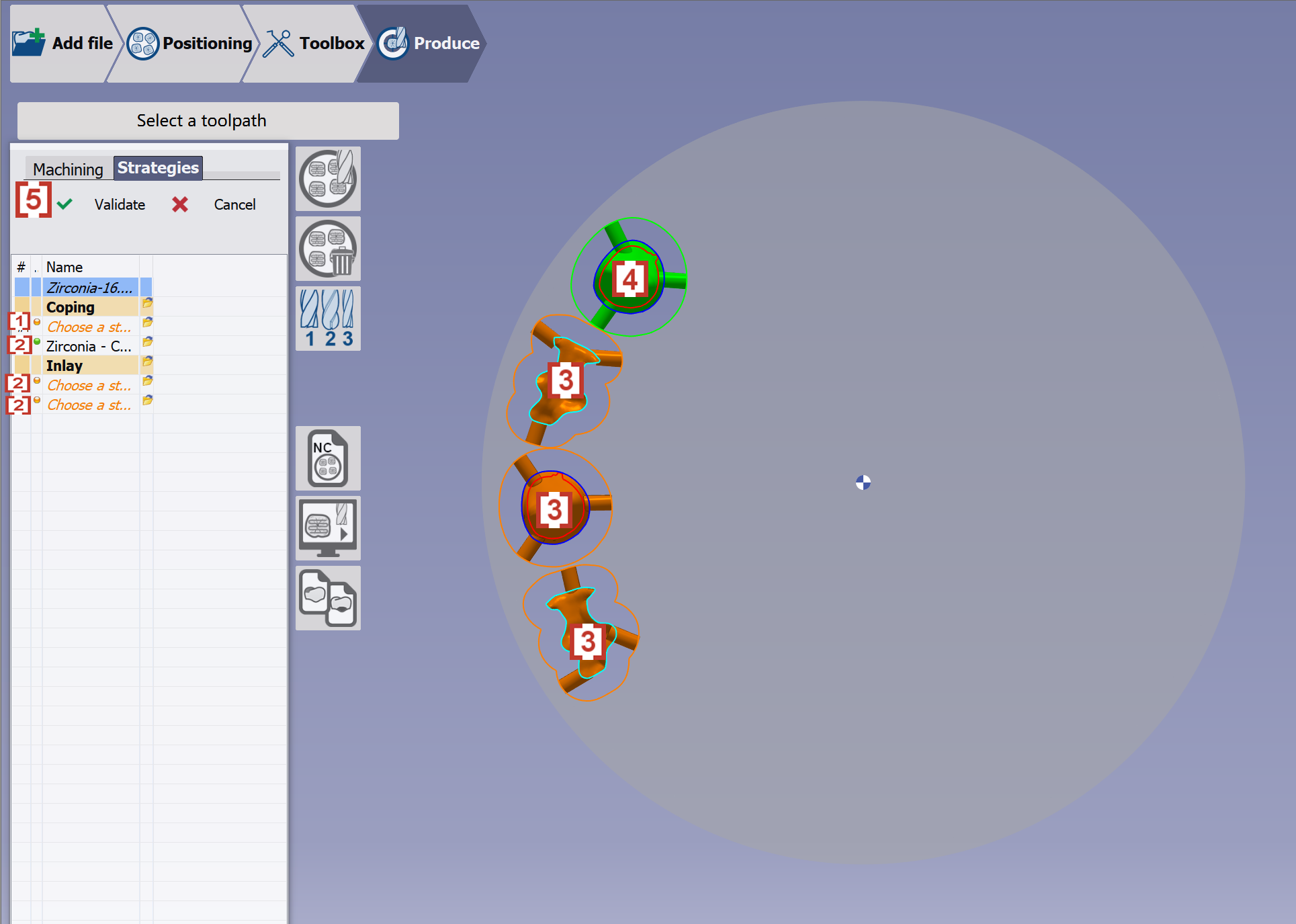
If the strategy is not assigned yet to an element, we will have orange light [1] in front. And the element will be in orange color in the right window [3]. If the strategy is assigned already, we will have green light [2] in front. And the element will be in green color in the right window [4]. You can press delete key to delete the assigned strategy. If there is only one strategy available for a type of element, then this strategy will automatically be assigned to all this type of elements. Click at validate [5] to finish the strategy assignment. |
|
|
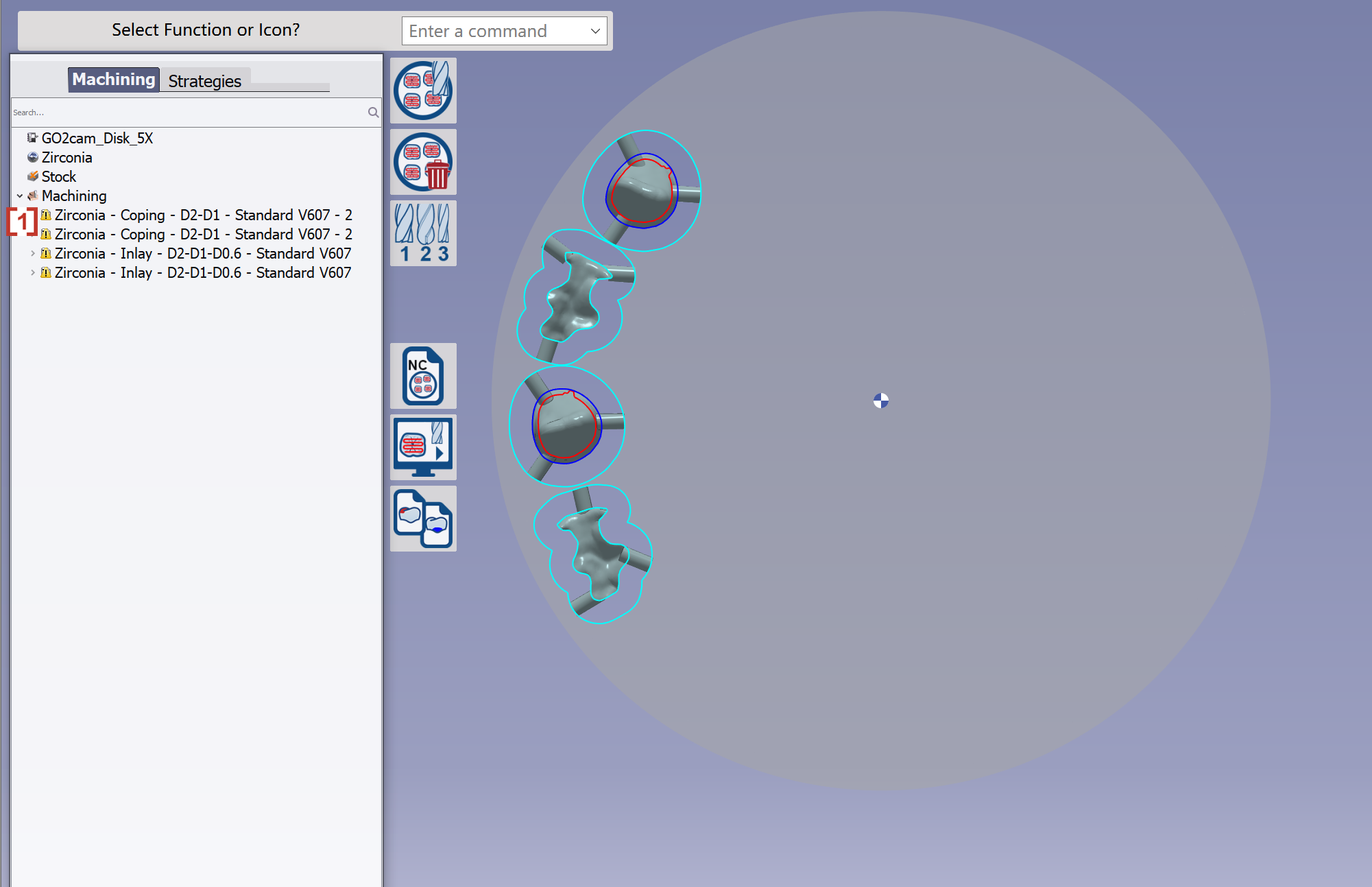
Now we will go to machining tree:
|
|