
|
Click the icon to import multiple STL files at once.
|

|
|
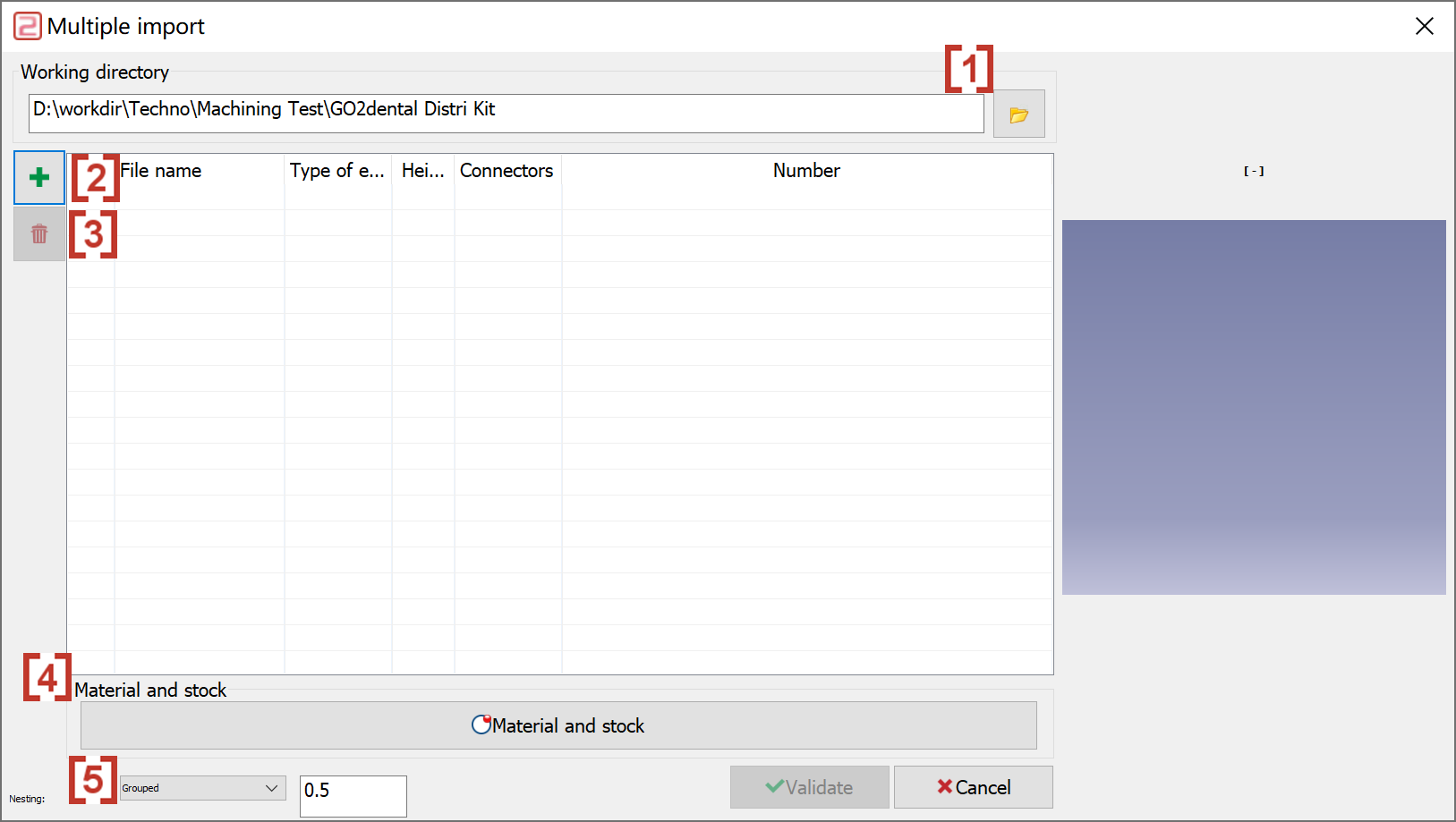
In the pop-up window, you can:
|
|
|
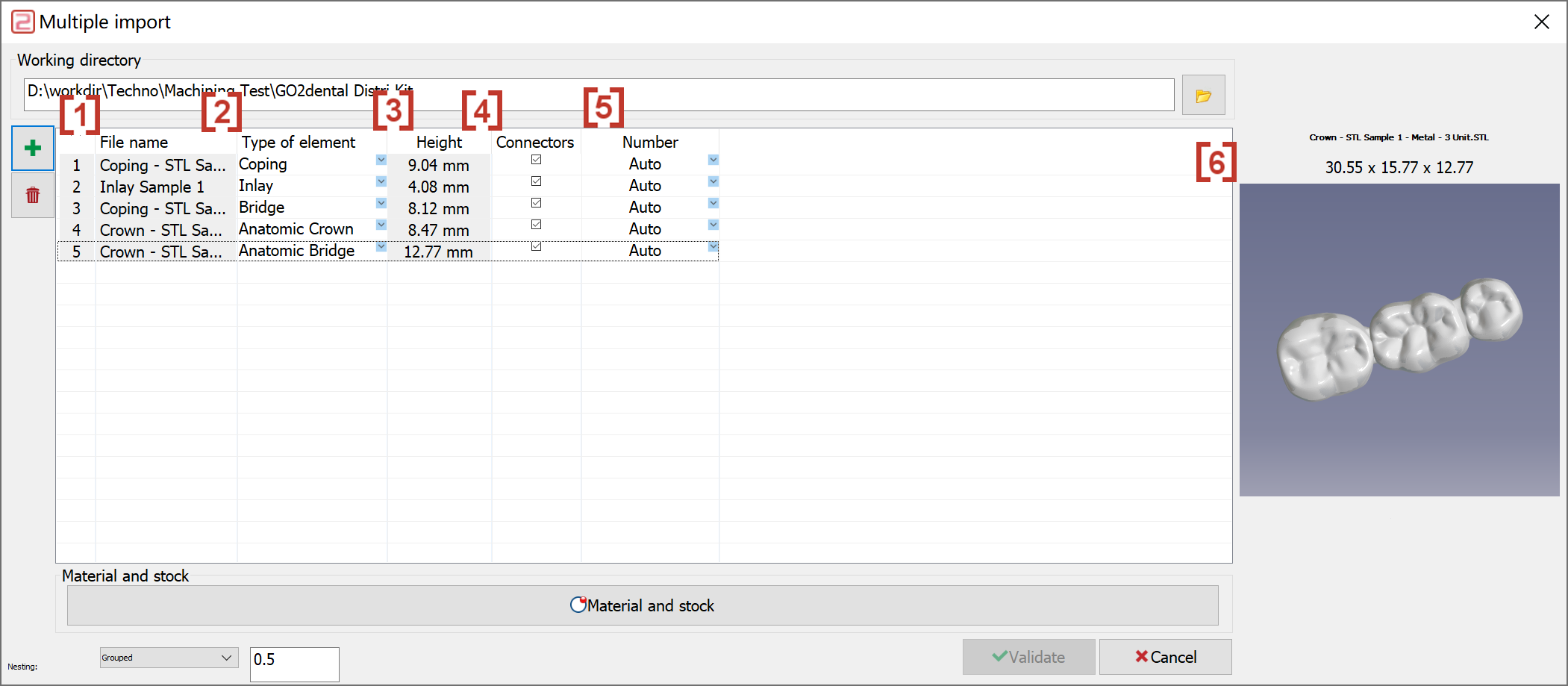
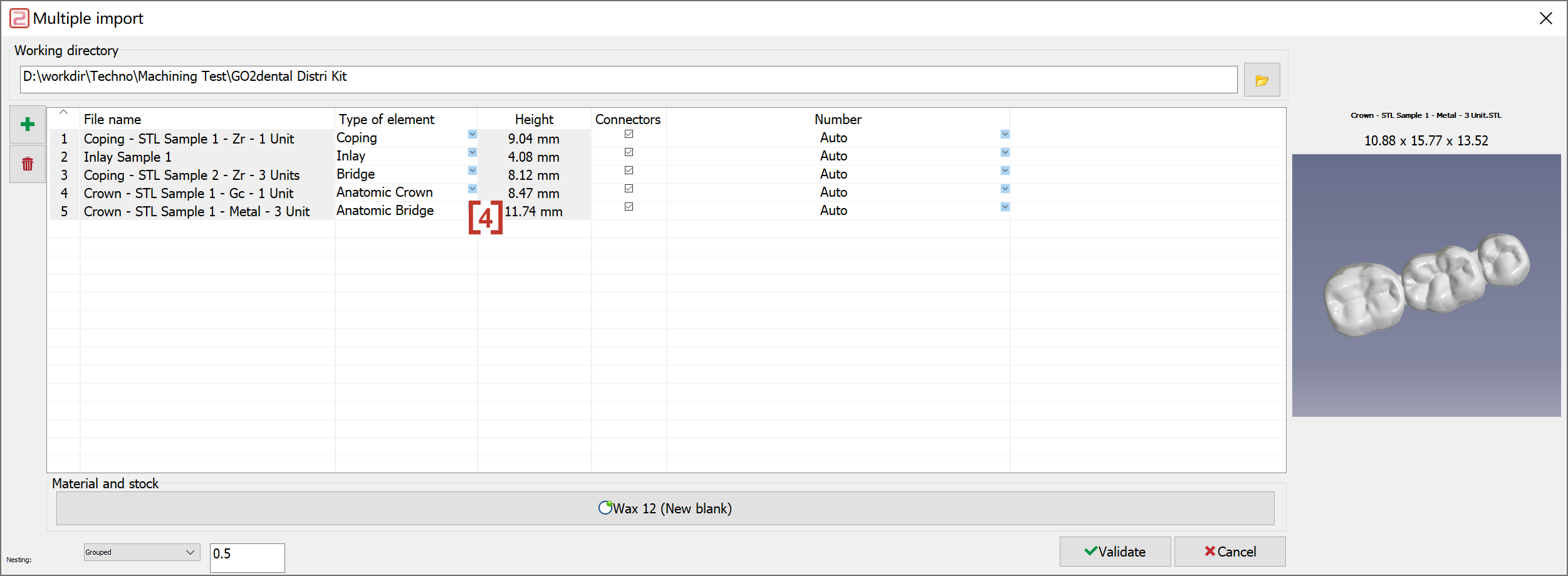
After importing multiple elements, the element information appears:
|
|
|
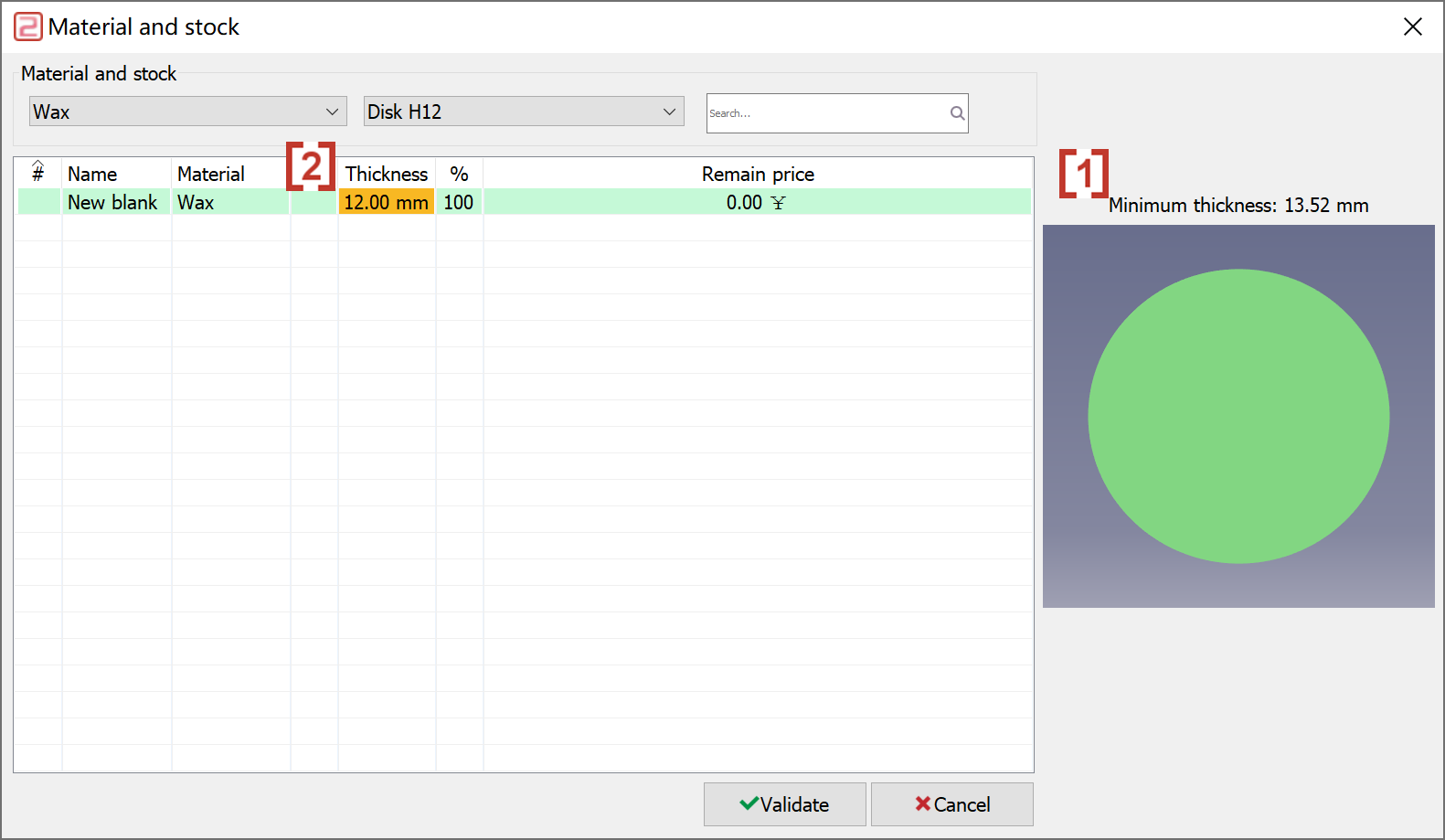
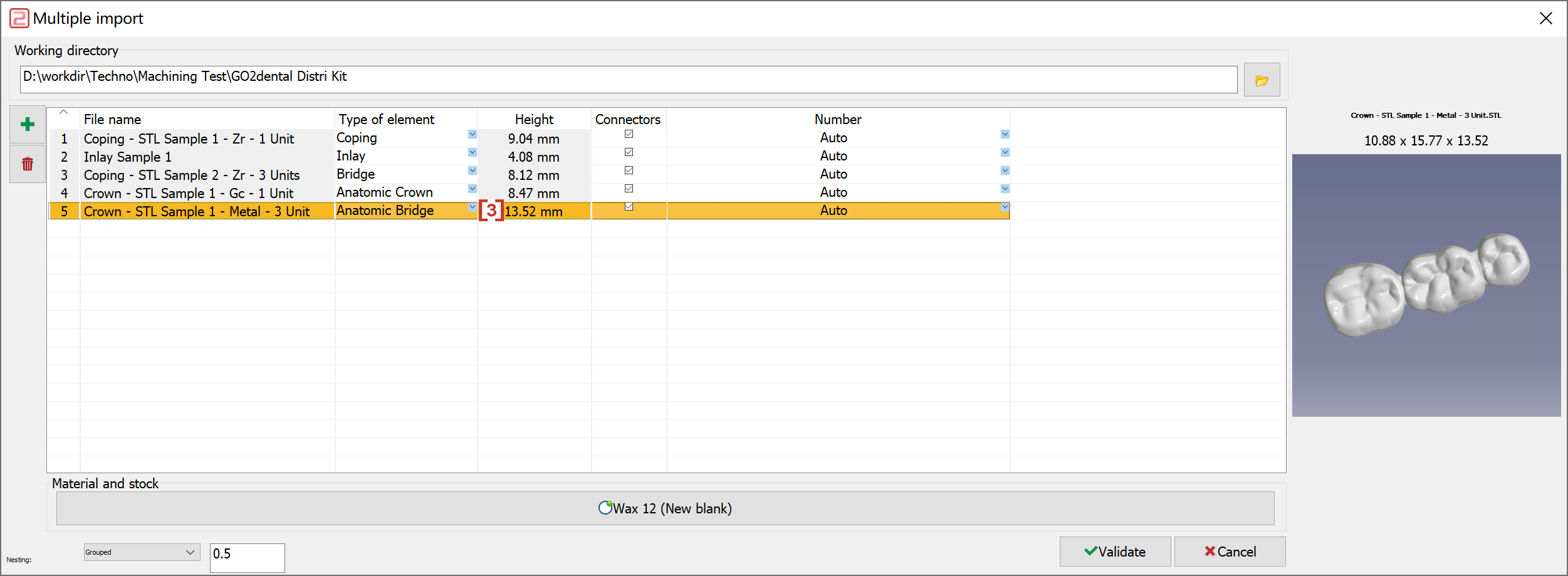
Click 'Material and stock' to select material for all imported elements. If the selected material's thickness is less than the minimum thickness [1], an orange warning [2] appears. If you select a material thinner than the minimum thickness, right-click the element's height exceeding the material thickness and click 'optimization'. GO2dental adjusts the element's spatial orientation to reduce height, ensuring the material thickness suffices. |
|
|
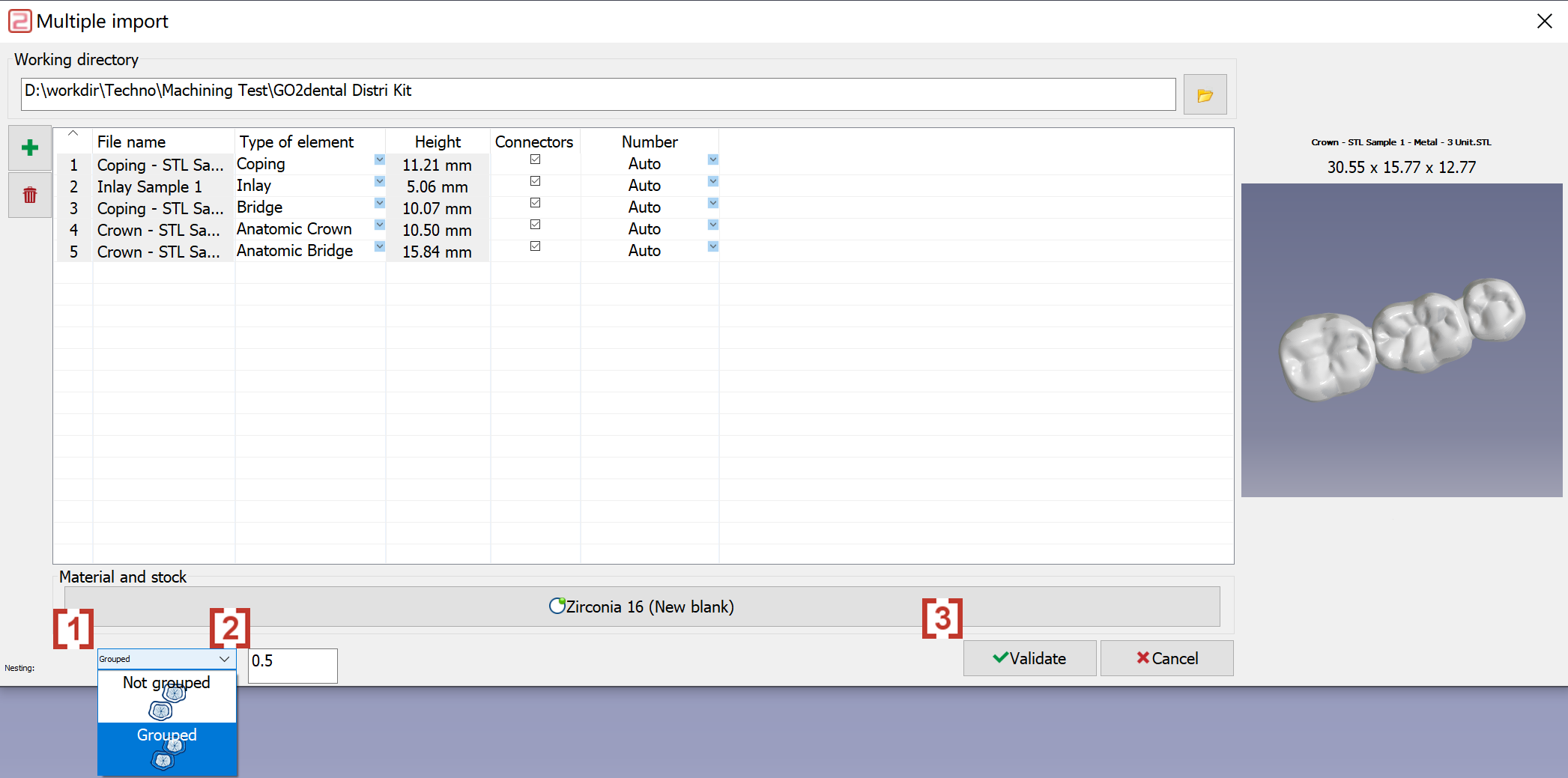
Users can define whether imported elements overlap [1] Set the overlap distance between elements [2] Click ‘validate’ [3] when ready. All elements import with the defined information. |
|