
General Tool Bar
|
The General toolbar is a set of commands which are common to all the environments and products of GO2dental. This toolbar is accessible in the top middle of the text menus. |

|

Control |
Measurement of a distance. |
||
|
Change of Views: |
|||

Top view |

Bottom view |

Front view |

Back view |

Left view |

Right view |

Isometric view |
|

Manual Rotation |
Activation of the rotation function using the Left Mouse Button. |
||

Zoom extent |
Extension of the view for the visualization of all elements. |
||
Display Bar
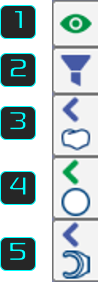
This vertical bar provides quick access to display options for key elements in the workspace. These include the solid [3], the stock [4], and symbols (vices, clamps…) [5]. These buttons allow hiding or displaying these elements and adjusting their transparency with a single click.

|
Activation/deactivation of the display of details. |
|
|

|
Hide/Show the filters dialog. |
||

|
Activate/deactivate Transparency settings for Solid. |
||

|
Activate/deactivate Transparency settings for Stock. |
||

|
Hide/Show and Activate/deactivate Transparency settings for Symbols. |
||
|
Solid and Stock Display A scroll click on the element icon enables to activate transparency. The small arrow becomes green to indicate the change. |

|

|
|
|
Symbols A left click on the symbols icon toggles its visibility. By default, the symbols are visible. When hidden, the cloud icon overlays on it. |

|

|
|
|
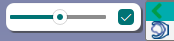
Transparency By clicking the arrow, you can access a cursor to adjust transparency intensity. This setting is considered when activating/deactivating the transparency with the scroll click. |
|
||
Special case: the tab of Tools appears only during selection of machining operations and simulation. The left click on the tool does not hide the tool but its toolholder if he has one.