You can use this function to create and choose the tool pack for your production. The tool pack file(.OPLX) includes your real tool information and demanded cutting parameters which are defined by yourself. And strategy files with your own tool and cutting parameters will be automatically created in the folder GO2cam_Intl\GO2dentalV6xx\Oem\xxxx\opelist.
|
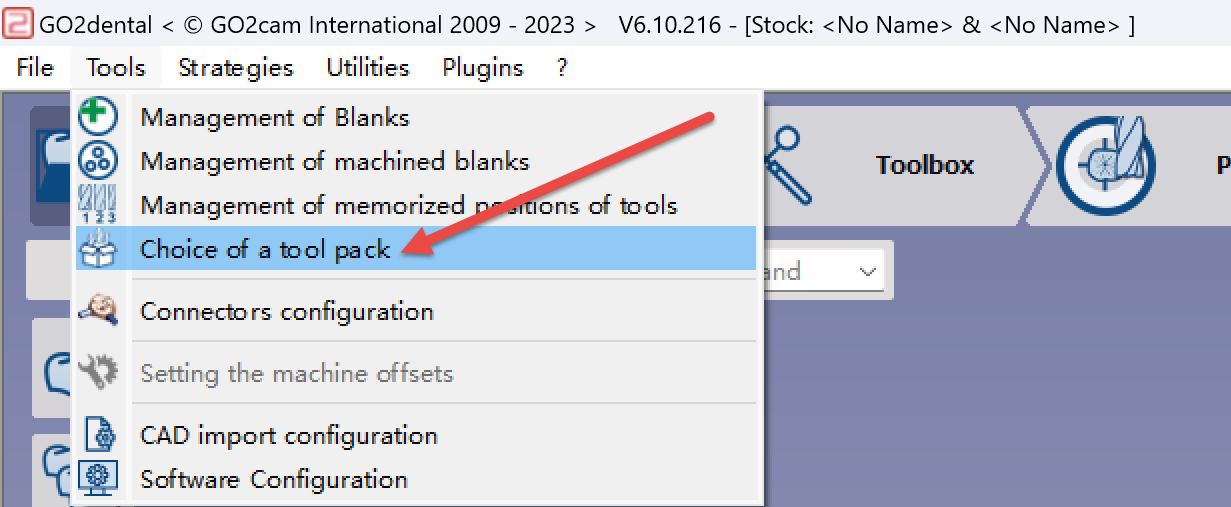
Click at the icon to choose a tool pack if you have. |

|
|
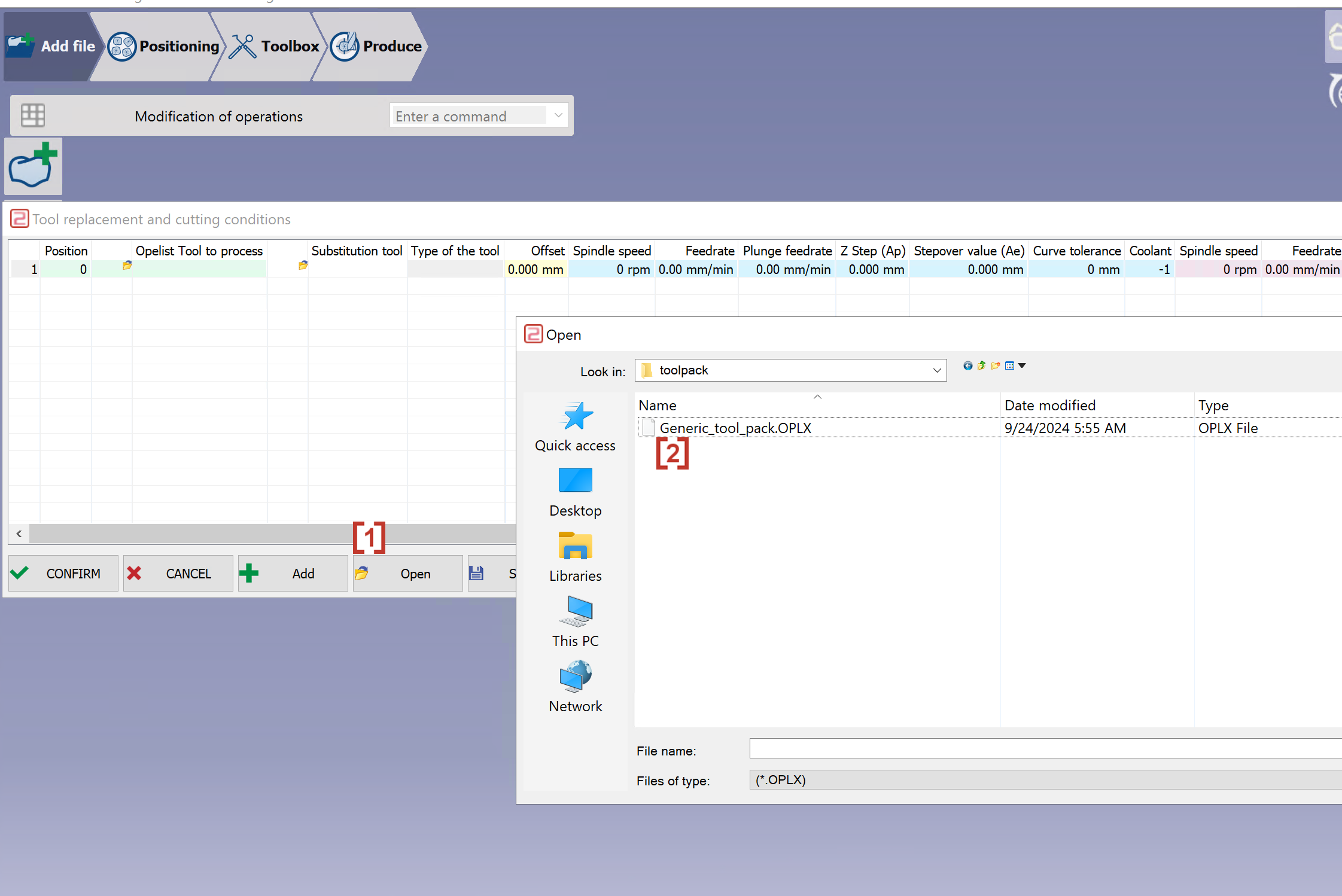
Step1. Tool pack configuration to open[1] the orginal toolpack[2](contact your resell if you don’t have it), and replace with your own tool. |
Enter Tool pack configuration and open original .OPLX file Generic_tool_pack.OPLX. 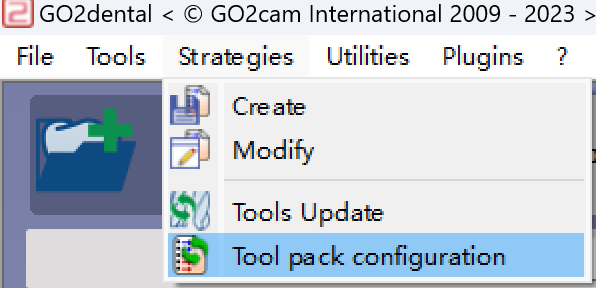
In the column 'opelist tool to process' are standard tools used in standard opelist. You will need to replace them with your own tool one by one 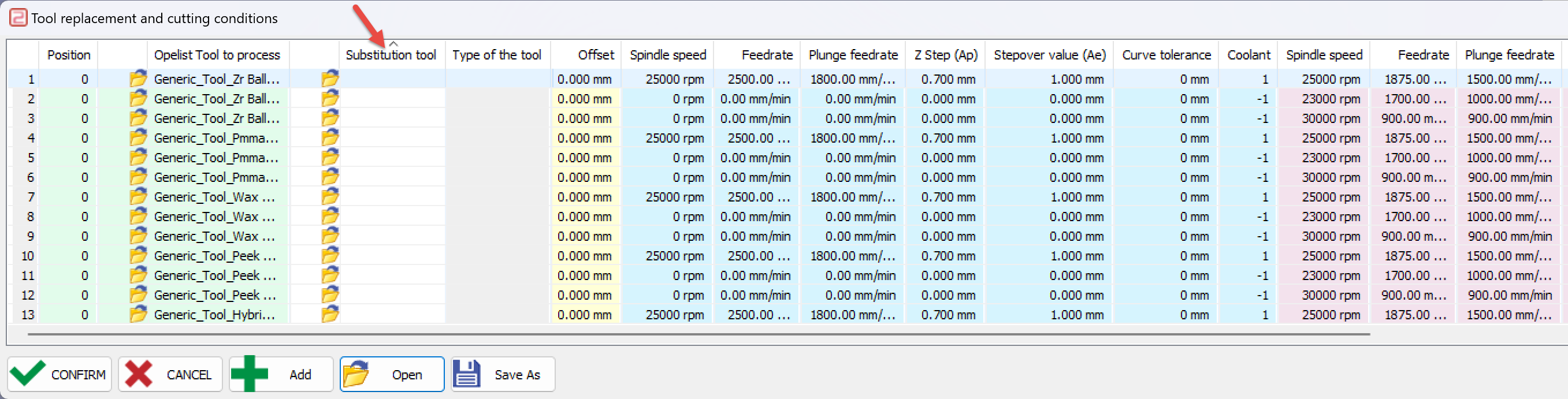
Now in the column 'substitution tool' choose your own created tool to replace standard tools. 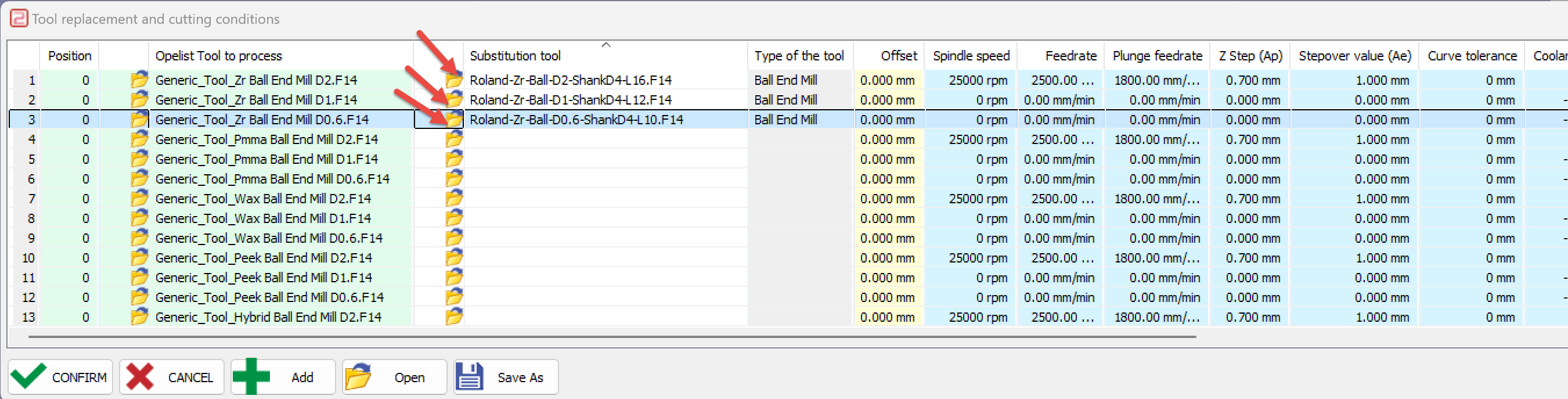
Now you can modify cutting parameters for each tool(for example we change Z step of ZR D2 tool from 0.7 to 0.66). All modifications will be updated with the tool in the newly created strategy files at the end. 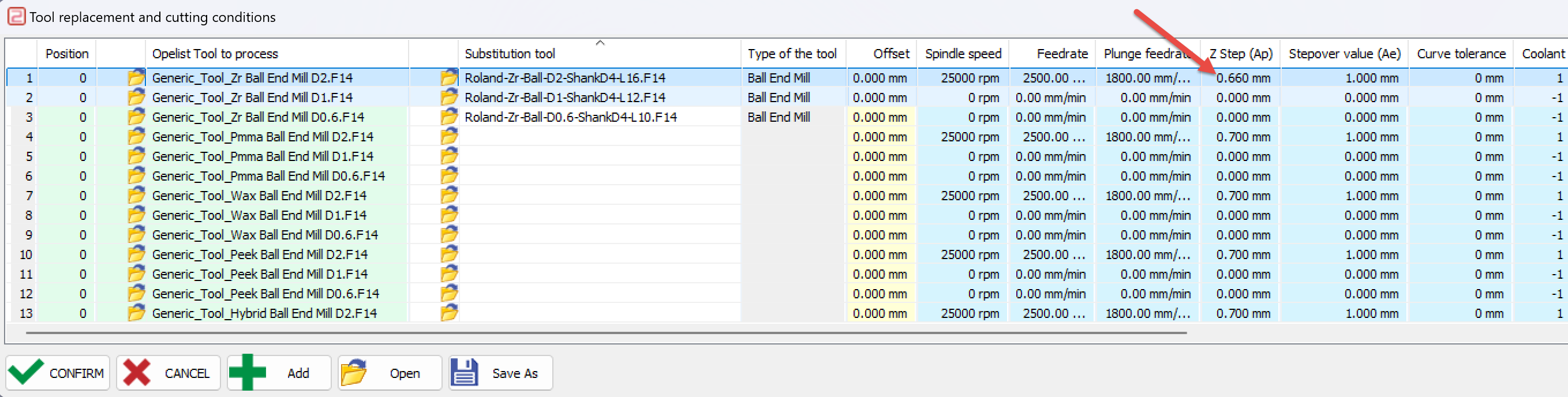
|
|
Step2. Click at |
We can save it as test.OPLX for example. 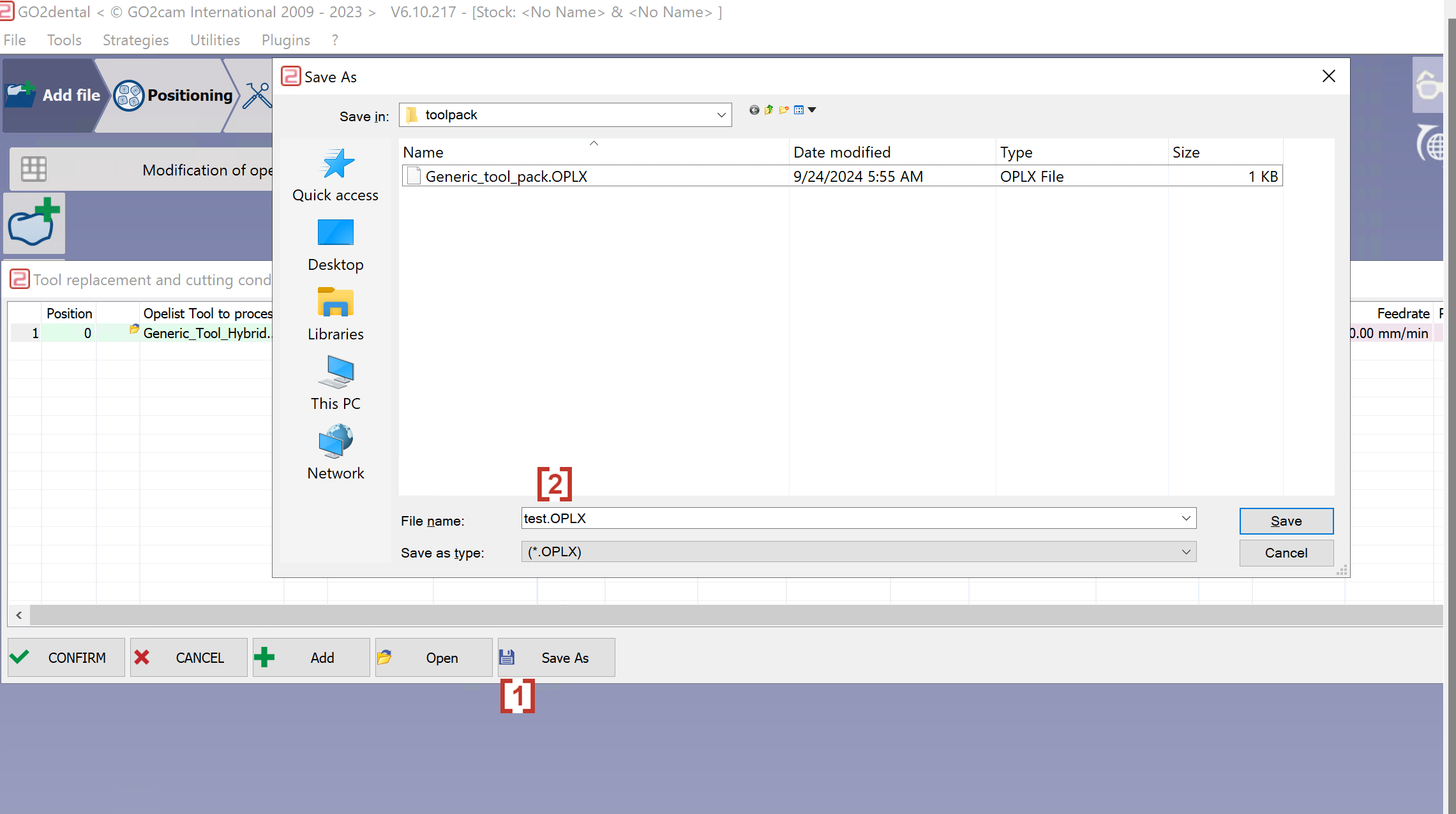
|
|
Step3. Choice of a tool pack and choose your own tool pack file which you just saved(test1.OPLX). And strategy files with your own tool and cutting parameters will be automatically created in the folder GO2cam_Intl\GO2dentalV6xx\Oem\xxxx\opelist. |
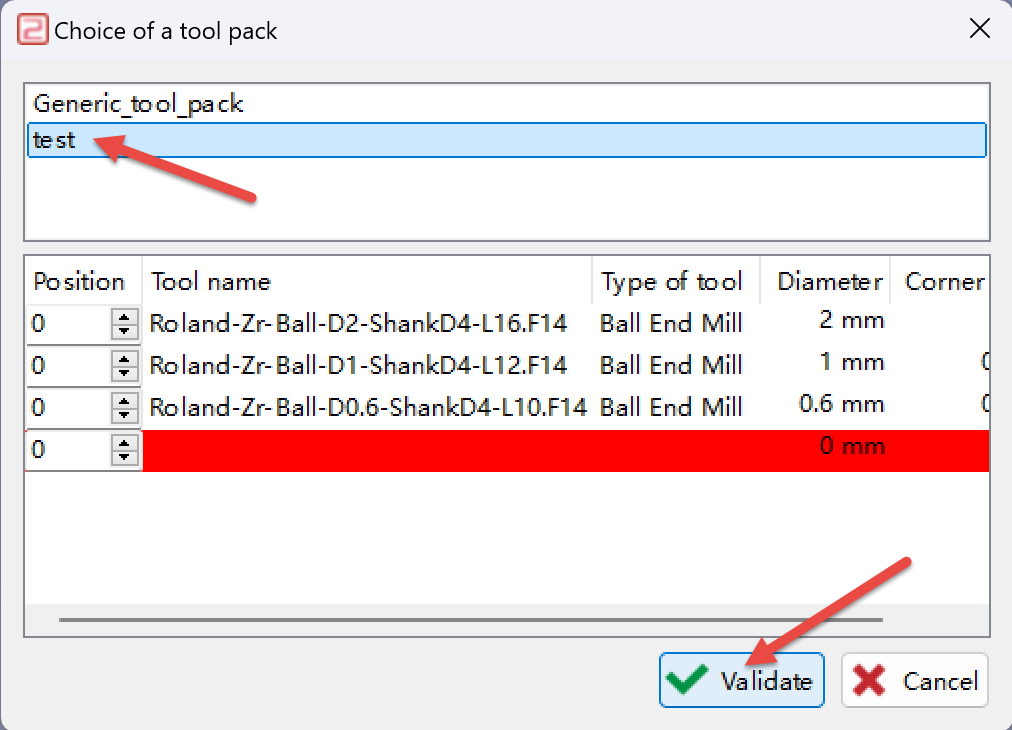
The strategy files will be automatically created basic on your chosen .OPLX file in a folder in the same name of the .OPLX file. 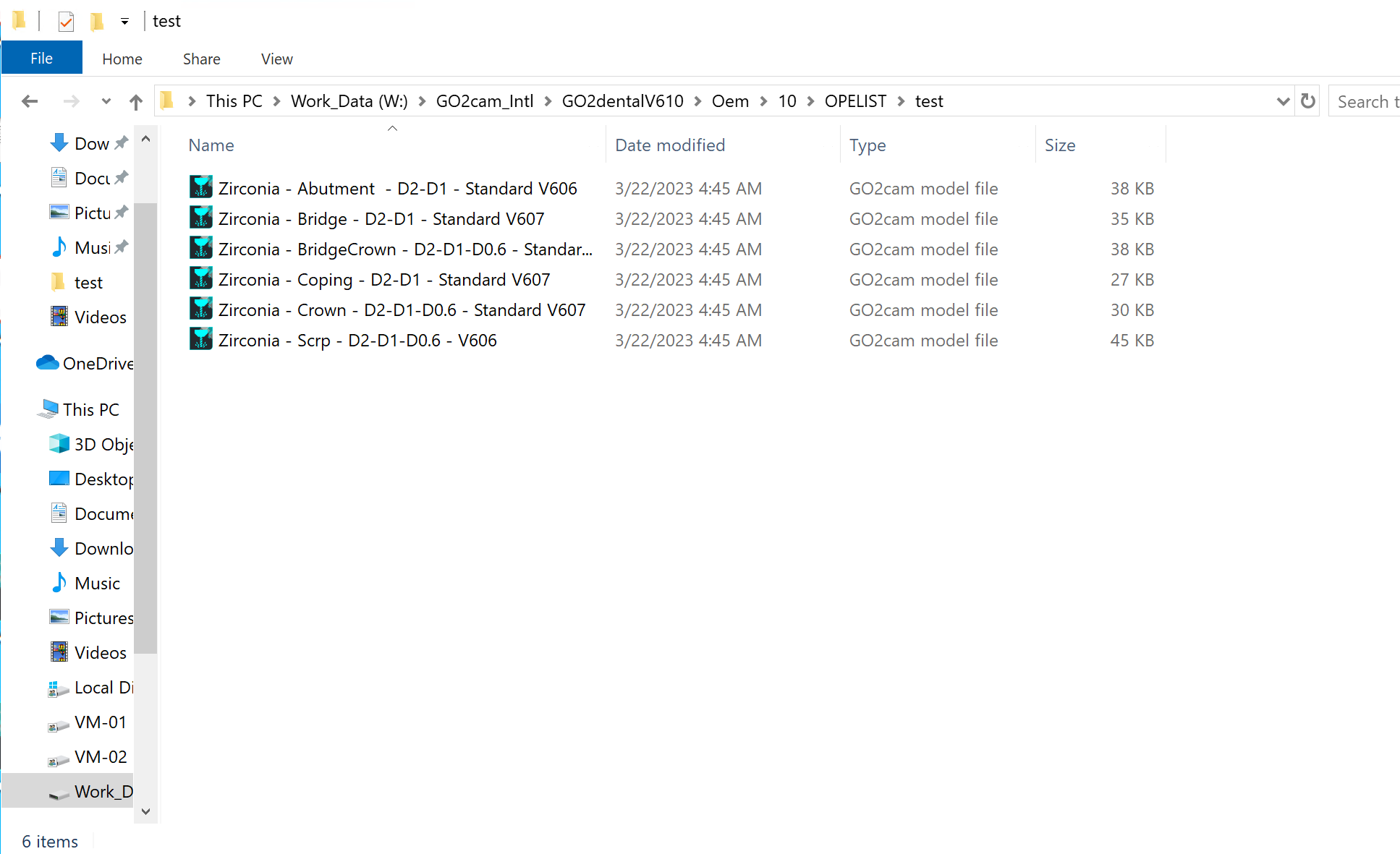
We can see the cutting parameters are already updated with the value(0.66 Z step) we gave in the .OPLX file. 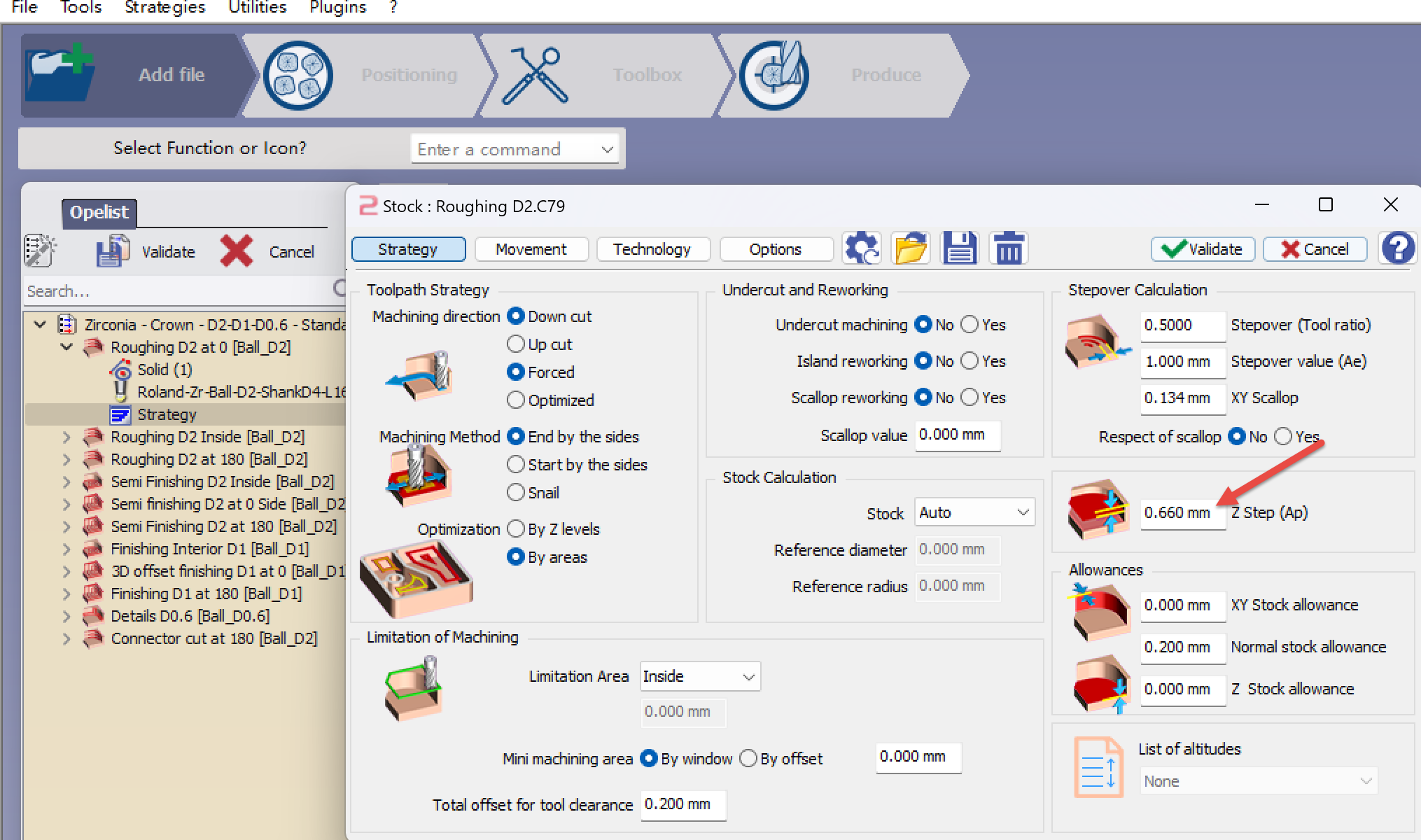
|