
This function will create new blank in the library. You can select this new blank after.
|
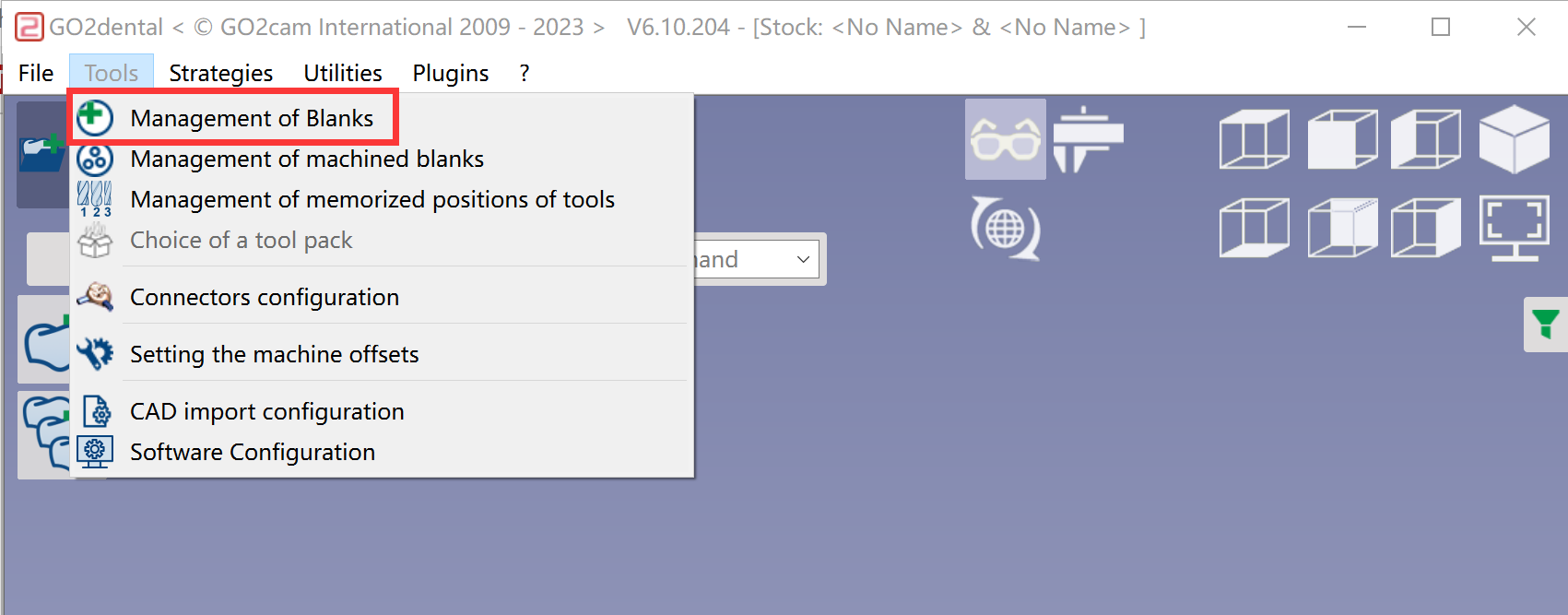
Go to Tools Management of Blanks 
|
|
|
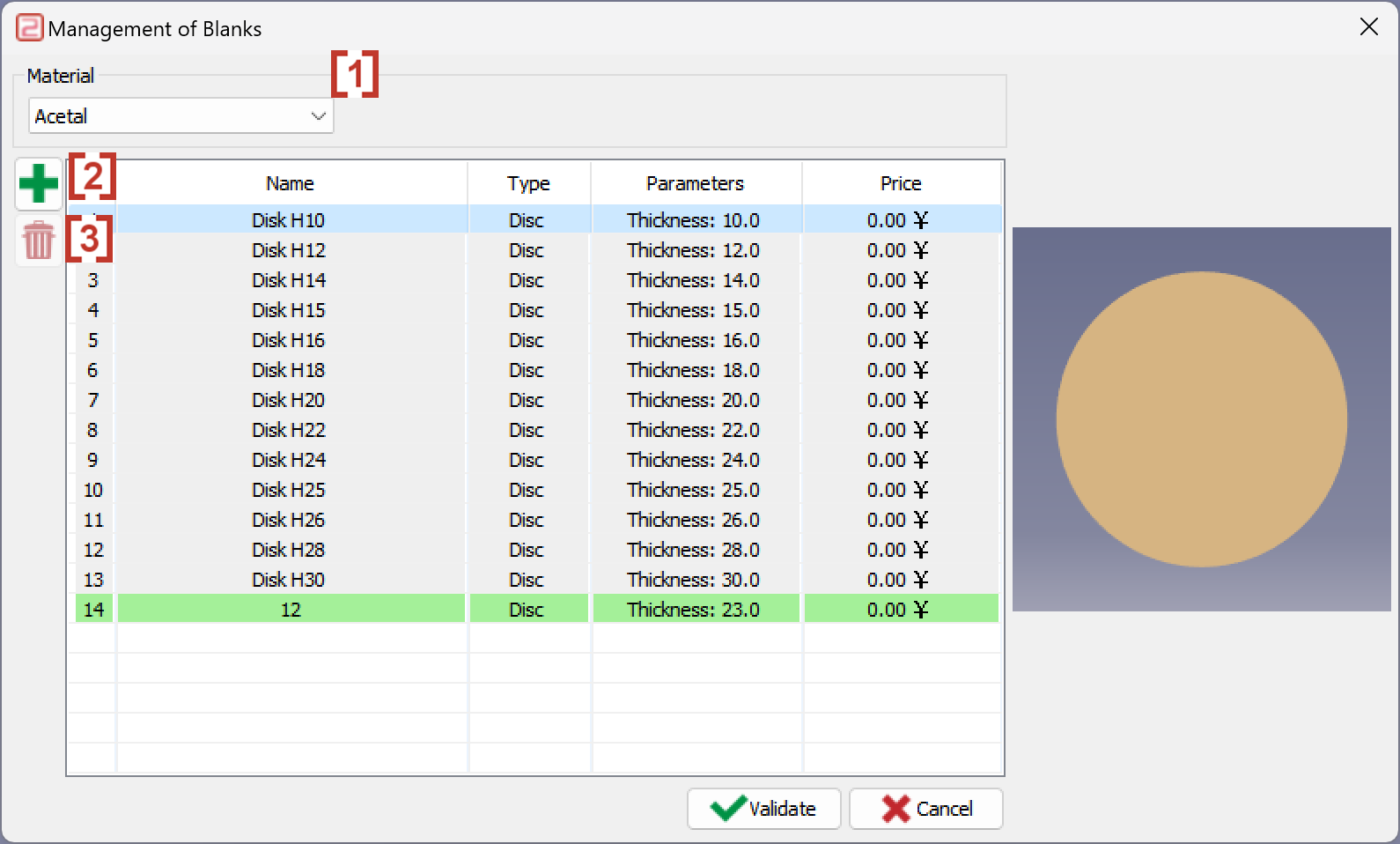
Choose the subtype of material[1] which the new blank belongs to and then click 
[2] to pop up the window to create a new blank of your own. Of course you can also click at trash icon[3] to delete any existed blank. |
|
|
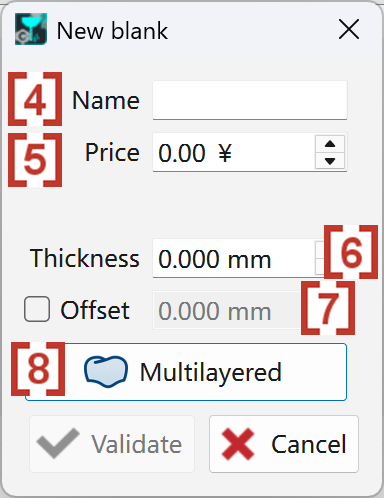
In the pop-up windows, create the new blank by giving the Name[4], Price[5] and Thickness[6]. You can activate and add a value of 'Offset'[7].
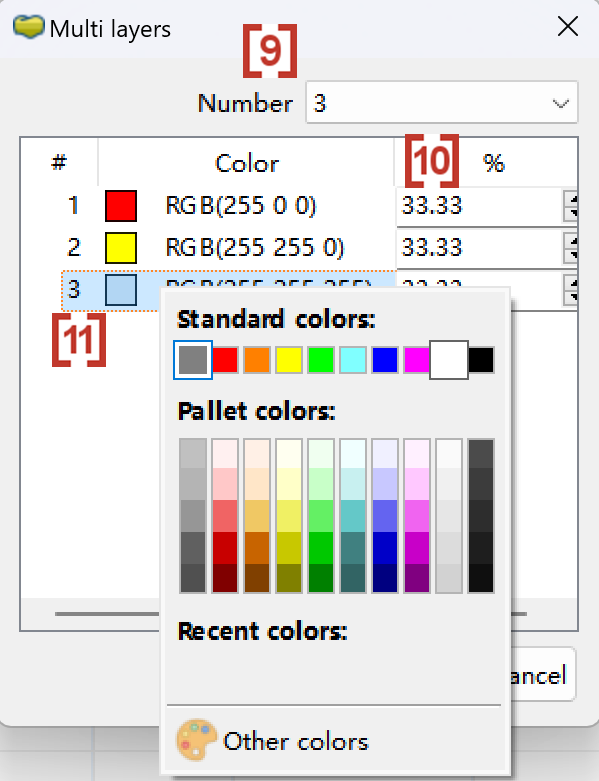
You can also define the blank as a multilayered material[8] in a pop up window where you can define numbers of colors[9], percentages of each color[10] and the color[11]. When the definition is finish, click at validate. |
|
|
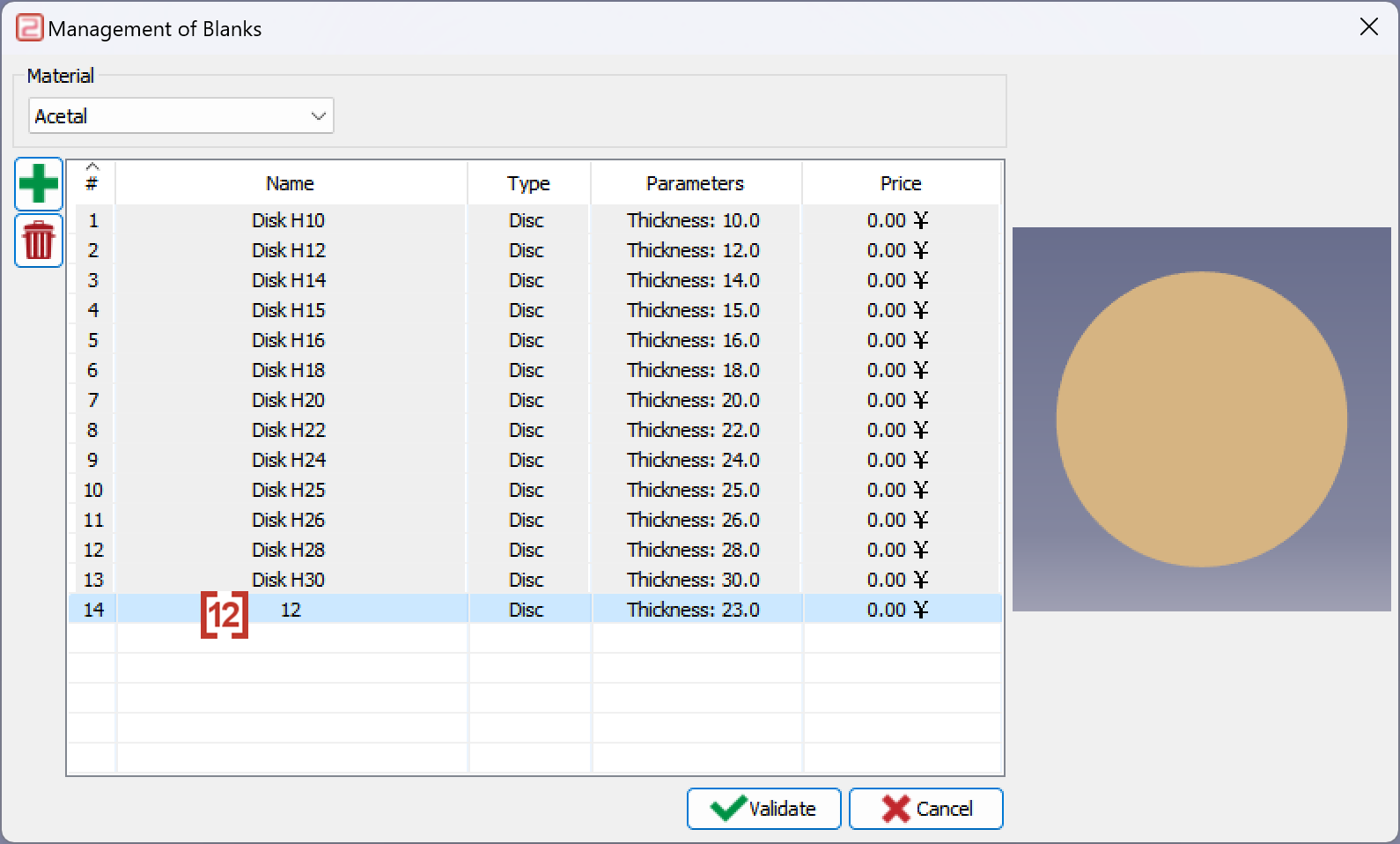
Now you will have a new blank just created[12] and use it for programming.
|
|
|
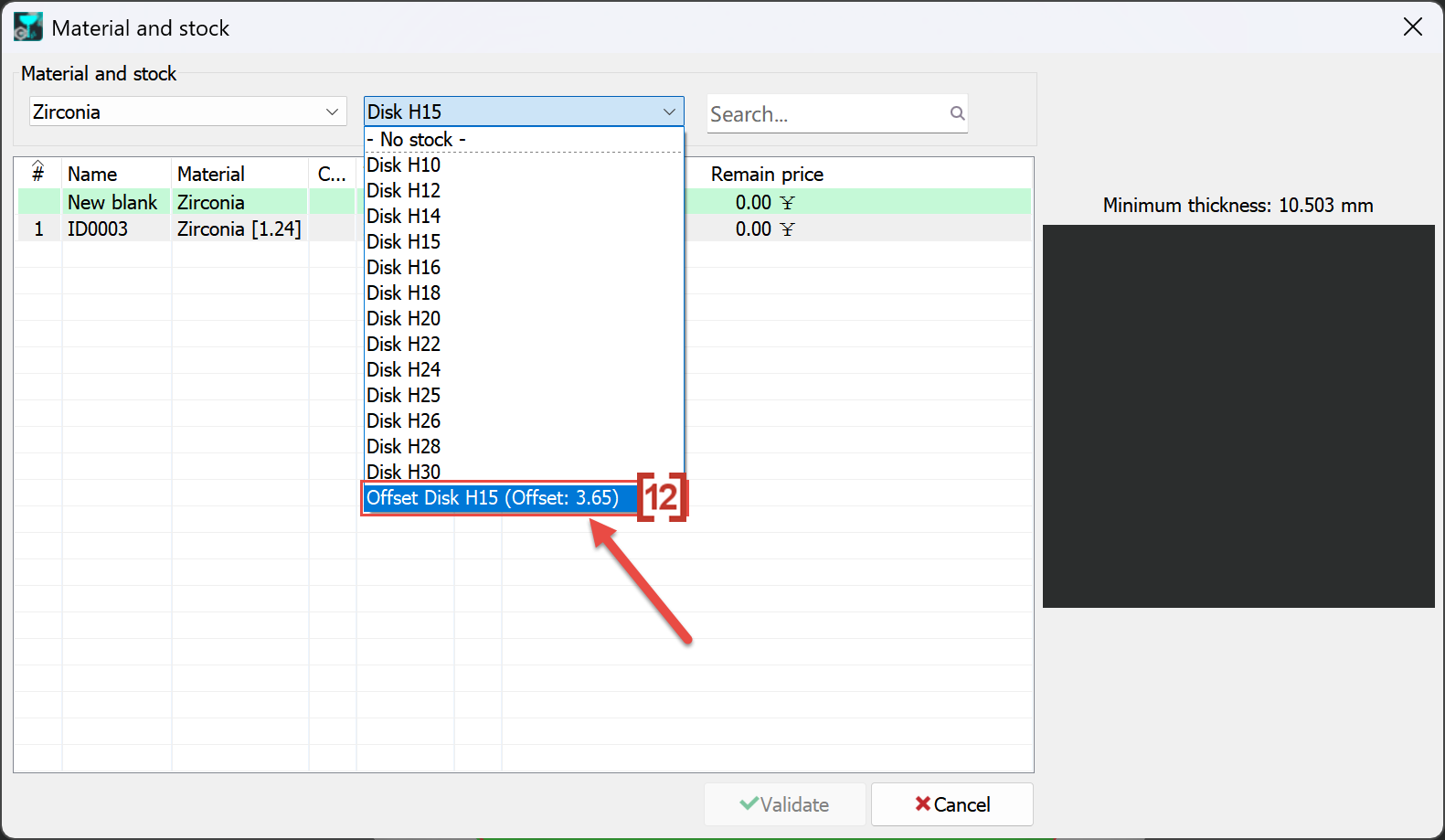
If the new blank is defined with offset value, the defined offset value [12] will be displayed when this new blank is shown in the list.
|
|