
|
Click at the icon to define the rotation of abutment.
|

|
|
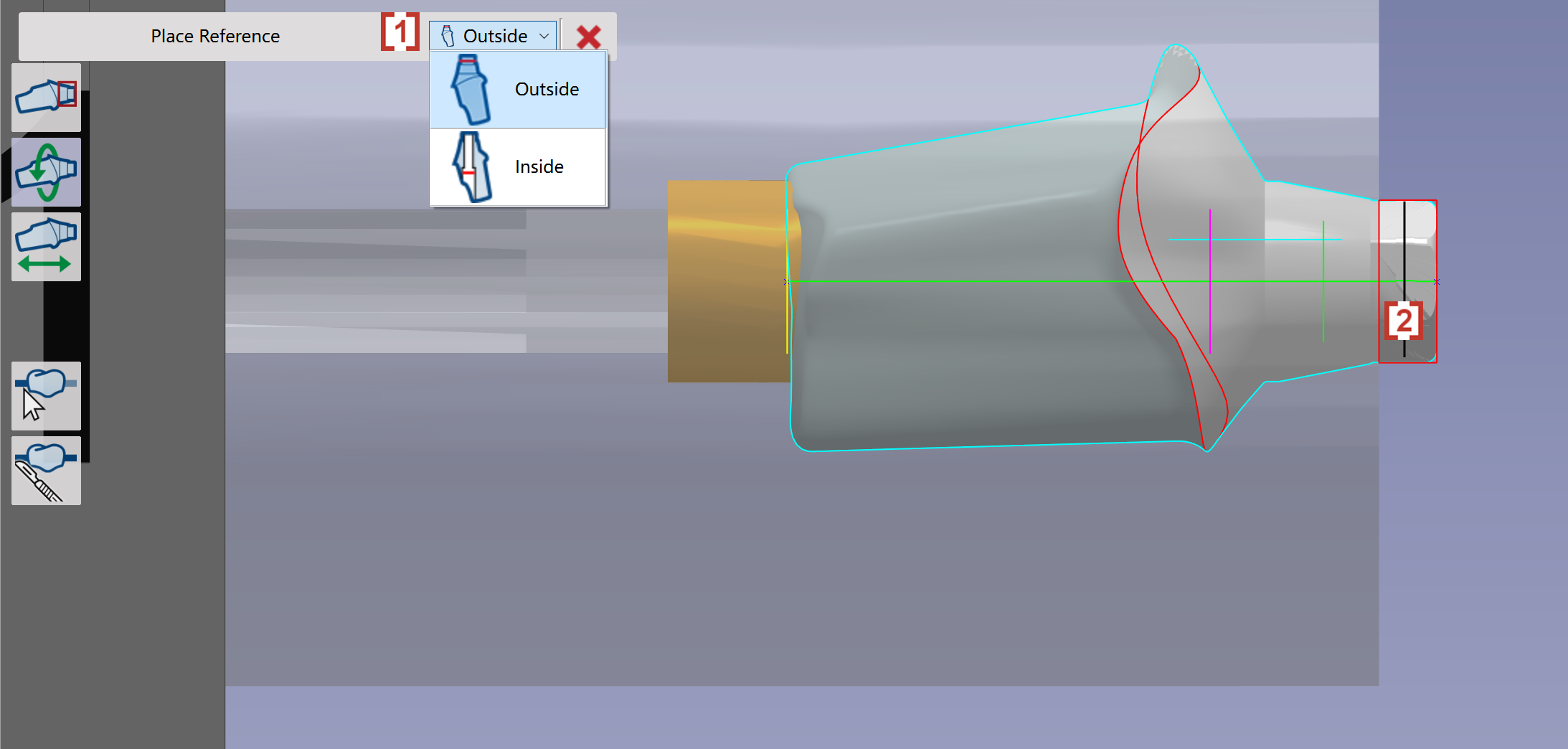
We will first choose the type of interface to be Outside or Inside [1]. Then we need to move mouse to the interface to get a intersection in black color [2]. |
|
|
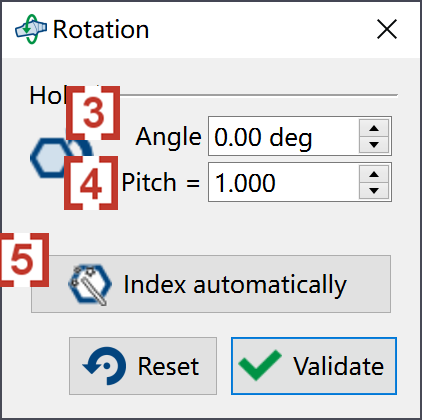
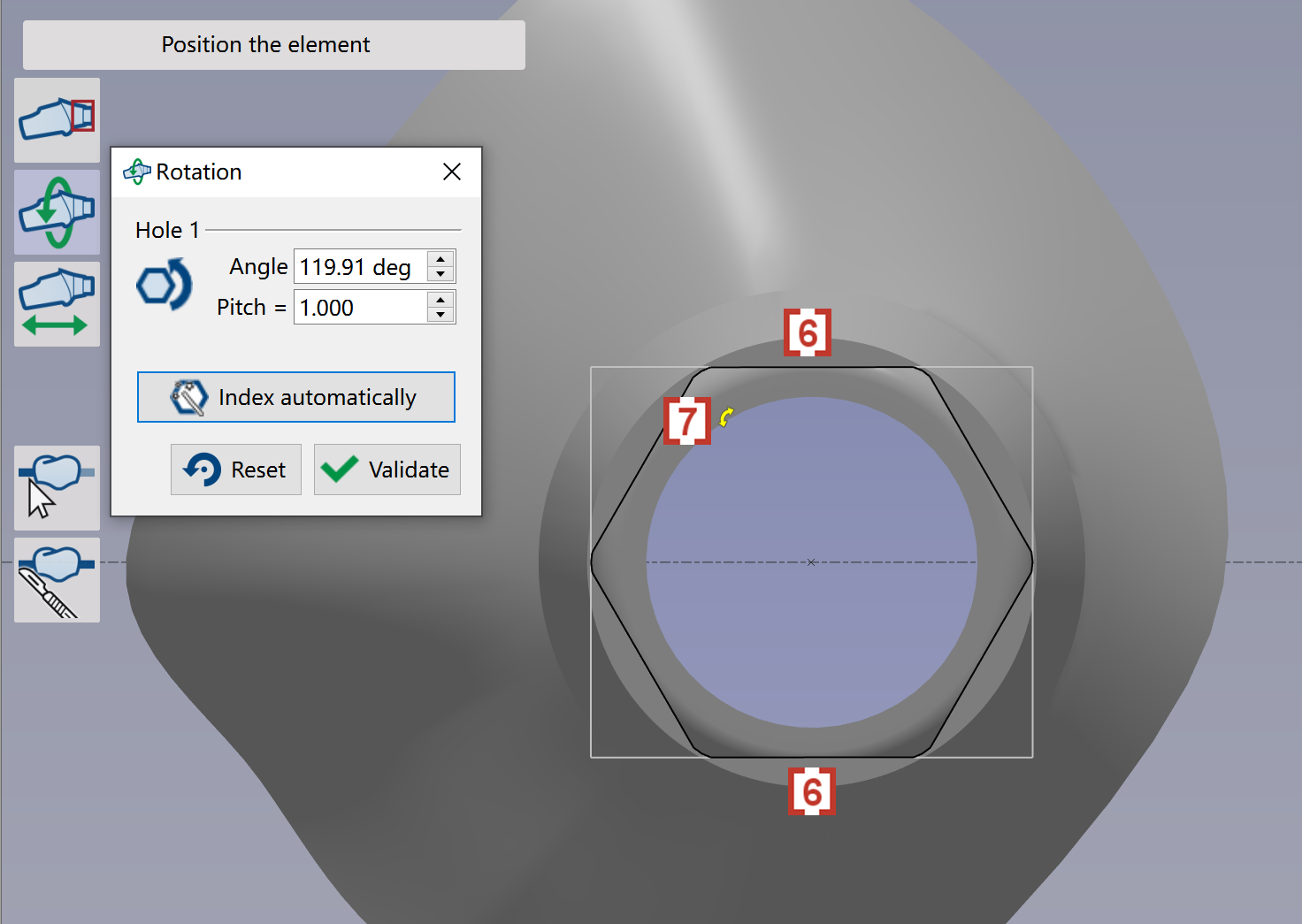
Then a window will pop up. We can enter value of Angle [3] to define a counterclockwise rotation. We can also enter value of Pitch [4] to define a change of angle each time you click at up or down arrow in the value window of Angle. We can click at 'Index automatically' [5] and GO2dental will automatically rotate the element to have an edge of interface to be horizontal [6]. A third way to rotate the element is to move your mouse to the small yellow arrow [7], then drag the arrow and the element will rotate with the arrow. |
|