
Once you have mounted all tools in their designated positions in your CNC machine, this control menu allows you to simulate the entire machining process virtually, identifying and rectifying potential errors within the code. By essentially running the program without engaging the machine itself, you can guarantee efficient and accurate operation from the very first cut.
Machine tab
|
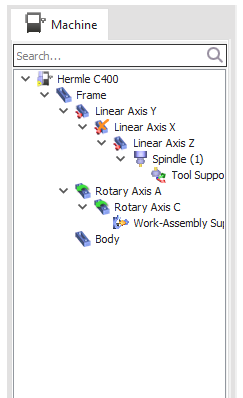
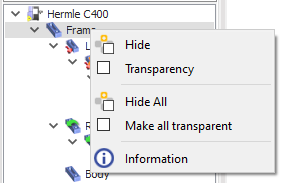
This tab provides a comprehensive view of all the defined components that make up this machine. Each component is represented visually, giving you a clear understanding of the machine's structure. By right-clicking on any component, you'll access a context menu offering several options:
Hide/Unhide: Scroll wheel click a component to hide or unhide it. |
|
|
Gantt Chart
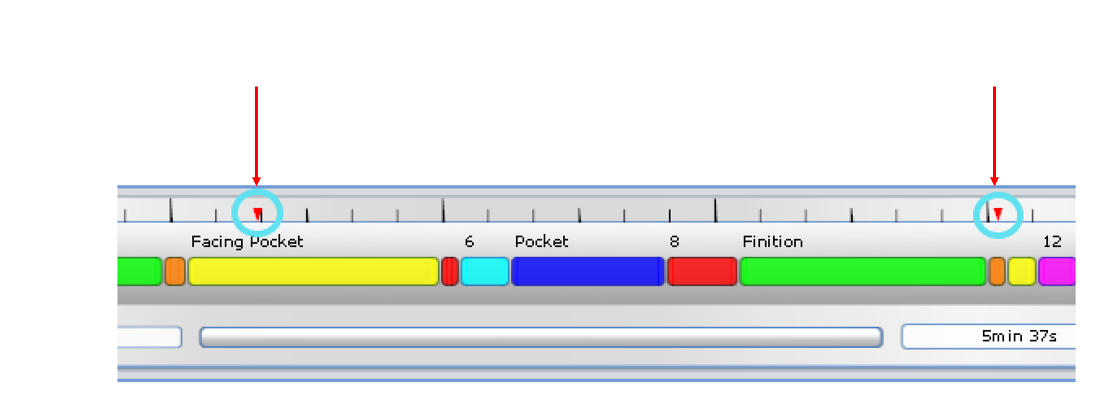
This horizontal timeline utilizes color coding to differentiate between various cycles and their respective durations. It offers a clear and concise overview of the simulation's progress.

|
|
|
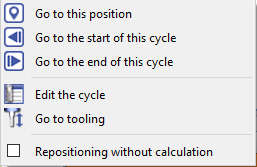
The Gantt chart has a right-click menu that empowers you with fine-tuned control over the simulation: |
|
|
Cycle Navigation: Effortlessly jump to specific points within a cycle, such as the beginning, end, or a particular user-defined position. This allows for focused examination of critical moments. |
|
|
Cycle Editing & Management: Modify specific cycles directly, adjust tooling options as needed, and trigger recalculations for fine-tuning your simulation. |
|
|
Control Flow Management: Strategically set breakpoints to pause the simulation at predetermined points in time. This facilitates in-depth analysis and troubleshooting. |
|
|
|
NC Code Tab
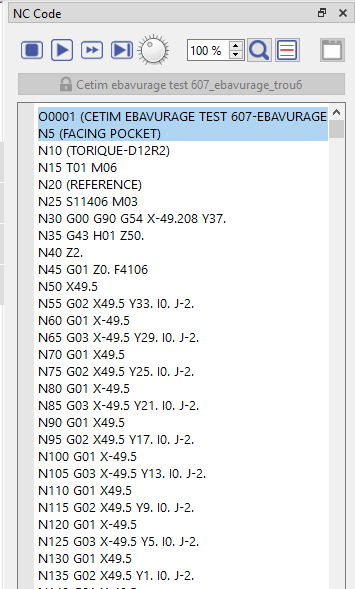
This tab displays the detailed instructions that govern the simulation's behavior, providing a deeper understanding of the underlying processes.
|
|
|
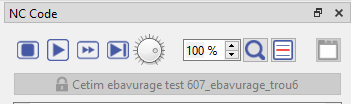
These controls allow you to control the simulation of the NC code and to view the NC code in more detail:
|
|
|
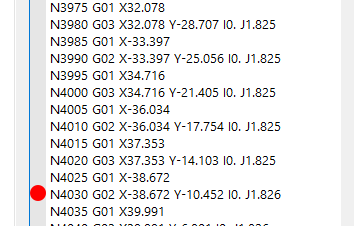
In the NC code window, breakpoints can be inserted directly in the editor by clicking on the left banner next to the desired line and a red dot will appear.
|
|