
GO2cam for SOLIDWORKS (GO2SW) is a plugin that fully integrates the GO2cam machining experience into SOLIDWORKS. It combines CAD and CAM in a single environment, eliminating file transfers for a smoother, faster, and safer workflow.
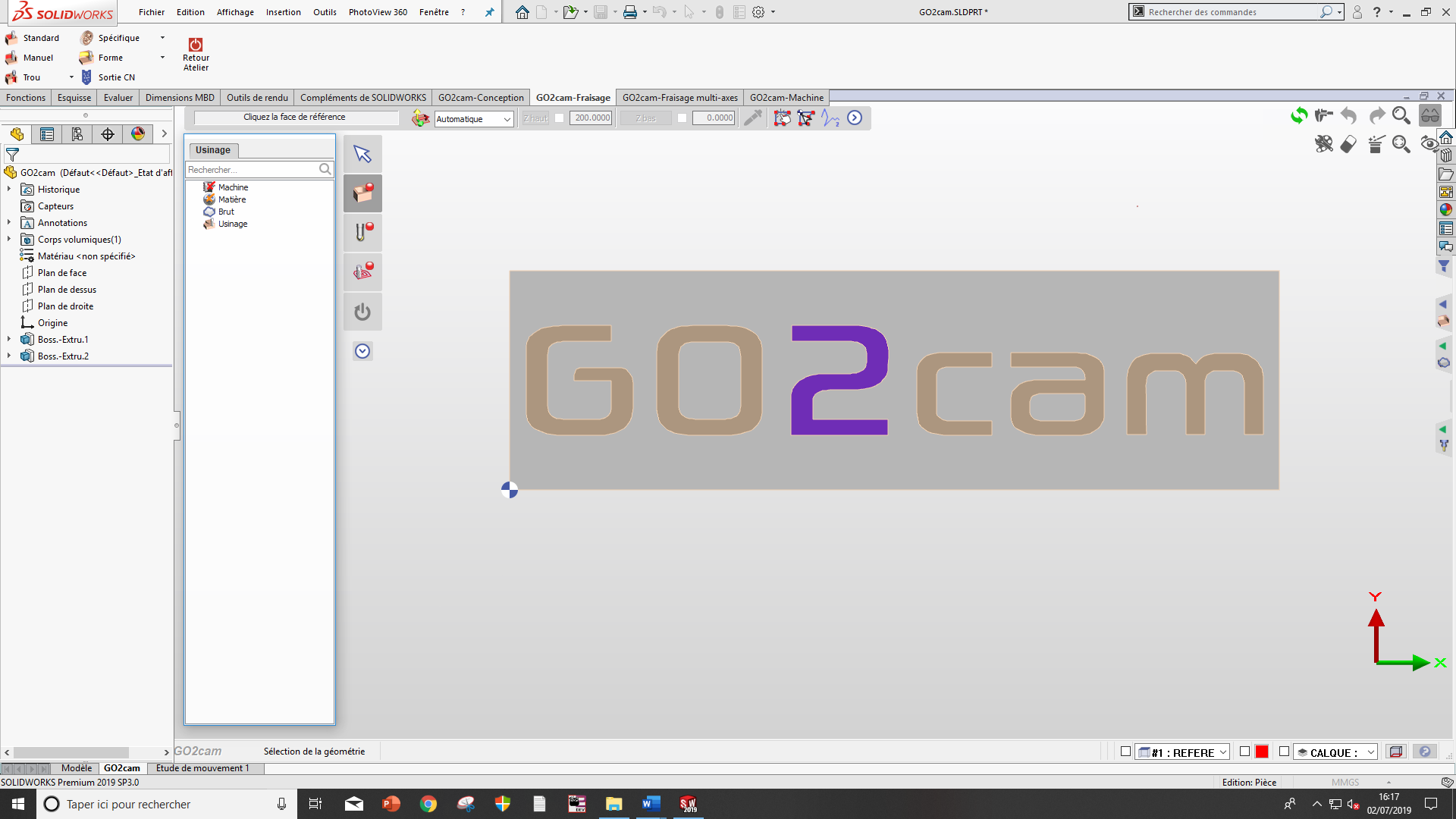
CAD to complete CAD/CAM projects
-
No more file transfers — data flow is locked and secured.
-
Toolpaths update automatically when the design changes.
-
Work environment remains the familiar SOLIDWORKS UI.
Getting started
Supported versions of SOLIDWORKS
GO2cam for SOLIDWORKS supports SOLIDWORKS 2017 to 2026.
Licensing
GO2cam for SOLIDWORKS is protected by a license. Two modes are available:
-
License for GO2SW only.
-
License for both GO2SW and GO2cam standalone.
Note: Even if the license allows using both GO2cam standalone and GO2cam for SOLIDWORKS, they cannot be used at the same time.
Plugin startup
When the GO2cam plugin is loaded by SOLIDWORKS, a GO2cam tab is added at the bottom left of the SOLIDWORKS application, next to the Model tab.
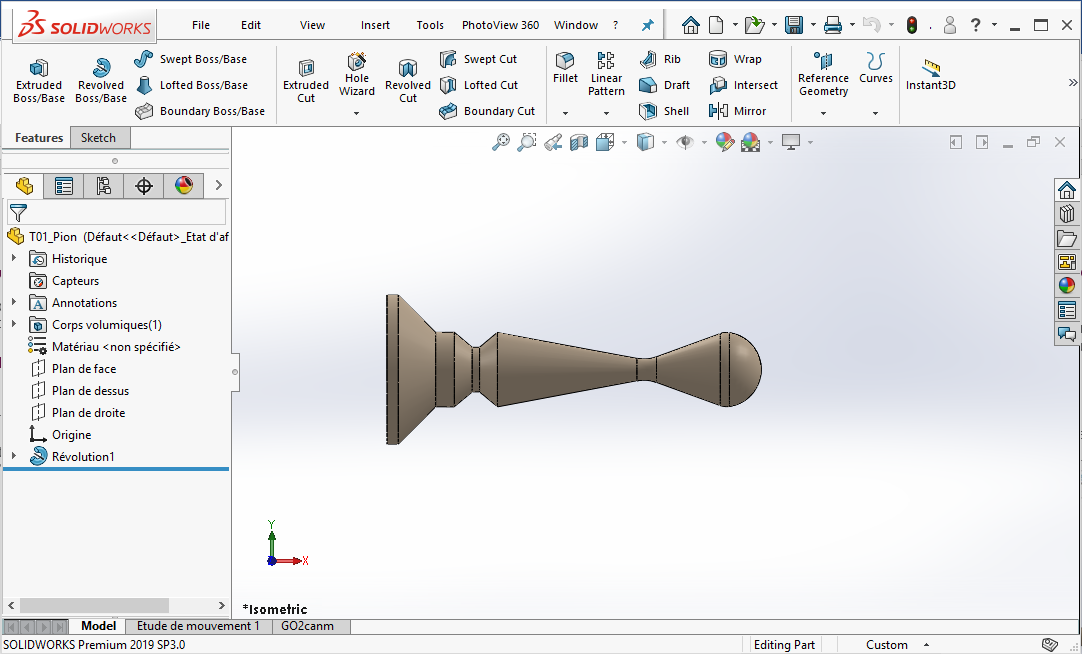
If the GO2cam tab is not visible
-
Open Tools > Add-Ins.
-
Ensure the GO2cam plugin is selected to load at startup.
Important: GO2SW is visible and usable only when a part (.SLDPRT) is loaded. When opening an assembly (.SLDASM), GO2SW is not loaded. To use GO2SW, open a part from the assembly first.
Launching the GO2cam workshop
Click the GO2cam tab to display the GO2cam workshop for SOLIDWORKS.
Note: The first time you click the GO2cam tab, GO2cam initializes and may take a while. Subsequent openings are faster.
Choosing a product
On first entry to the workshop, choose a product based on your license. GO2SW offers up to three products: Milling, Turning, and/or EDM. For each product family, the highest available license is used (e.g., if Mill Classic and Mill Expert are available, only Mill Expert appears).
Not available through SOLIDWORKS (even if licensed):
-
Mill + Boring head (Andrea)
-
MPM
-
TurnMill C Axis
The GO2SW interface
Once a product is chosen, the part is automatically transferred from SOLIDWORKS to GO2cam (like importing a solid). GO2SW runs the full GO2cam software embedded inside SOLIDWORKS. Menus are removed from the GO2cam 3D scene and placed in the SOLIDWORKS ribbon. Some commands from GO2cam’s Windows menu appear under SOLIDWORKS > Tools > GO2cam.
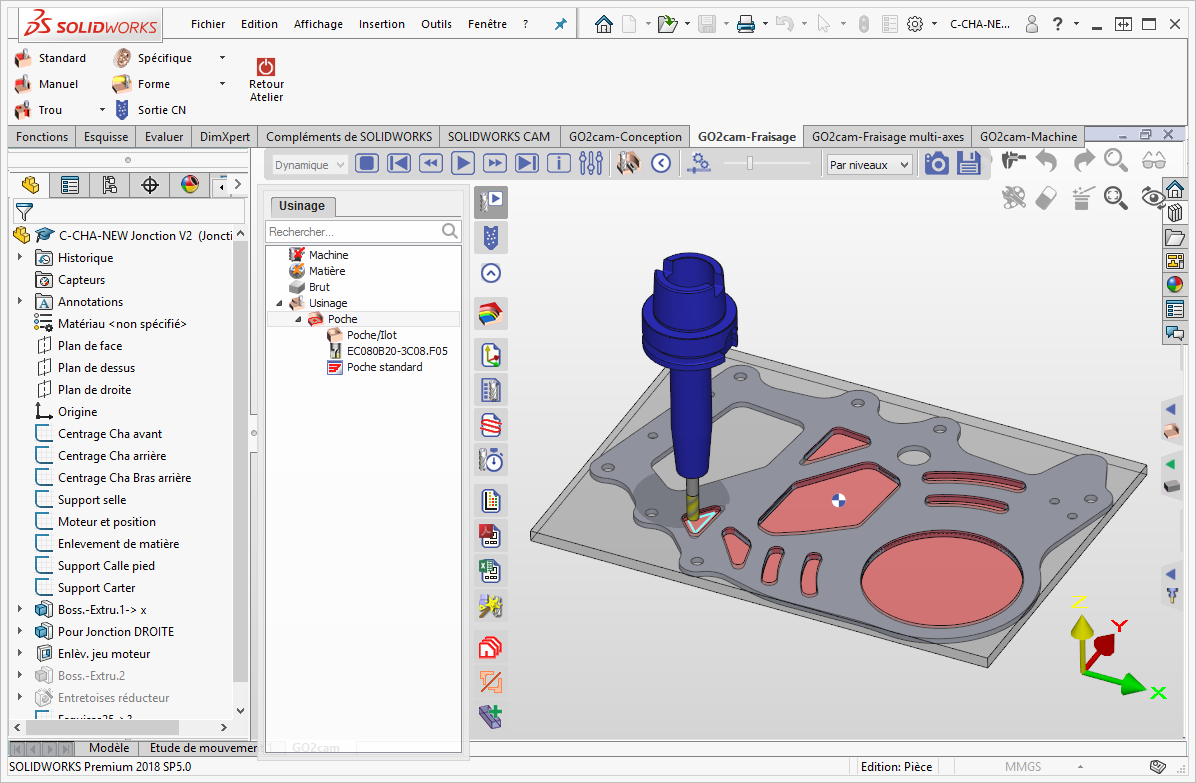
Unified look and feel
-
Mouse controls match SOLIDWORKS exactly.
-
GO2cam theme is forced to a light theme similar to SOLIDWORKS.
Mouse controls
|
Command |
Procedure |
|---|---|
|
Rotate view |
Hold the wheel and move the mouse |
|
Rotate view (screen only) |
Hold wheel + ALT and move the mouse |
|
Pan |
Hold wheel + CTRL and move the mouse |
|
Zoom to pointer |
Spin the wheel forward and back |
|
Zoom to center |
Hold wheel + SHIFT and move the mouse |
|
Fit view |
Double-click the wheel button |
Functionalities
GO2SW is not a reduced version of GO2cam. It provides the same machining functionalities as GO2cam standalone. Some menus or commands (such as Design > Solid) are omitted because they are natively part of SOLIDWORKS.
Modify a part / Work with several parts
GO2SW uses FTE technology to transfer parts from SOLIDWORKS to GO2cam. This enables you to:
-
Modify a part in SOLIDWORKS and update it in GO2cam without losing existing computations.
-
Work with several parts at the same time; GO2SW always targets the active SOLIDWORKS document.
Each time you enter GO2cam, you will be prompted to confirm part modifications, even if none were made in SOLIDWORKS.
If the part has already been transferred once into GO2cam, the workshop offers:
-
Click the highlighted product to continue in GO2cam (the part will be updated).
-
Click another product to start using the part with a new product. All previous work will be lost.
-
Click the reset button (top right) to clear current GO2cam work and restart.
Saving your work
When saving a .SLDPRT file after using the GO2cam plugin, GO2cam data are embedded in the SLDPRT. When reopening the file in SOLIDWORKS, the workshop is skipped the first time you click the GO2cam tab.
Portability: The .SLDPRT file can be used and modified on a computer running SOLIDWORKS without the GO2cam plugin. The GO2cam data remain intact and will be used to update the part when the file is reopened in SOLIDWORKS with a GO2cam plugin license.
Limitations
|
Constraint |
Details |
|---|---|
|
GO2cam |
You cannot run GO2cam standalone and GO2cam for SOLIDWORKS simultaneously. |
|
Part |
Only one part can be transferred from SOLIDWORKS to GO2cam. Assemblies with holders or machine components cannot be considered inside GO2cam. |
|
Product |
You cannot start in one product and continue in another. Changing the product erases previous GO2cam work. |
|
Solid only |
Wireframe designs cannot be transferred. Only solids are supported. |
Do not modify the part inside GO2cam. Certain operations (e.g., tolerancing) remain accessible in GO2cam but must not be used to change the part. Any modification in GO2cam breaks the FTE link between SOLIDWORKS and GO2cam.