
Introduction
GO2cam Operator is a standalone software solution designed to manage and modify machining operations within a controlled environment. It is intended for use by operators who require limited, traceable editing capabilities on GO2cam project files, without the risk of altering original geometry or core process structures.
Key Features
|
Feature |
Description |
|
Standalone Installation |
Operates independently from the main GO2cam application. |
|
User Authentication |
Requires operator selection and password entry to load specific configurations and access rights. |
|
File Compatibility |
Opens GO2cam (*.PCE) files, provided each file includes one machine file and one post-processor. |
|
User Rights Management |
Operator profiles with customizable modification rights, defined in GO2cam. |
|
Parameter Editing |
Allows modification of tool and strategy parameters as permitted by the CAM programmer. |
|
Automatic Indexing |
Modified parts are automatically indexed (e.g., partname_1.pce) to preserve original files and ensure traceability. |
|
Simulation and Comparison |
Supports dynamic/machine simulation and revision comparison for modification history tracking. |
🛠️ Implementation in GO2cam
Prerequisites
|
|
|
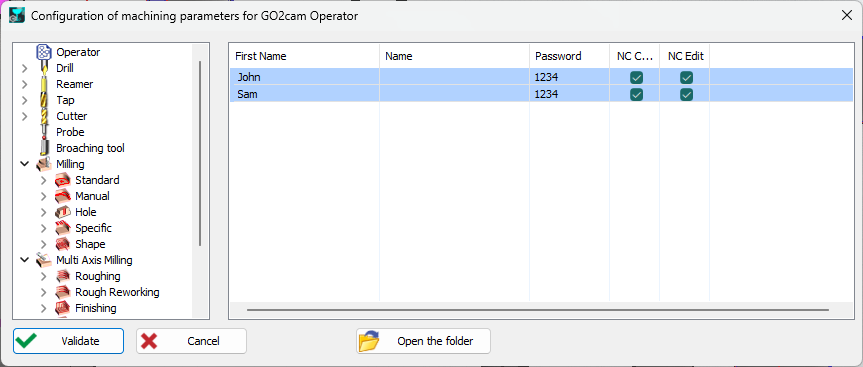
▶️ Please watch the video that describes how to create the users and the file GO2cam Operator.USR |

|
The product GO2cam Operator
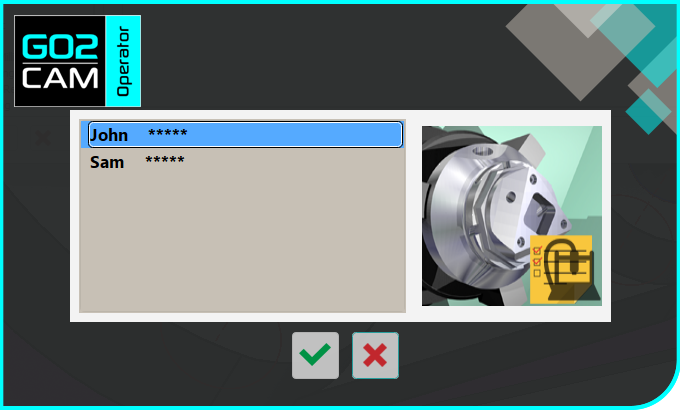
Launching GO2cam Operator
The user interface is simplified compared to GO2cam, focusing on essential operator functions. |
|
|
▶️ See how GO2cam Operator allows machinists to optimize machining operations while maintaining full revision traceability and programmer control. 
|
Main Menus
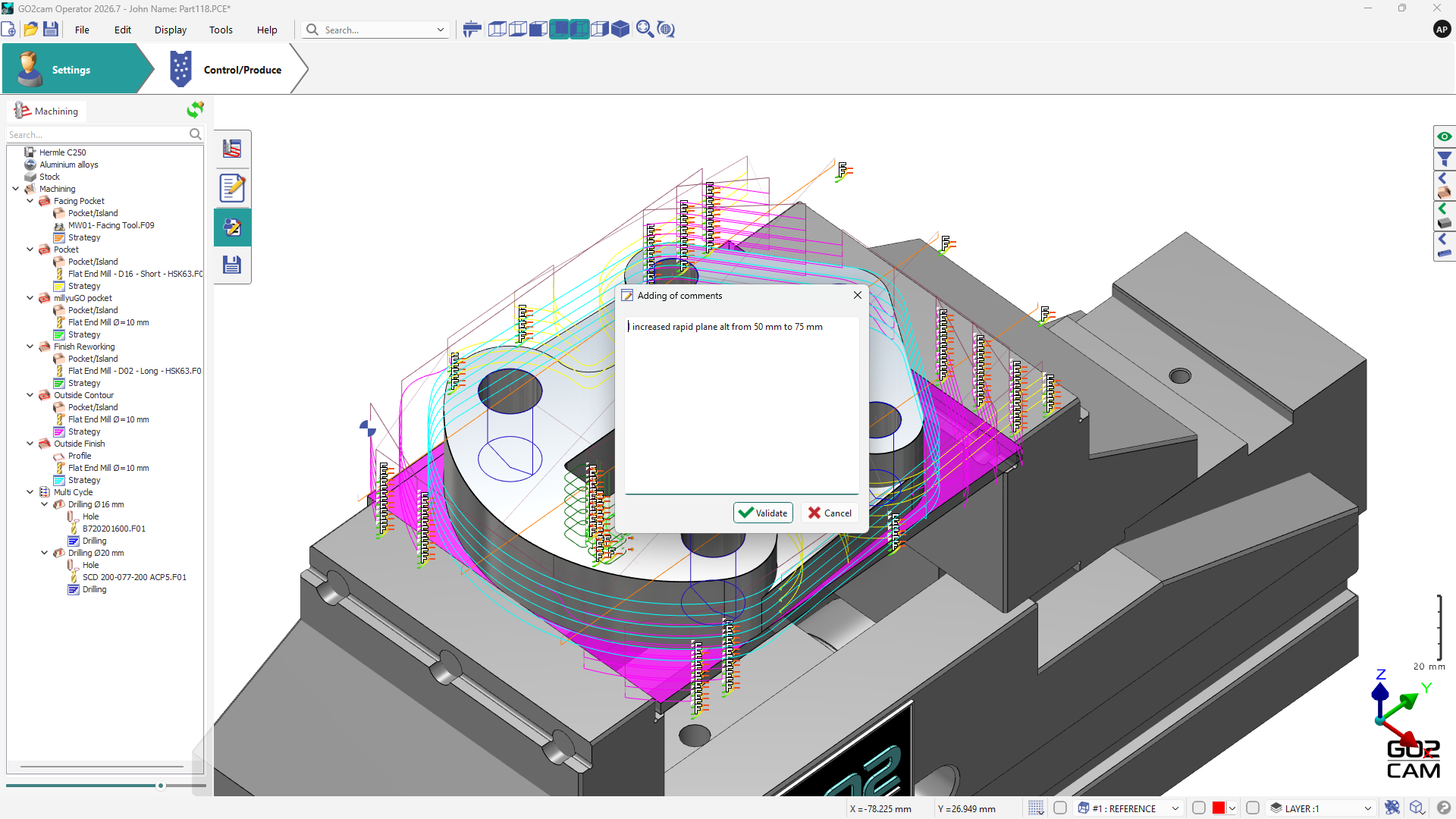
The part modified in GO2cam Operator is automatically indexed (partname_1.PCE). Later in GO2cam, you can read again the modified part and compare it with the original program. It enables to ensure the traceability of your project. |
|
Capability |
Available in GO2cam Operator |
Notes |
|
Edit Machining Operations |
Yes |
As permitted by user rights |
|
Edit Tool List |
Yes |
|
|
Edit Cutting Conditions |
Yes |
|
|
Calculate Machining Time |
Yes |
|
|
Add Comments |
Yes |
|
|
Simulate and Compare |
Yes |
|
|
Generate NC File |
Yes |
|
|
Create/Modify Geometry |
No |
Not permitted |
|
Delete/Move/Add Cycles |
No |
Not permitted |
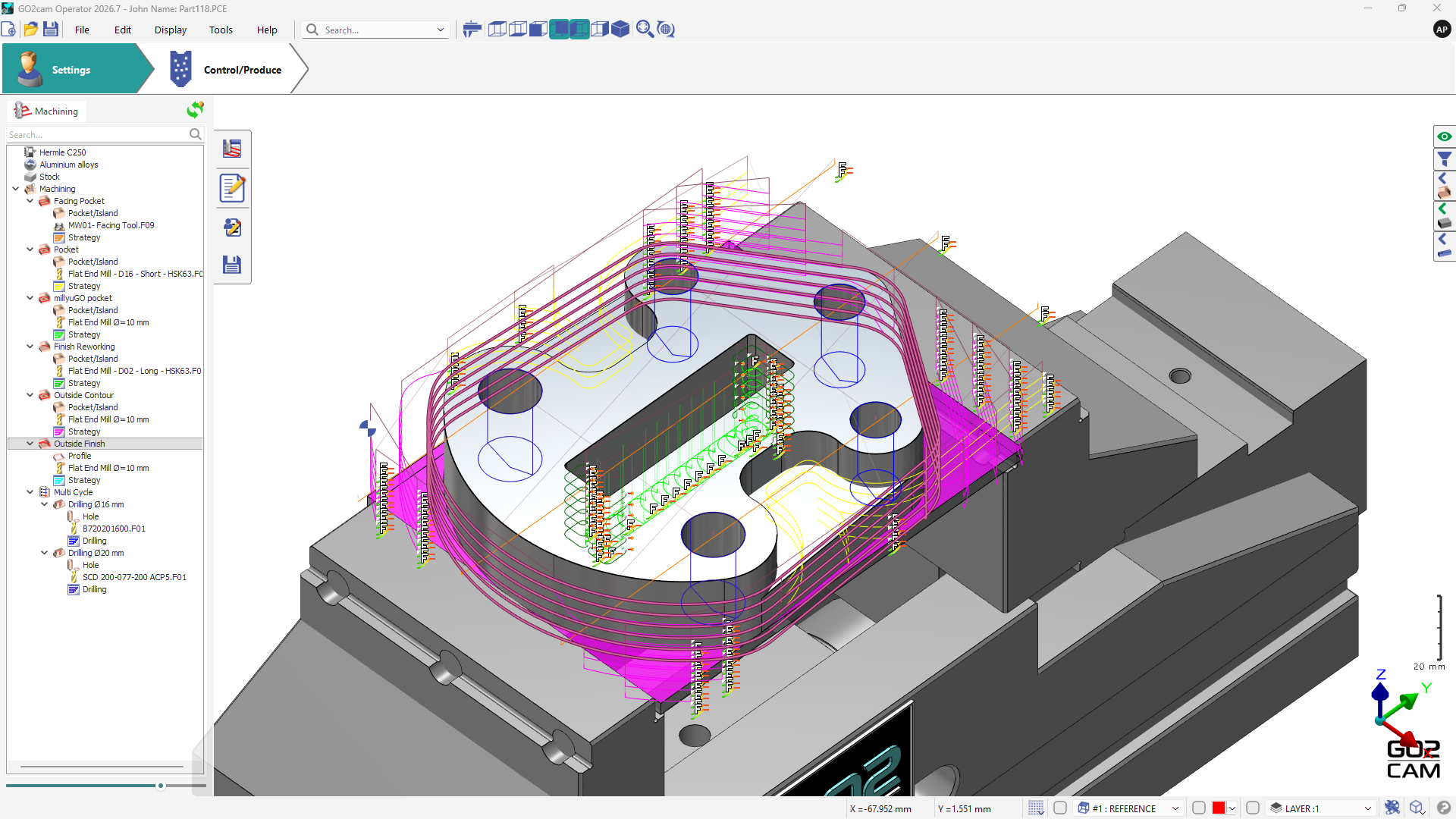
Purpose and possible actions:
|
|
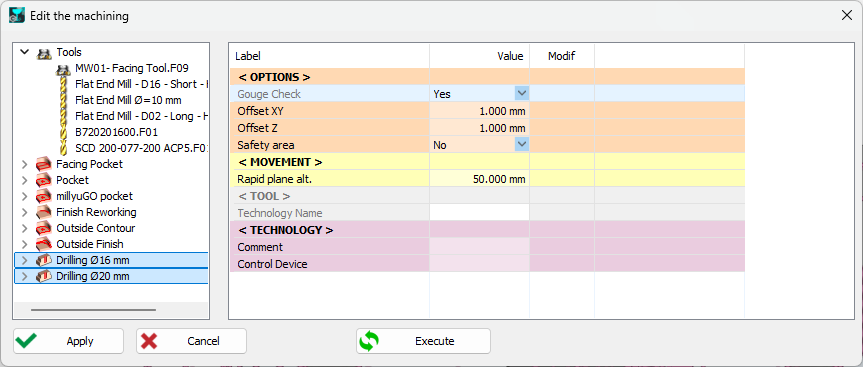
Modification of Strategy parameters
Only the parameters defined in GO2cam Production by the CAM programmer are editable.
|
|
|
|
|
|
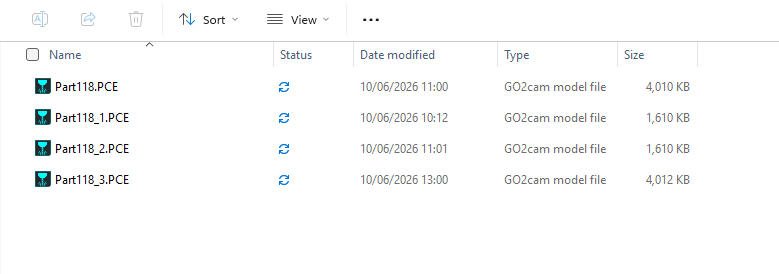
When you save the part for the first time, it is automatically indexed (Demo.pce becomes Demo_1.pce).
This prevents erasing the original file and maintains project modification traceability. If you open an already indexed part, it will be indexed again to avoid overwriting.
Traceability of Project
This chapter explains the workflow between GO2cam Production and GO2cam Operator.
GO2cam Operator creates revisions of PCE files by appending an underscore and revision number. It never overwrites the original file.
Management of revised files
There are two ways to manage revised files in GO2cam:
|
Situation |
Action / Instructions |
Illustration / Result |
|
No file is open |
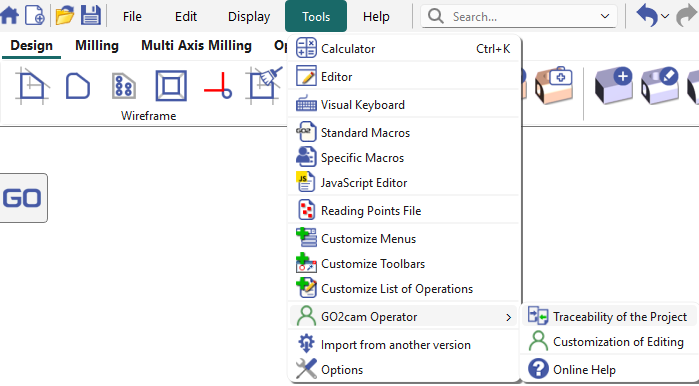
Go to Tools > GO2cam Operator, then click Traceability of the Project. |
|
|
Select the file |
Select the PCE file to review, either the original or a revised version. |

|
|
Compare versions |
The toolbar appears. Use the first two combo boxes to select versions to compare: the first is the reference file, and the second is the compared file. |
The comparison toolbar is displayed and ready. |
|
||

|
Display the note written in the compared file |

|
Show differences between the reference and compared files |

|
Delete the compared file |

|
Close the function without action |

|
Close the function, keeping only the reference file. Delete all other revisions. Rename the original file with a ".bak" extension. Rename the reference file with the original name and open it for editing. |