
This adding is optional
1 - Start CASM APP
There are 2 methods can be used:
-
Start GO2cam then Start the APP
-
Start directly APP and GO2cam will be embed to the APP
It can be install since the version V6.10.207
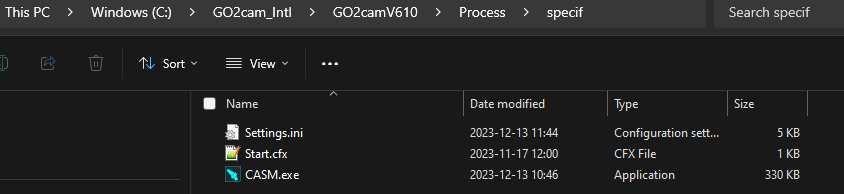
You can find the startup file of the APP (CASM .exe) in the image below
2 - Database for CASM
For CASM, MAC, kinematic ,PP, Tool, Sym, opelist files are required.
Folders needed - For “demo” only
MAC
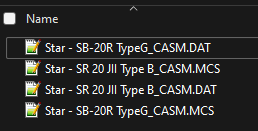
Kinematic
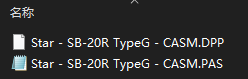
PP
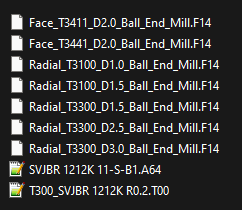
Tool
Sym
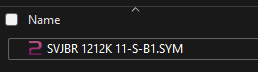
opelist\CASM
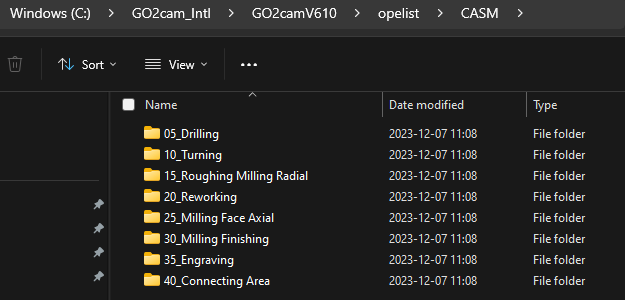
Each sequence is opl file (template)
3 - Setting CASM
Before using CASM, we need to complete the basic settings on File > Parameters.
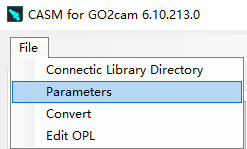
|
1 -Stock diameter setting Change value in Machine file then save the machine |
Size of the bar diameter 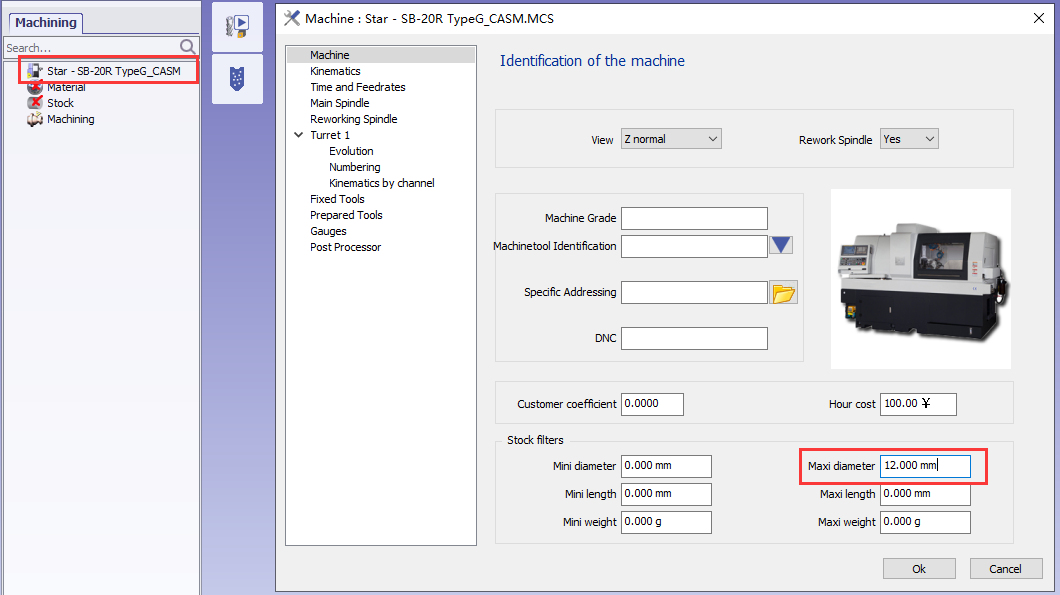
If Abutment is bigger than the diameter we will have error message |
|
2 - Emergency position setting 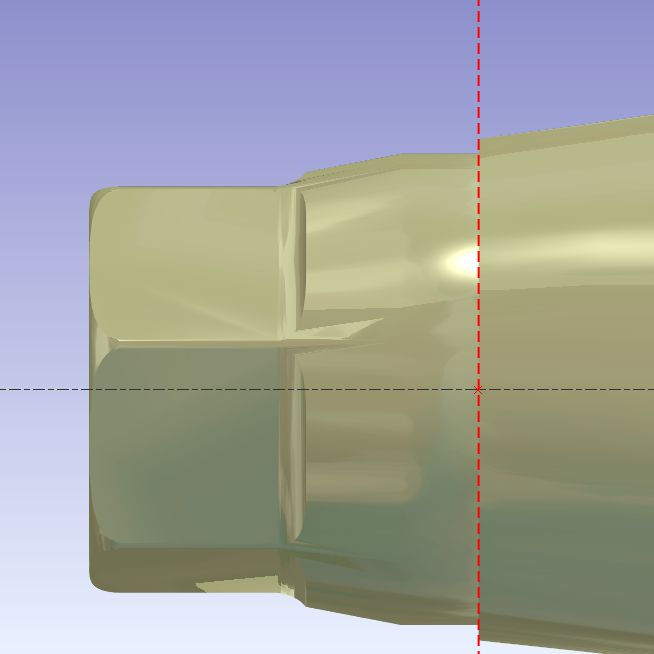
|
Set “ Default offset for ” on the Parameters page. 
User can also enter values in the window to modify the emergency position. 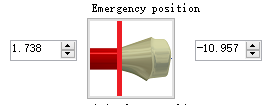
|
|
3 - Face milling area setting 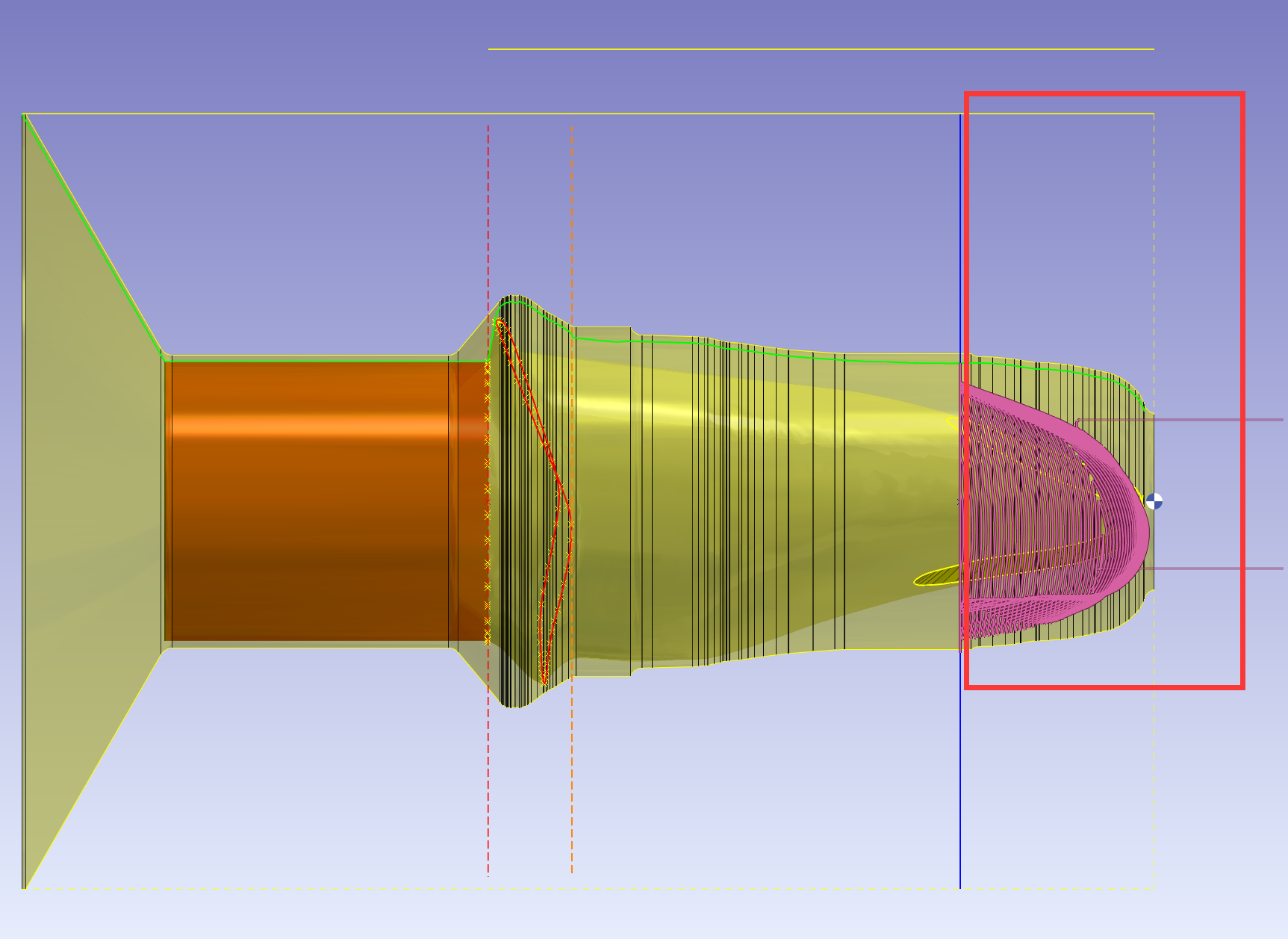
|
Set “Default value of limit faor face milling“ on the Parameters page. 
User can also enter values in the window to modify the limit position for face milling. 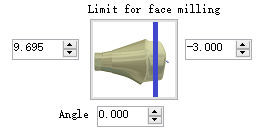
|
|
4 - Setting the folder for Connectic |
Select the folder for Connectic 
|
|
Select the type of Connectic 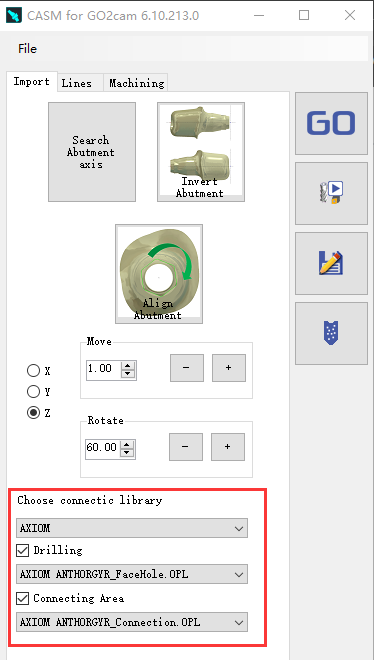
|
|
|
Choose connectic library 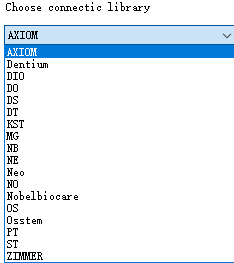
|
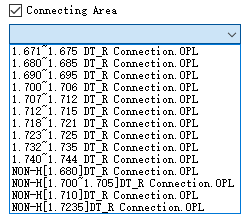
In Drilling and Connecting Area, Select the OPL file that you wanted. 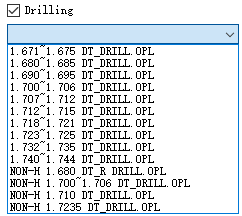
|
|
5 - Set reworking area if needed 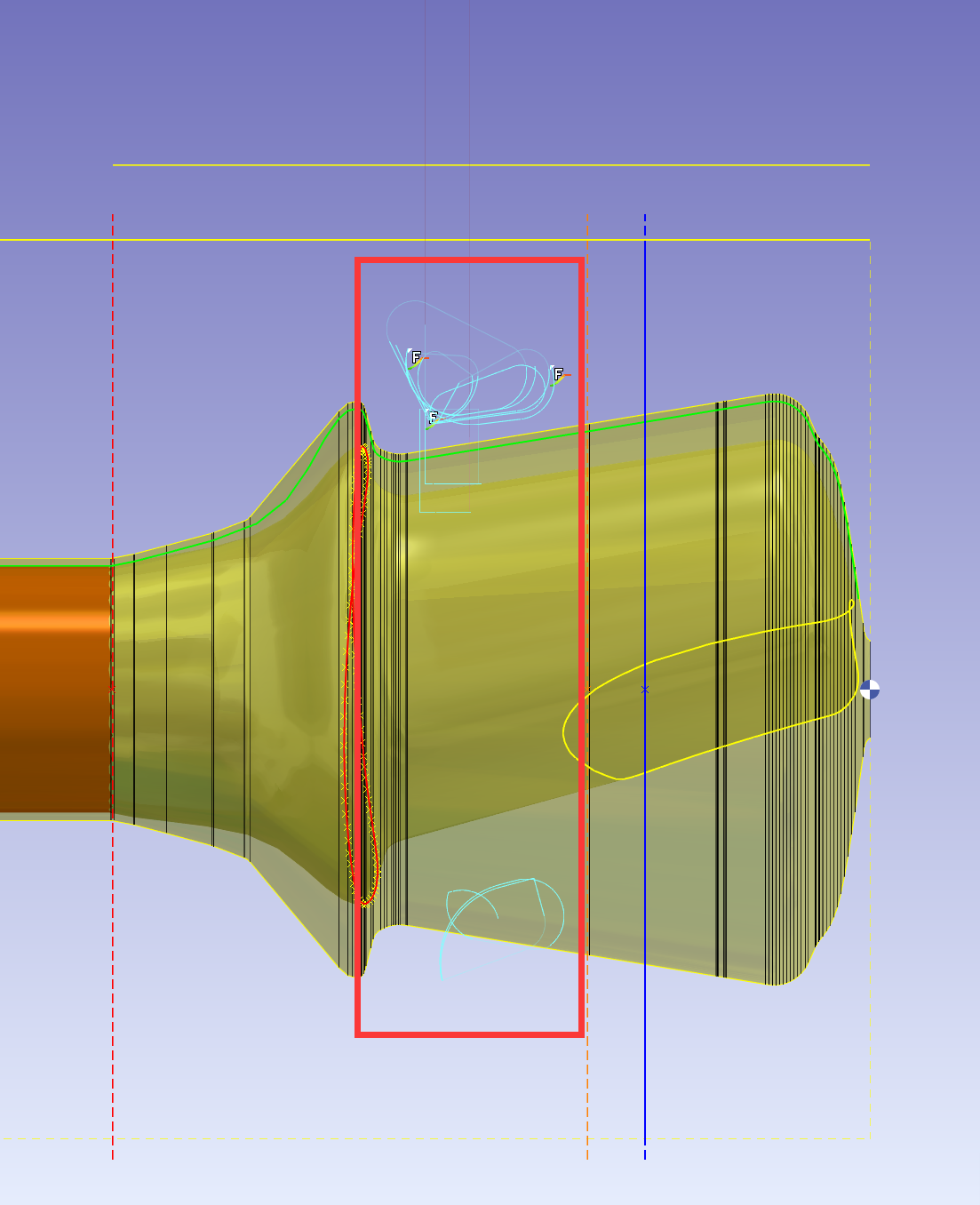
|
We need to also click at ‘Reworking’ to activate the output of rework toolpath: 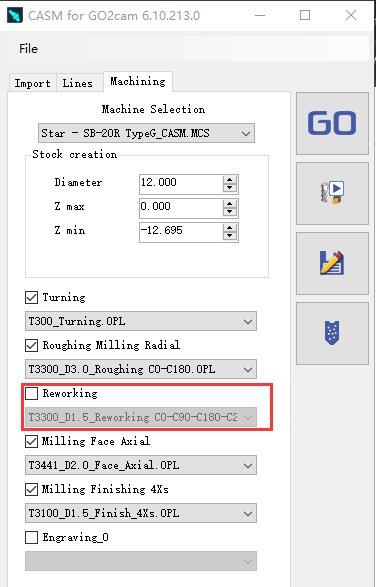
User can also enter values in the window to modify the limit position for reworking. 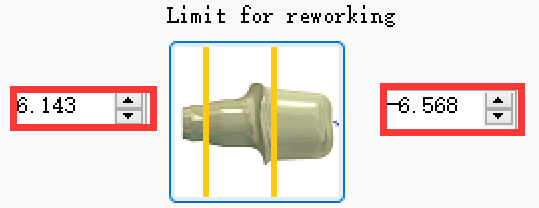
|