Definition
|
In GO2cam, most turning operations can be automated, thanks to the opelists. You can program your roughing and finishing operations, machining of grooves and inside operations. The process of creation is fast and easy, some rules and limitations must be known. |
|
|
▶️ This is demo demonstrates how Automatic Opelist are created in GO2cam. |
|
Creation of Automatic Opelist
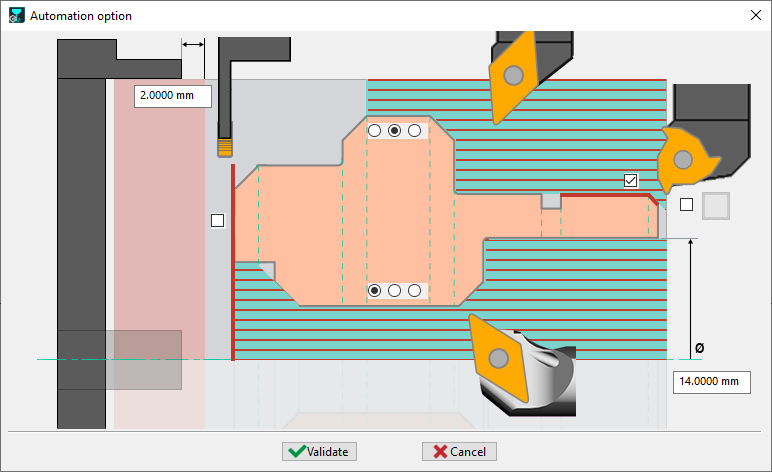
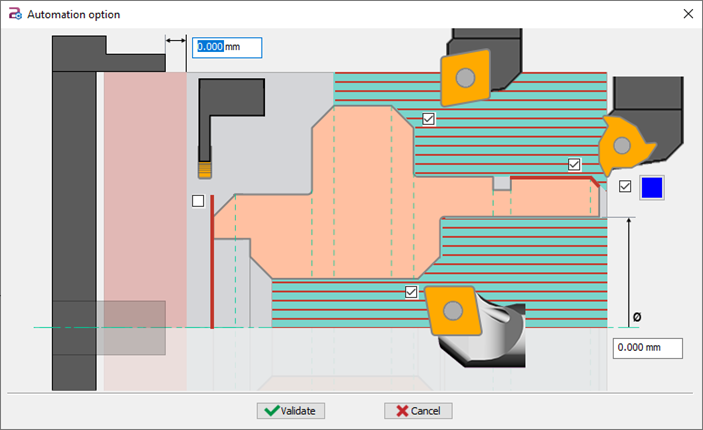
Inside the ‘Automation Option for turning inputs', we have checkboxes to select the operations that we want our automatic Opelist to perform:
Additionally, we can set values for:
|

|

|
|
|
Select options to enable the complete machining of part on the Main Spindle For external and internal machining, we have 3 modes of machining:
|
|
Application of the Opelist
|
|
To use Automatic Turning Opelist, your entities must be recognized as revolution volumes. The system natively supports two types of geometries:
-
GO2cam Shafts: Any geometry created directly using the "Shaft Design" function within GO2cam.
-
Solid Silhouettes: Silhouettes automatically generated during the import of a 3D solid (STEP, Parasolid, etc.).
Special Cases: DXF and Simple Wireframe
If you are working from a DXF import or simple wireframe geometry (not defined as a shaft), the system cannot apply the operation list automatically. In these instances, you must create a profile first.
▶️ Watch the demonstration below to see the specific workflow for converting a DXF import into a usable profile
Rules of Creation
|
Processes that can be automated:
Limitations:
|

|
These rules ensure that the automated processes are applied correctly and efficiently while acknowledging the limitations of the current automation capabilities.
|
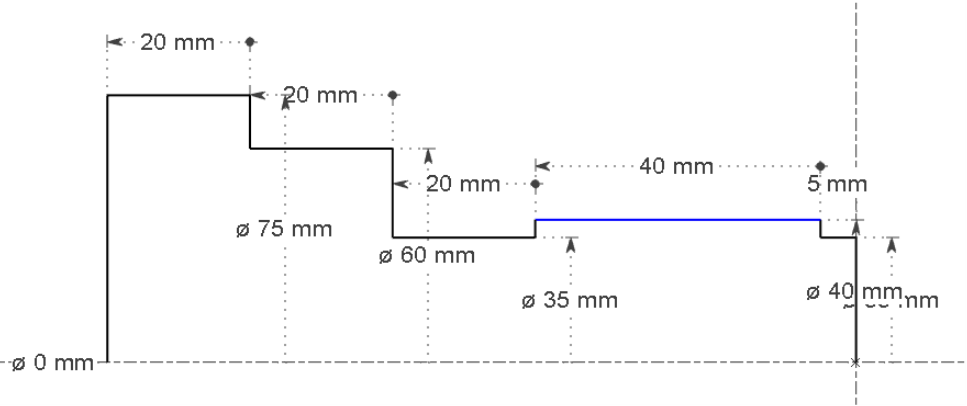
Threading by color: we can apply automatically a threading operation on a geometry defined by a colour. That way, you can define the threading operation in any diameter of part (but only once: if several elements have the colour applied, the first one will be taken) If you do not define a colour for threading, the mechanism is the same as before: only the first diameter, if it is ended by a groove, is machined with a threading. |
|
|
|
|

|
|
Special Case: Automatic Opelist for Main and Subspindle (Rework)
|
To automatize both Main Spindle job and Subspindle operations, we need to create 2 opelists. The rule is to define the same settings for the 2 opelists! Let’s take an example. We have represented the different sides of machining by the red profile: on the right side, Main Spindle operations, on the left side, Subspindle operations. To program the 2 Automatic opelists, we need to set the 2 dialogs as follows: 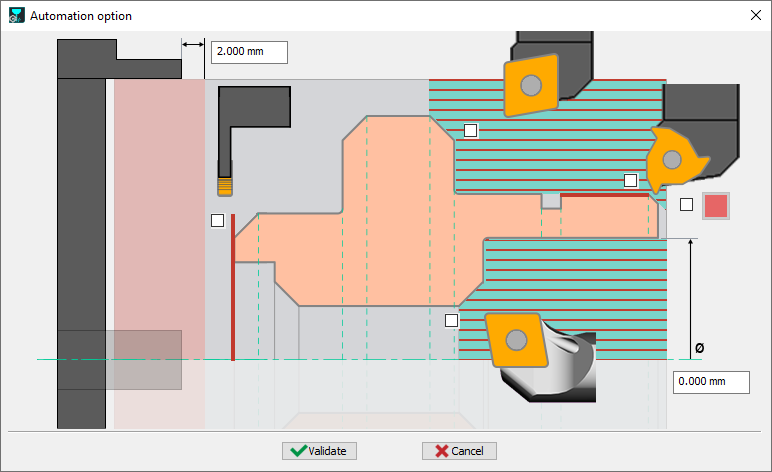
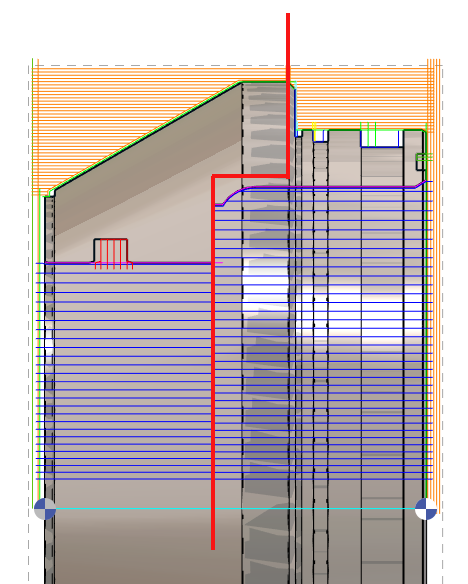
When you define the opelist for the Main spindle, the operations are on the right side (green side). But when you define the opelist for Subspindle, you need to imagine that the operations will manage the left side in grey. You can download 2 samples of opelists and copy them into your GO2cam folder called opelist. |
|
Automatic Turning Opelist for DXF or Wireframe Parts
GO2cam automatically recognizes revolution parts for:
-
Shafts created in GO2cam
-
Imported STEP or Parasolid solids
For DXF or wireframe geometry, follow these steps:
-
Select your turning opelist
-
Click “Yes” to create a revolution profile
-
Select the geometry
-
Right-click to confirm
-
Click “Profile OK”
GO2cam will now recognize the part as a revolution profile and automatically apply the full opelist.