
Presentation

|
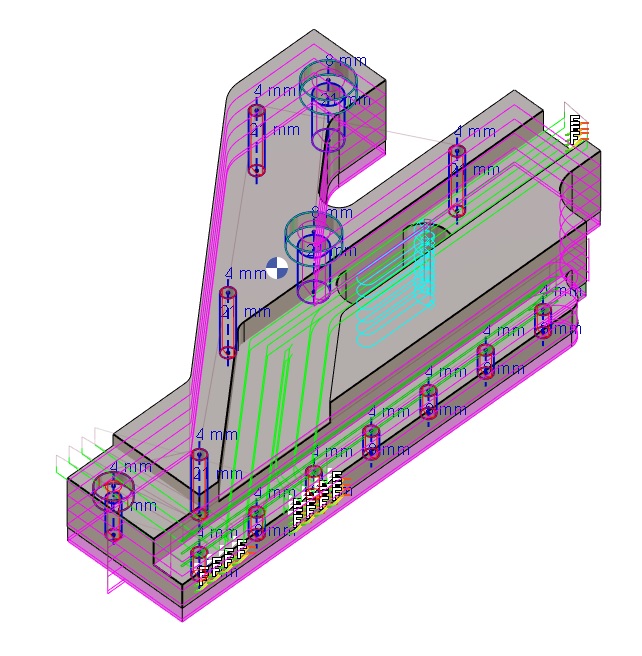
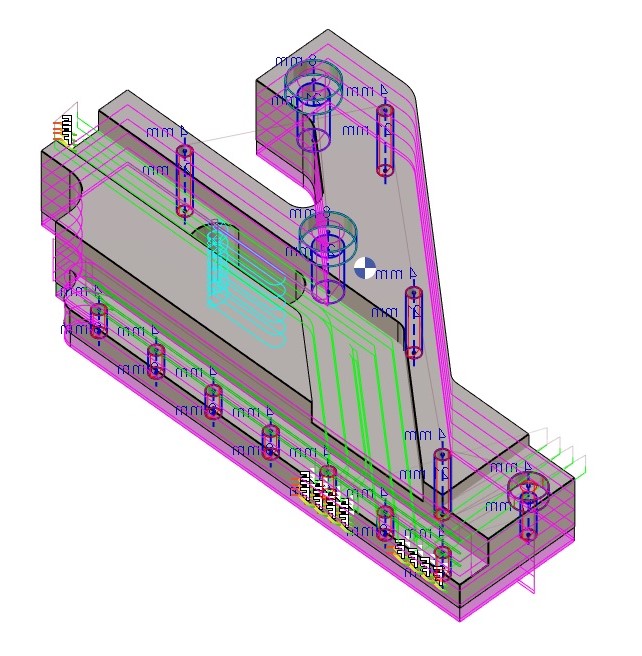
Creation of a new part by applying a symmetry copy. The geometry and the machining is copied in the new part. |
|
The purpose is to create the symmetrical part in a couple of clicks. It can be very useful in Aeronautics or to create Left-Right Parts. These parts can be used in Multi-Parts Machining (MPM). |
|
|
|
To create a part symmetry
|
The first step is to machine a part completely and to save it. If it was not already saved or if it was not saved recently, GO2cam automatically opens the dialog box to save the part. |
||
|
The following dialog zone appears: 
|
||

|
to cancel the function |
|

|
to validate and create the new part. |
|
|
On validating, GO2cam suggests by default the name of the part + _sym at the end, such as partname_sym.PCE. You can give any other name if you want. |
||
|
You can watch a video about the full process of Part Symmetry on the right. |
|
|
Some examples
|
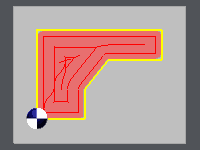
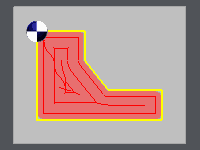
Symmetry axis: X
Origin 0, 0 |
|
|
|
|
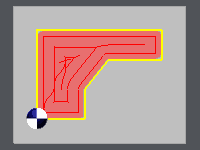
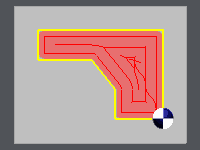
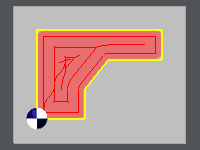
Symmetry axis: Y / Origin 0, 0 |
|
|
|
|
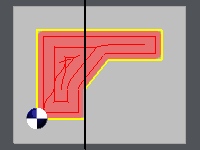
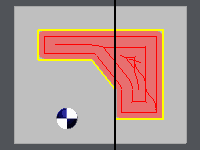
Symmetry axis: Y / Origin 40, 0 (the axis is represented by the black line) |
|
|
|
|
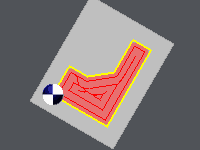
Angle = 30° |
|
|
|