
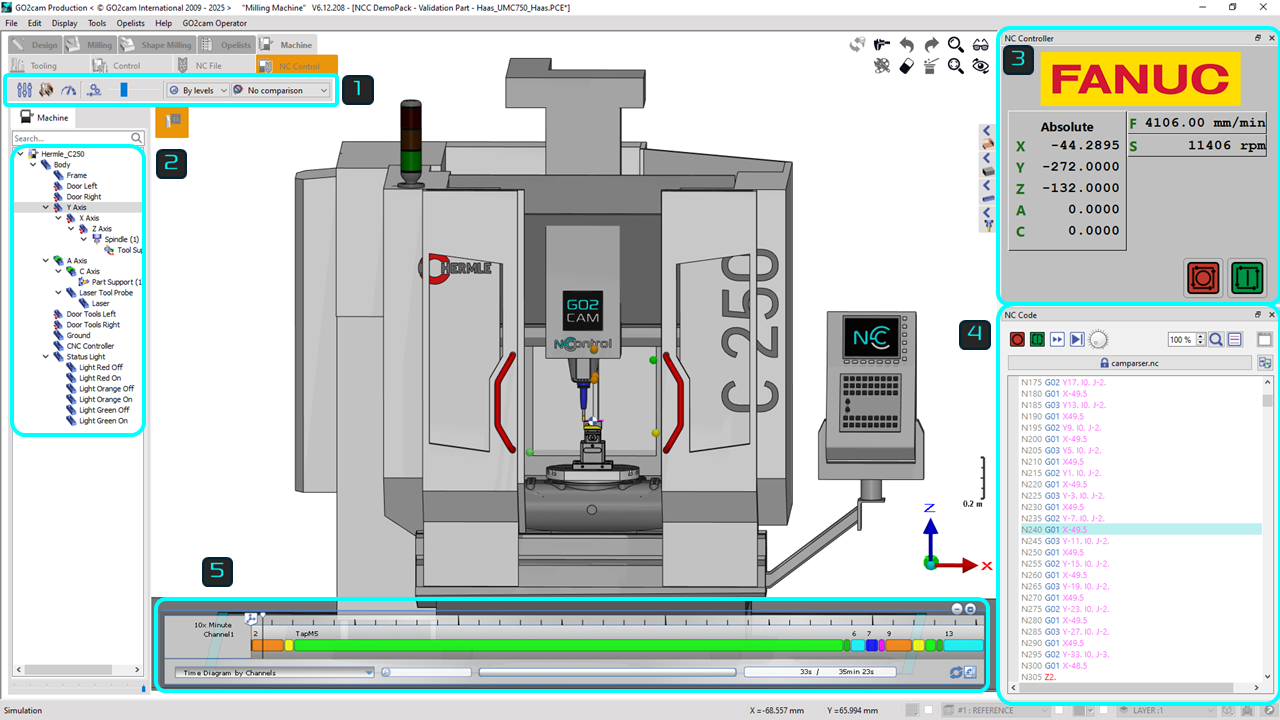
NC control consists in one single menu, showing all necessary windows and commands at one sight.
Let’s describe the User Interface:

|
NCc Toolbar: Control simulation visuals and speed |
|

|
NCc Kinematics tree: Displays all the machine components. This tree can be utilized to hide or unhide components, and it also allows for making components transparent to enhance the visual clarity of the simulation. |
|

|
NCc Controller: Display the type of controller that has been loaded, with absolute positioning, along with the feedrate and spindle speed. |
|
|
||

|
NCc Code: A tool designed for validating G-code and includes the camparser for editing. It has a build in search functions, start/stop, next cycle button and also allow you to control simulation speed. The camparser needs to be unlocked to enable NC code manipulation. |
|

|
NCc Gantt Chart: It provides a clear overview of the simulation's progress. Based solely on tools, as these are the only data available from the NC file. |
|