Skip table of contents

Designing 3D from 2D draft

Presentation

Position the views and details of a 2D drawing in 3D.

▶️ You can watch a video at the bottom of page: Click here

To position a 2D drawing in 3D

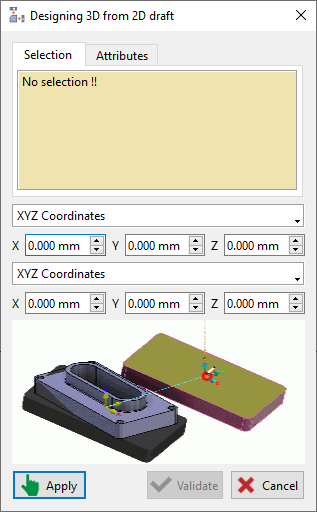
  1. Access the "Designing 3D from 2D" Command:

  • Navigate to the "Wireframe" module.

  • Locate and select the "Designing 3D from 2D" command within the "Cleaning" section.

image-20250120-061358.png
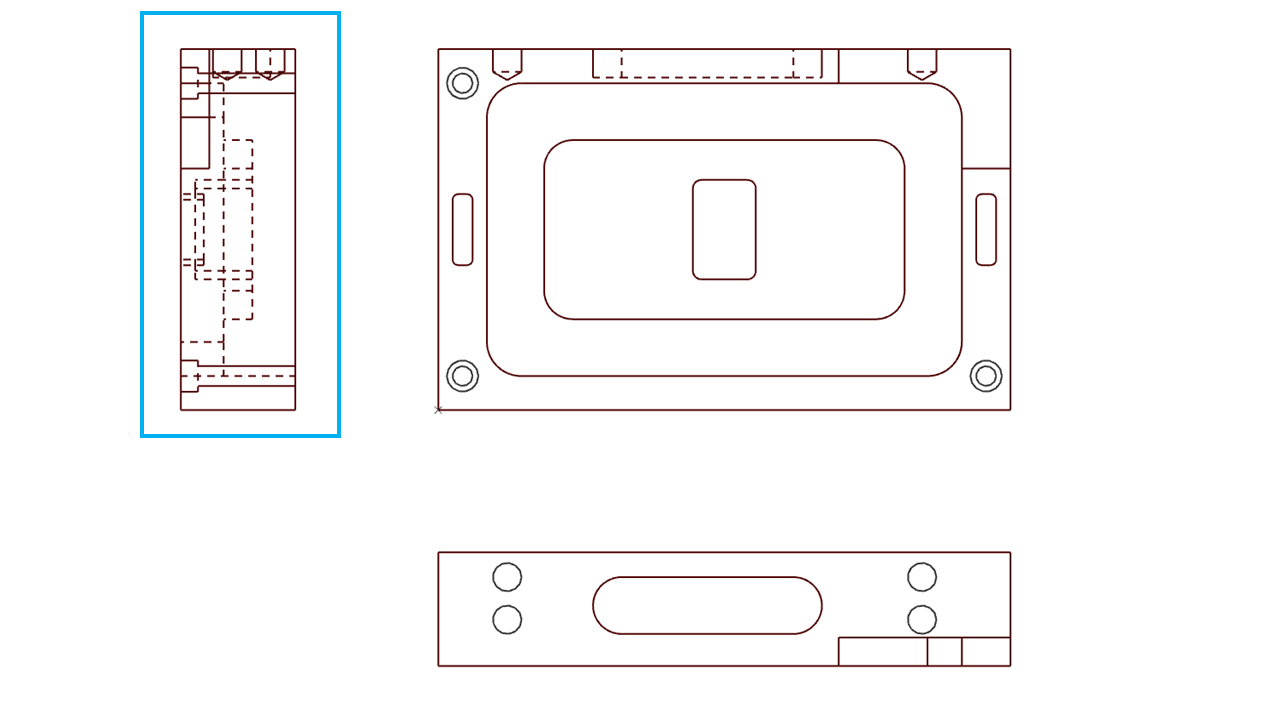
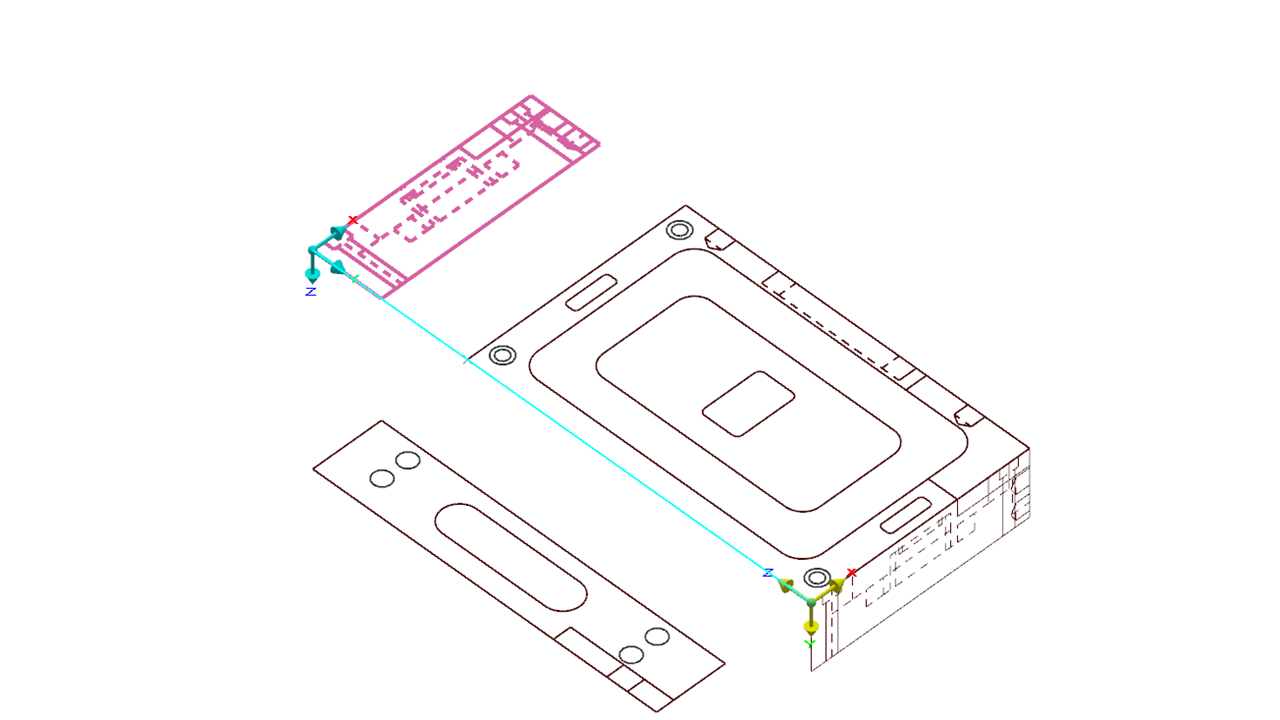
  1. Select and Position the Right View:

  • Select: Encompass the right view of the workpiece within a selection box.

  • Confirm Selection: Right-click within the selected area and choose "Confirm Selection."

d3f2d-20250120-065929.png
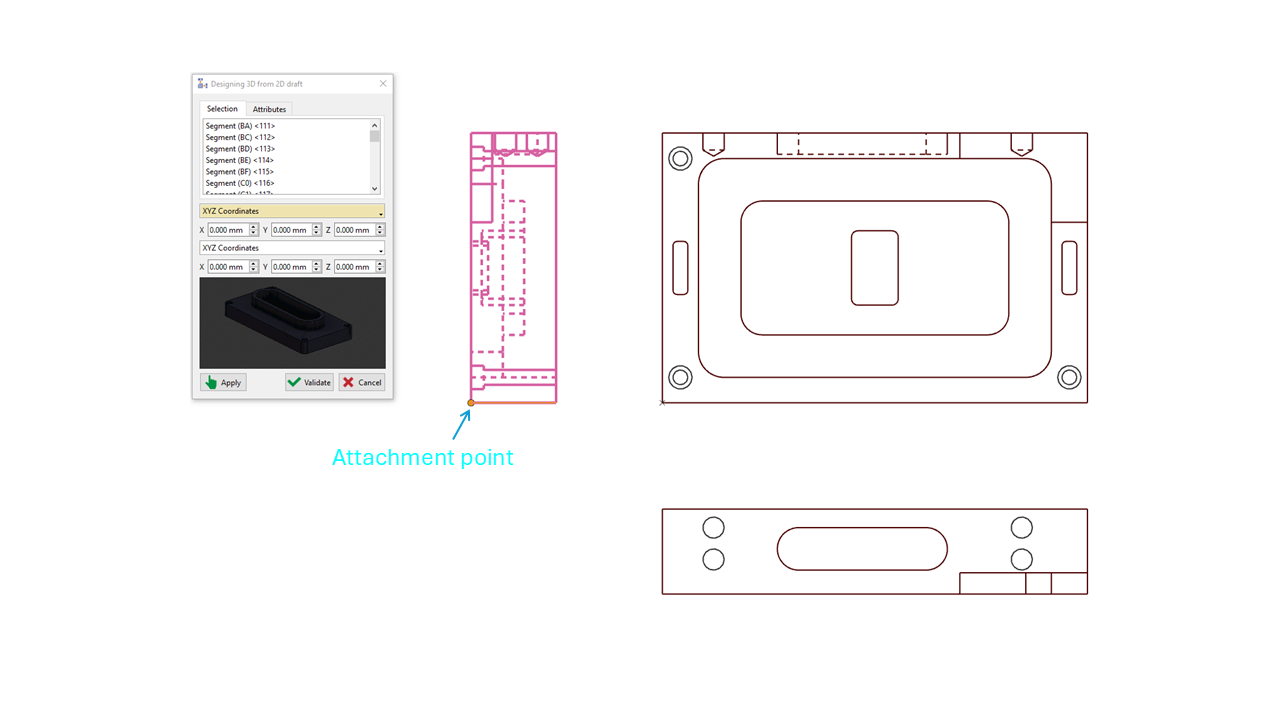
  1. Define Attachment Point: Select a specific point on the right view as the attachment point.

    • In this example: Select the bottom left corner of the right view.

de3323.png
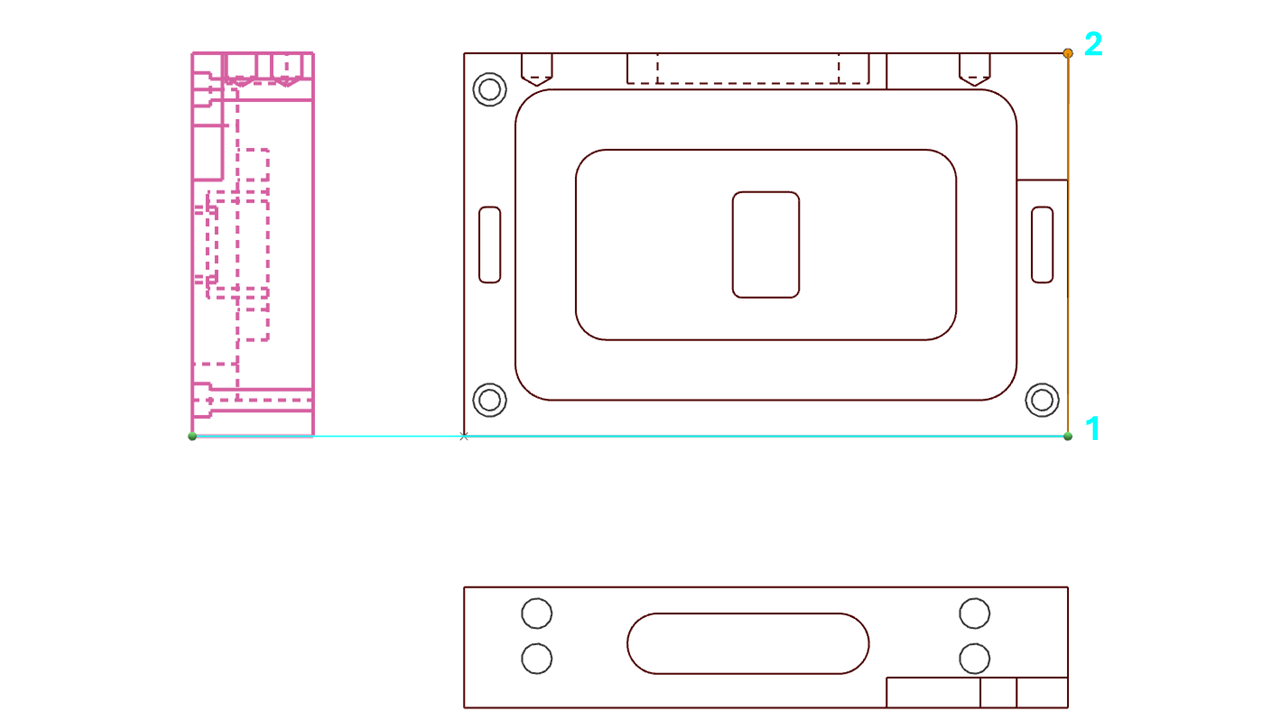
  1. Determine Attachment Line:

    • Select the vertical line on the right side of the top view.

    • Define the line by selecting its starting point (bottom 1) and ending point (top 2).

d334-20250120-071850.png
  1. Validate or Adjust:

  • Verify the preview of the aligned right view.

  • Utilize the provided axis systems to rotate or translate the view as needed.

  • Click "Validate" to confirm the placement and create the associated plane.

qeq-20250120-072120.png
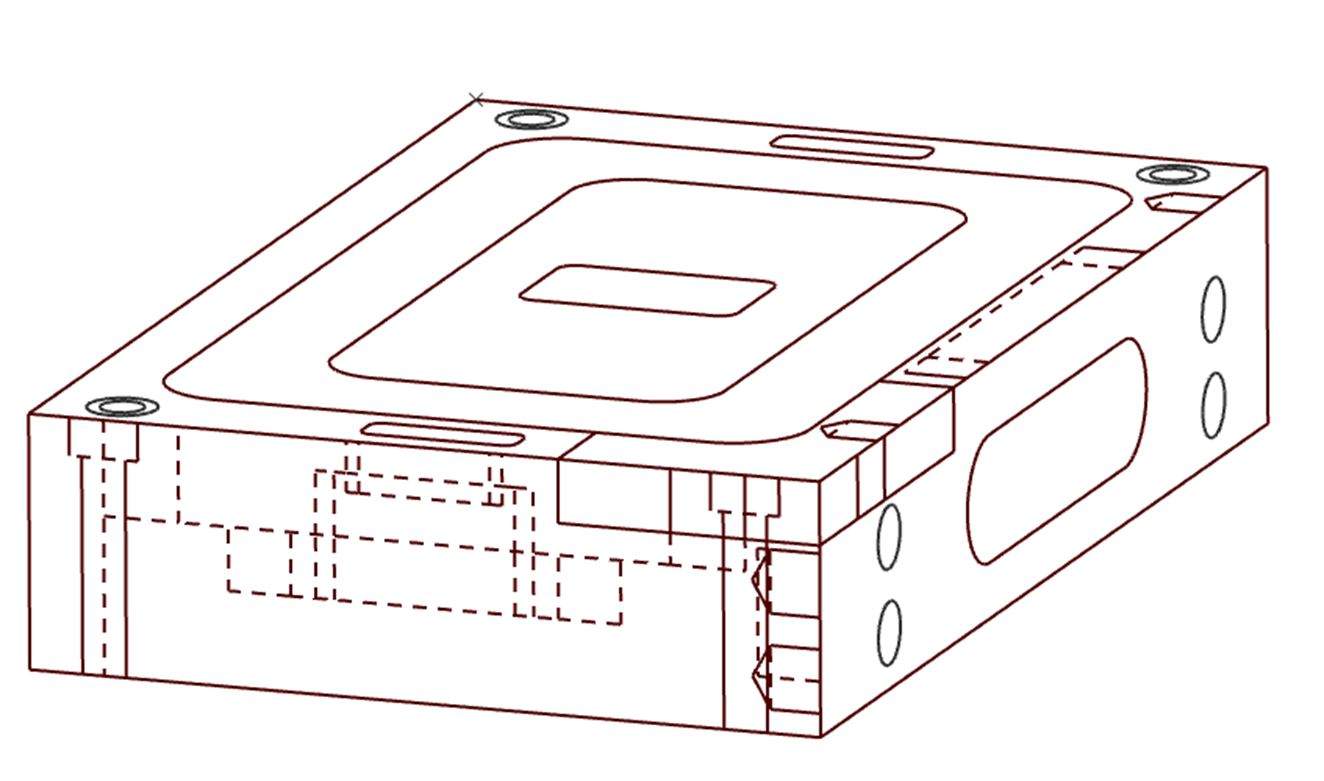
  1. Position Remaining Views:

  • Repeat steps 2 to 4 for each remaining view in the 2D drawing.

image-20250120-072937.png

▶️ You can watch a video about the full process of Designing 3D from 2D:
Design 3D from 2D draft.png


JavaScript errors detected

Please note, these errors can depend on your browser setup.

If this problem persists, please contact our support.