This manual applies from version 2026.11 onwards. The interface may change from one version to the next.
A machine command is a named sequence of machine moves or actions stored in the machine command file mac/<machine>.XML (same name as the machine file). It is recalled in the program with the techno function Machine command, then written in the NC file and replayed in the simulation.
1. Available machine commands
Every type has a Duration (simulation time, in seconds) and most have an Attribute. Program lines and Tool mount/demount have no duration.
|
Type |
Description |
Parameters |
|---|---|---|
|
Positioning |
Moves the selected axes together to the positions recorded at creation. In GO2Robot, if the machine has no programmable external axis, the 6 robot axes are taken; otherwise a list asks which axes (robot and/or external axes) the command drives. |
|
|
Robot joint move |
Joint (point-to-point) move of the robot to the target. |
|
|
Robot linear move |
Linear move of the robot TCP to the target. |
|
|
Program lines |
Instruction lines written as they are in the robot program by the post-processor (for example a subroutine call on EFORT). A post-processor that does not handle them drops them with a warning. Used alone in the program, or as the command run at the target point of a Robot approach retract. |
|
|
Robot approach retract |
Joint move to the approach point (the target backed off along the tool axis), linear move to the target, the chosen command at the target, then linear retract along the tool axis. |
|
|
Tool mount/demount |
Mounts or demounts a tool at a tool position of the machine (for example the spindle). |
|
2. Create a machine command
-
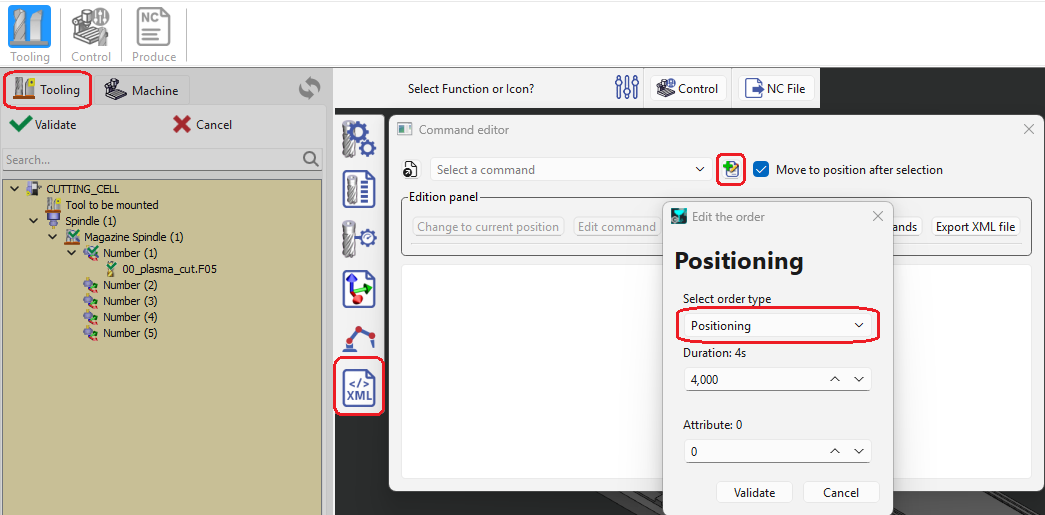
Go to Tooling.
-
Click the XML icon: the Command editor opens.
-
Click Create (the icon next to the command list).
-
Enter a name for the command. The name must not already be used.
-
In Edit the order, select the type in Select order type. The fields change with the type (see the table above). Fill them in, then click Validate.
The move types (Positioning, Robot joint move, Robot linear move, Robot approach retract) record the current position of the axes: move the robot and the external axes to the wanted position before you create the command.
Positioning: an external axis must be set as Programmable in the machine to be driven by a machine command.
3. Edit a machine command
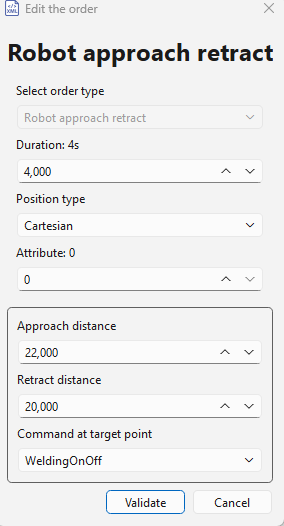
In the Command editor, select the command in the list and click Edit command: Edit the order reopens to change the parameters (duration, attribute, position type, approach and retract distances, command at target point, program lines, tool choice), then click Validate.
-
With only robot axes, a move can be changed between Positioning, Robot joint move and Robot linear move. The other types cannot be changed.
-
Changing the position type does not convert the target: the current robot position is recorded in the new form.
Example: editing a Robot approach retract command with a Cartesian target and a program-lines command at the target point.
4. Insert a machine command into the machining tree
-
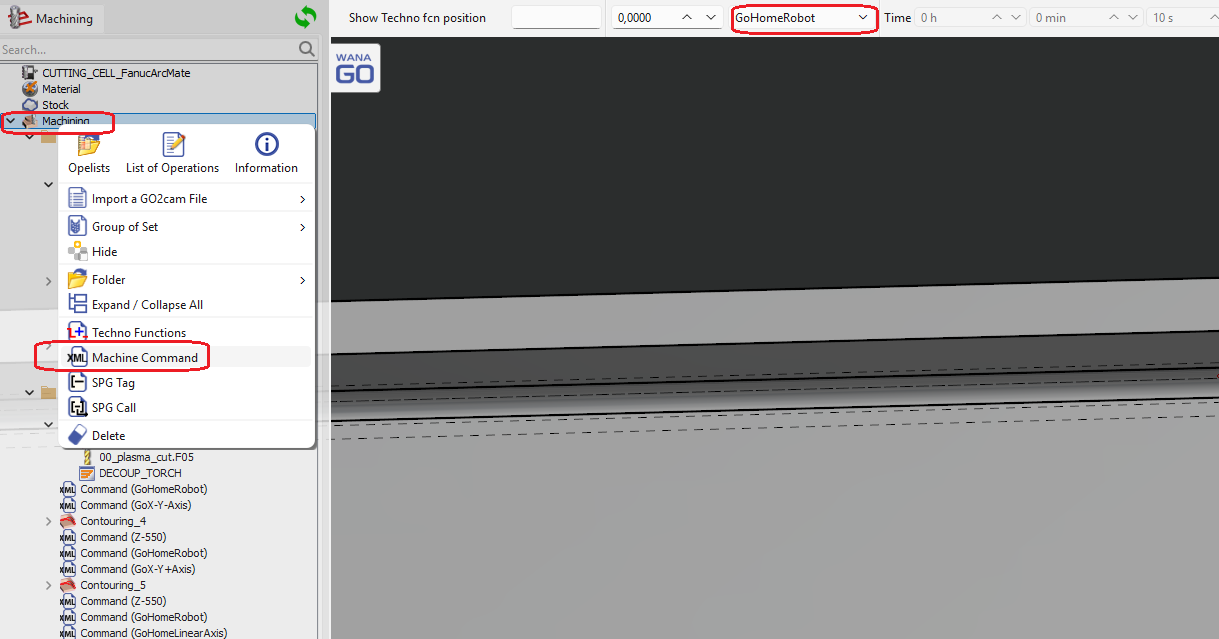
Right-click Machining (the title of the machining tree).
-
Select Machine Command.
-
Select the command in the list at the top of the screen.
-
Click an existing element of the machining tree: the selected machine command is inserted after it, shown as Command (<name>).
5. Edit a machine command from the machining tree
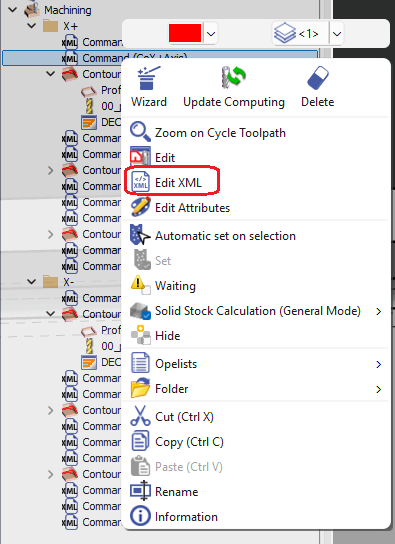
Right-click the machine command in the machining tree and select Edit XML. Tooling opens with the Command editor on that command and the robot at its position. Then modify it as described in sections 3 and 6.
6. Other options of the command editor
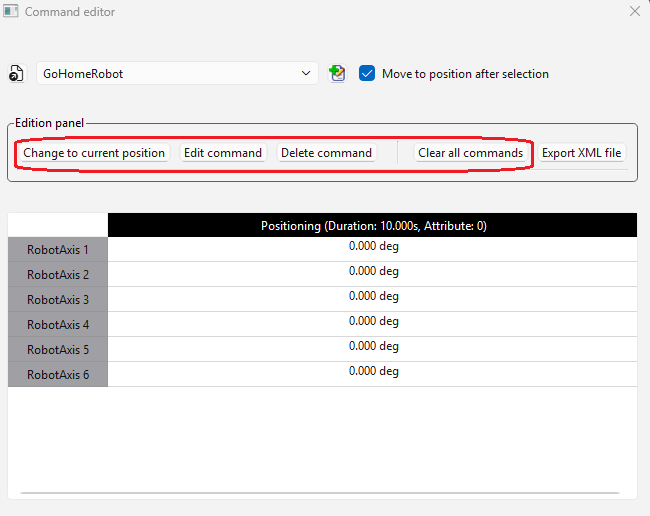
Select a command in the list. With Move to position after selection ticked, the machine goes to the position of the command. The table shows the axes and values of the selected command. The buttons of the Edition panel:
|
Button |
Action |
|---|---|
|
Change to current position |
Move types only: replaces the recorded positions with the current axis positions (a Cartesian target records the current TCP pose again). Move the axes to the wanted position first, then click the button. |
|
Delete command |
Deletes the selected command. |
|
Clear all commands |
Deletes all the commands of the file. |
|
Export XML file |
Saves the commands in another XML file. |
Every change is saved at once in the machine command file.