

|
Use Copy Altitudes (the pipette) to transfer selected altitude values from the current profile to other profiles in the geometry selection. Use it when several pockets must share the same machining levels. |
Dialog
The checkboxes determine which values are copied. Apply to all copies the checked values to all profiles in the current selection.
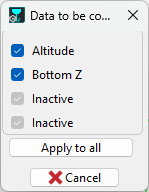
Options
|
Altitude |
Copies the upper altitude (Top Z) from the current profile when checked. |
|
Bottom Z |
Copies the lower machining level from the current profile when checked. |
|
Checked / unchecked |
Check each value you want to transfer. Leave a value unchecked if the destination profiles must keep their individual value. |
|
Inactive entries |
The two greyed-out entries shown in this dialog are unavailable in this selection context. |
|
Apply to all |
Transfers the checked values to all profiles in the current geometry selection. It does not mean every operation or profile in the whole document. |
|
Cancel |
Leaves the copy command without applying the pending copy. |
Methodology
|
1 |
Check the source |
Activate Information (the white arrow above Geometry Selection), then click the required profile or its selection bubble. Its bubble becomes yellow. Check the source Top Z and Bottom Z against the part origin and required machining depth. |
|
2 |
Open the command |
Click the pipette in the geometry-selection controls. |
|
3 |
Choose the values |
Check Altitude, Bottom Z, or both, according to which levels must be shared. |
|
4 |
Apply |
Choose Apply to all only when all profiles in the selection must receive the checked values. |
|
5 |
Verify |
Read the resulting values on each profile. Profiles intended to have different levels must retain the correct individual values before validating the geometry selection. |
Examples
|
1 |
Several pockets have the same upper and lower levels |
Check Altitude and Bottom Z, then Apply to all. For example, source pocket 1 has Top Z 7 mm and Bottom Z −7 mm; destination pocket 2 starts at Top Z 5 mm and Bottom Z −9 mm. After applying, pocket 2 has both source values: 7 mm and −7 mm. 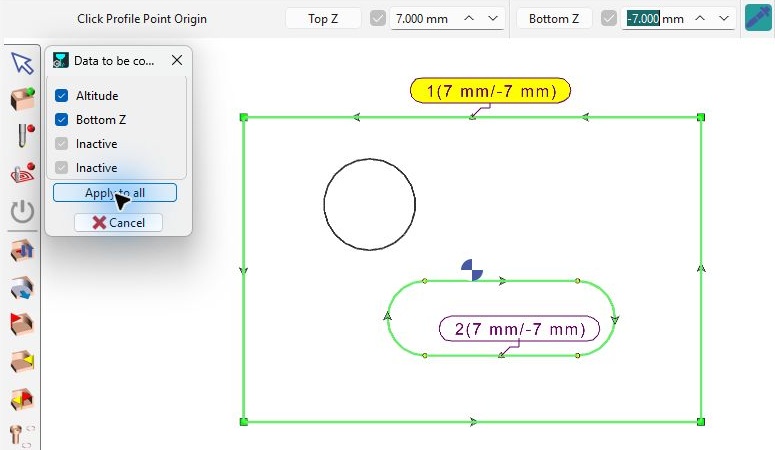
|
|
2 |
Several pockets share the same upper level but have different bottoms |
Check Altitude only and leave Bottom Z unchecked. For example, source pocket 1 has Top Z 5 mm and Bottom Z −7 mm; destination pocket 2 starts at Top Z 2 mm and Bottom Z −9 mm. After Apply to all, pocket 2 has Top Z 5 mm and retains Bottom Z −9 mm. 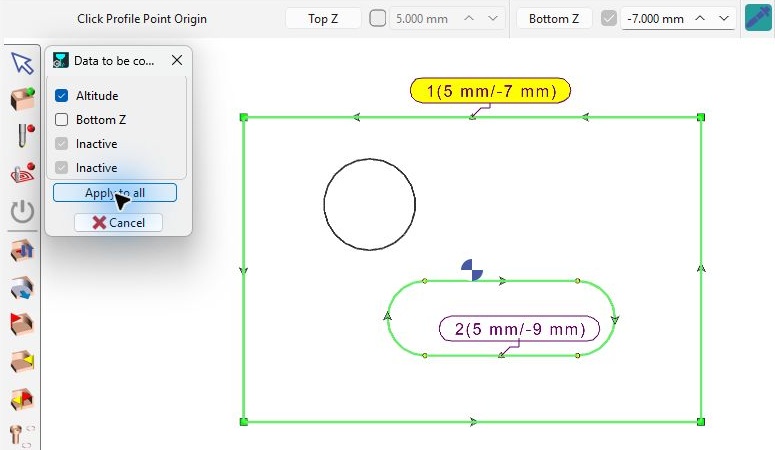
|
|
3 |
Several profiles share the same bottom but have different upper levels |
Check Bottom Z only and leave Altitude unchecked. In this example, source pocket 1 has Top Z 5 mm and Bottom Z −9 mm; destination pocket 2 starts at Top Z 2 mm and Bottom Z −15 mm. After Apply to all, pocket 2 has Bottom Z −9 mm and retains its individual Top Z of 2 mm. 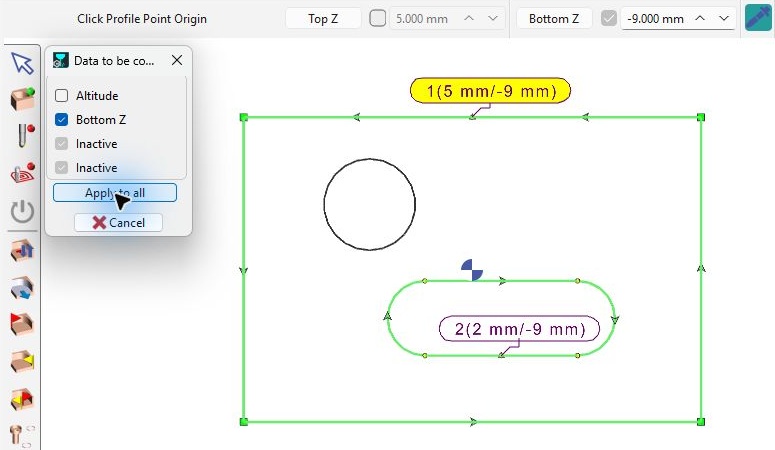
|
Related Pages
Z Altitudes on Wireframe — define or recover the source values.