
Displaying altitude details
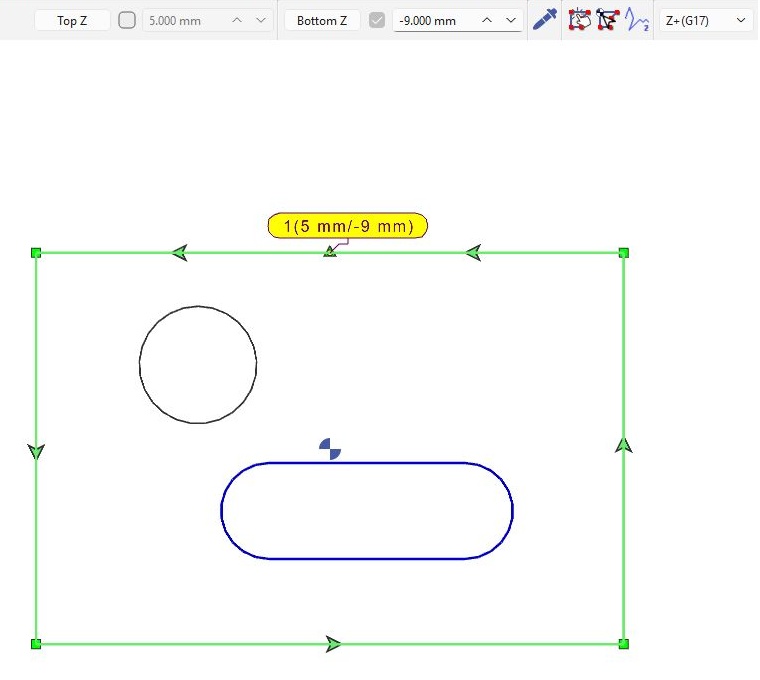
The Details command is the eye icon in the Display bar. Click it to show or hide details, including Top Z and Bottom Z in the profile selection bubbles.
-

-

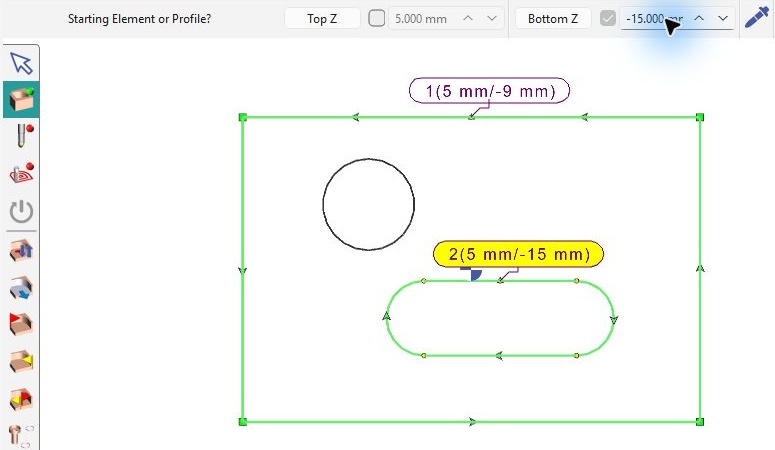
Example: profile 1 has Top Z = +5 mm and Bottom Z = −9 mm; profile 2 has Top Z = +5 mm and Bottom Z = −15 mm.
-
With Details activated (green), the bubbles display 1 (5 mm/-9 mm) and 2 (5 mm/-15 mm).
-
With Details deactivated (blue), the bubbles show the profile identifiers without the altitude values.
Hiding details does not change the altitude values. The yellow bubble identifies the current profile; Details controls the information displayed.
In wireframe milling, the selected profile defines the contour in the drawing. Top Z and Bottom Z define the upper and lower machining levels for that profile.
The altitude values must correspond to the part origin and the required machining depth. A contour drawn at Z0 does not, by itself, define that depth.
Definitions
|
Top Z |
The upper level of the material to machine for the selected profile. |
|
Bottom Z |
The lower level to reach for the selected profile. |
|
Z0 |
The zero level of the part coordinate system. Its location depends on the chosen part origin; it is not necessarily the top of every pocket. |
|
Drawing Z |
The actual Z coordinate of a wireframe element. It can supply a reference value only when the element is drawn at the required machining level. |
Choose the Definition Method
|
Drawing Situation |
Method |
|
All contours are drawn at Z0 |
Enter the machining altitudes manually from the part drawing and the chosen origin. |
|
Reference geometry is drawn at the required Z |
Use the altitude selection button to recover the Z value from that reference geometry, then check the result. |
|
Only one required level exists in the drawing |
Recover that value from the geometry and enter the other value manually. |
Methodology
1. Drawing at Z0 — Enter the Altitudes
Define the required contour and check that the correct profile is current.
Use the part drawing and the chosen origin to determine the upper and lower Z values.
Enter Top Z and Bottom Z. Do not keep both values at zero merely because the contour is drawn at Z0.
Read the displayed values and confirm that they describe the intended material height before validating. |
|
2. Geometry at the Required Z — Recover the Values
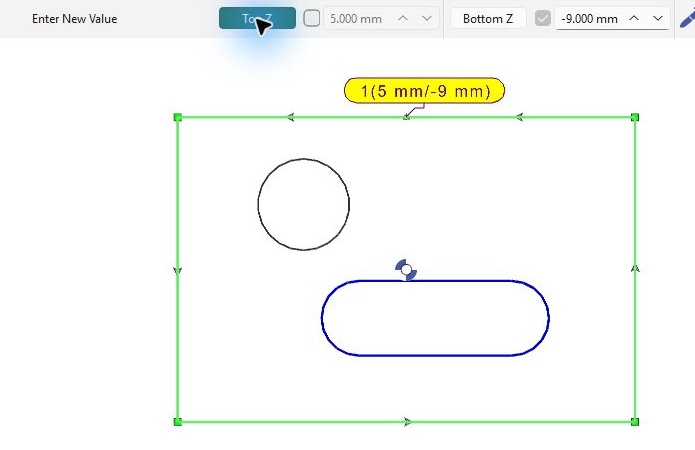
Activate the required Top Z or Bottom Z selection button.
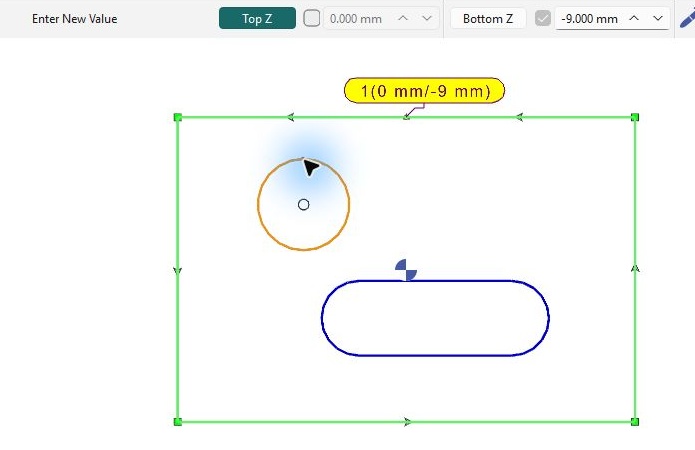
Select the wireframe reference at the required height. Use its actual Z coordinate, not only its position in the screen view.
Confirm that the displayed number corresponds to the intended level and part origin.
Repeat the selection for the other level if suitable reference geometry exists. Otherwise, enter that value manually. |
|
Examples
The values below illustrate the method; use the dimensions and origin of your own part.
|
Situation |
Values and Result |
|
Part top is Z0; pocket bottom is 10 mm below it |
Top Z = 0 mm; Bottom Z = -10 mm. The height to machine is 10 mm. |
|
Material top is Z+5; required lower level is Z0 |
Top Z = +5 mm; Bottom Z = 0 mm. The height to machine is 5 mm. |
|
Contour is drawn at Z0, but its required bottom is Z-15 |
Enter Bottom Z = -15 mm. Selecting the contour at Z0 would recover zero, not the required pocket bottom. |
Checks Before Validation
|
Part origin |
The values are measured from the correct zero reference. |
|
Current profile |
The change applies to the intended profile. Do not assume that editing one profile changes all selected profiles. |
|
Signs and levels |
The positive or negative signs and the difference between Top Z and Bottom Z match the required geometry. |
|
Reference geometry |
An altitude recovered by selection is checked against the actual Z coordinate of the chosen element. |
|
Several profiles |
Check each profile's values. Use the white arrow to change the current profile. To transfer shared levels, see Copy Altitudes. |