
|
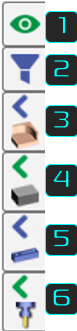
This vertical bar enables to access rapidly display options for elements in the working area:
The display tabs of major elements are contextual, they appear only if elements do exist. Also, the filters defined have priority on the display tabs: if one element is filtered, its rapid display button is not accessible! |
|
Dialog of geometric filters
|
▶️ |
You can watch a video on use of Filters at the bottom of page: Click here |
When you open the filters dialog, it closes automatically after 10 seconds with a fading!
General characteristics

|
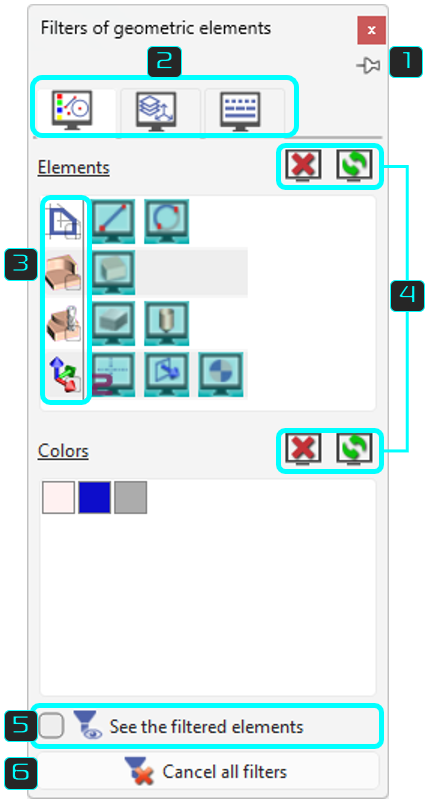
Pin the filter so it stays visible on screen. |
|

|
3 main geometric tabs
|
|

|
Filter by element family
|
|

|
Cancel: resets all filters for the current filter type.
|
|

|
Show only the filtered elements:
|
|

|
Cancel all filters:
|
|
|
You can watch a video demonstrating the ability: Clearing all Filters. |
|
|
Filter by Elements
|
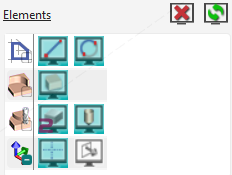
Each type of element has its own icon. The active elements have their icon in color and pressed (in blue). To filter a type of element, for example the dimensions, click the icon and it gets greyed out. |
|
|
If a 'family' is unchecked: all the elements are visible. |

|
|
If a 'family' is checked: all the elements are hidden. |

|
|
A dash is displayed If the elements of a family are either hidden or selected. |

|
|
For Wire-cut EDM: In the Dialog of Filters, there is a specific entity for ‘Threading point’, enabling to distinguish them from geometric points. |

|
Filter by Colors
|
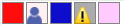
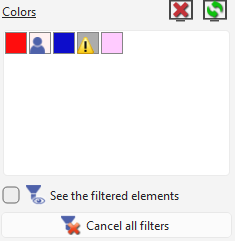
Click on the color box so that all elements of this color are filtered. A ‘User’ icon appears then, to show the new status. Special cases:
|
|
Filter by Planes and Layers
|
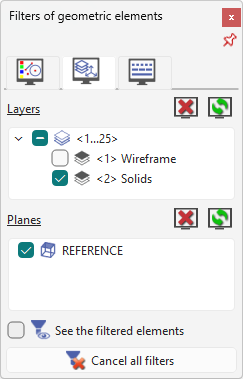
To filter by planes and layers, simply uncheck the corresponding box. All the elements belonging to the plane or the layer unselected are not accessible anymore. In the example on the right, all the elements of Layer 1 ‘Wireframe’ are filtered. |
|
Automatic Filters
|
Sometimes the ‘2’ of GO2cam appears on one type of element. It shows that an automatic filter is active. The user can cancel this automatic filter and then choose to see or not the element. Consequently, there are 3 levels of filters, let’s explain it with the stock: |
|

|
Automatic mode: GO2cam filters the stock in geometry menus and shows it in machining. |

|
User mode: the user chooses to see the stock at any time. |

|
User mode: the user chooses to filter the stock at any time. |
|
The automatic filters are applied on several types of elements:
|
|
|
The systems of axis of planes have another behavior: |
|

|
In automatic mode, the system of axis of the current plane is always displayed. |

|
In active mode the systems of axis of all the planes are visible, |

|
In inactive mode there is no visible system of axis. |
Display of major elements
|
Those elements are the solids, the stock, the symbols (vices, clamps…), and the tools. The display tabs are contextual, they appear only if the elements do exist. They are also dependent of any action in the filters: if an element is filtered, the corresponding display tab disappears! 2 actions are possible on the 4 elements: |
||
|

Visible |

Hidden |
|

|
|
|
By clicking this arrow, either green or blue:
|
|
|
|
In turning, the slider bars for part and stock also provide access to the defined Section View. The section is always done on the 2 elements at the same time. |

|
|
Special case: the tab of Tools appears only during selection of machining operations and simulation. The left click on the tool does not hide the tool but its toolholder if he has one.
|
You can watch a video about the use of Filters: |
|