
Presentation
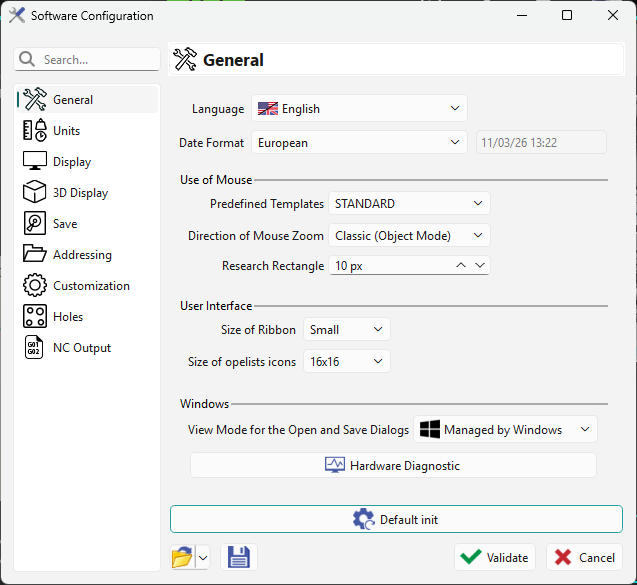
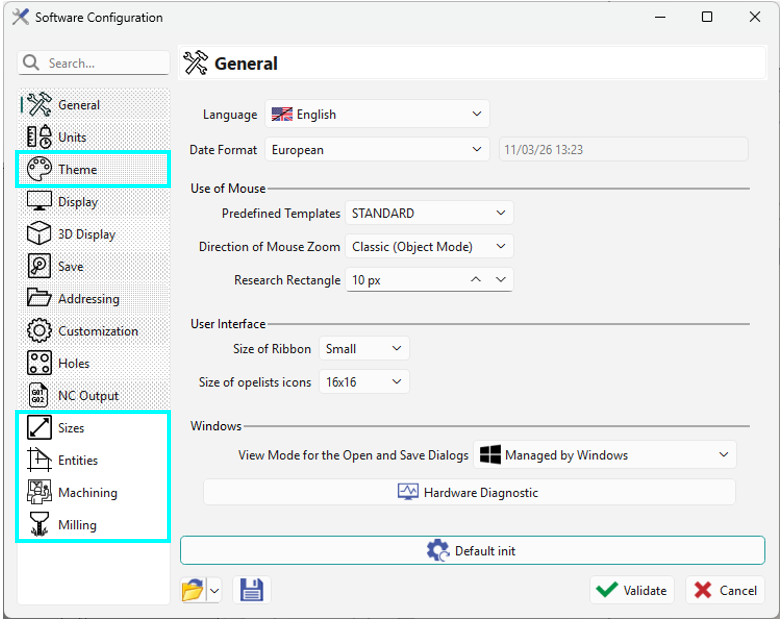
You can access the software configuration in two ways:
-
From the GO2cam Homepage, which provides the general options for using the software.
-
From Tools/Options, which provides both the general options and the product-specific options (Milling, Turning, Turnmill, etc.).
|
From GO2cam Homepage |
Tools/Options |
|
|
|
Option |
Description |
|
General |
Language, Date Format, Distance Precision, Use of mouse, Display opelists in the menus, Windows. |
|
Units |
geometry units, machining units, measure and others. |
|
Theme |
please read the chapter below dealing with themes, |
|
Display |
General, Axis Systems, Screen Texts, Visual Behaviour. |
|
3D Display |
Light Source, Advanced Graphic Options. |
|
Save |
Automatic Saving, Backup files, and others. |
|
Addressing |
General, Production, Machining, Environment. |
|
Customization |
Choice of an Editor, Cutting conditions, Tools database. |
|
Holes |
Useful Parameters, Automatical Recognition on a Solid Model, and Useful Files. |
|
NC Output |
Post Processor, Machining. |
More Options according to different Modules:
|
Option |
Description |
|
Milling – Sizes |
Size of the Window, Other sizes |
|
Milling – Entities |
General, Profiles, Symbols |
|
Milling – Machining |
Default environment, Machining Planes, Miscellaneous, Detection of Collisions, Mini Maxi of Toolpaths, Optimization |
|
Milling – Milling |
Altitude of return points, Stock |
|
Turning – Turning |
Safety Distance in Z and X, Compensation achievement factor, Front Angle Clearance, Back Angle Clearance |
|
Wire EDM – EDM |
Overlapping % Wire, Coef of lead in radius / Wire and Coef of lead our radius / Wire |
Save Preferences
There are two ways to retain your settings:
Save: creates a *.ini file that stores your settings. You can quickly reload any saved configuration from the drop-down list. The last selected .ini file is loaded automatically when you start a new GO2cam session.
If you don’t save, GO2cam keeps your current settings and reloads them each time you start a new session.
Finally, you can be back to GO2cam Default configuration by clicking the button ‘Default init’.