
Definition
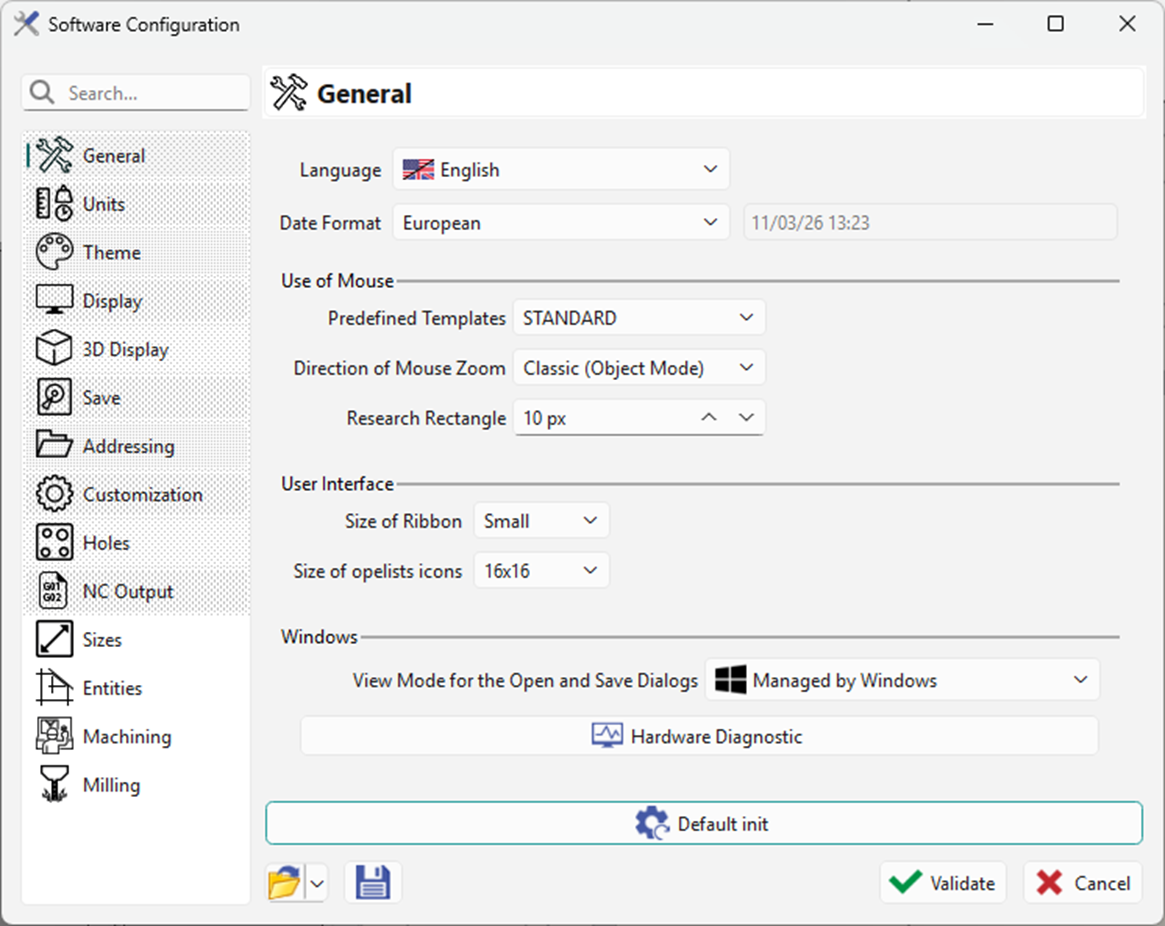
This page presents the most general parameters.
|
The General is divided into four sections:
The software supports 15 languages, including English.
|
|
Use of Mouse
-
Predefined Templates: you can change the mouse settings according to predefined templates, based on some famous CAD software.
|
The default configuration (STANDARD) is now that of SolidWorks, to standardize with CAD/CAM software. The previous GO2cam configuration can be set by selecting the option 'GO2cam Legacy', accessible in the drop-down list of the Predefined Templates. |

|
-
Direction of Mouse Zoom:
|
Classic (Object Mode) |
Inverted (Flying Mode) |
|
Wheel Up = Zooms out, Wheel Down = Zoom in |
Wheel Up = Zooms in Wheel Down = Zoom out |
-
Research Rectangle: determines the cursor precision while searching entities.
User Interface
-
Size of ribbon: Select ribbon size for user comfort: small, medium, or large
-
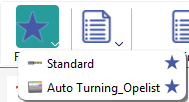
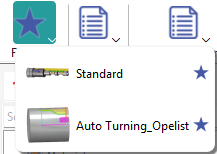
Size of the Opelist Icons: Choose the size of the opelist icons that will be shown. After changing the icon size, you must refresh/update the Opelist list for the change to take effect. These icon files are located in the Opelists menu, with the same name as the opelist and in the *.png format. You can create your own images if you wish.
|
For example, set the Opelist icon size to 16x16 and you will immediately see the result on the right side of the table.

|
|
|
For example, set the Opelist icon size to 48x48 and you will immediately see the result on the right side of the table.

|
|
Windows
-
View mode for Open and Save dialogs: choose the type of display in Save and Open dialogs.
-
Either you keep Windows last settings: Managed by Windows,
-
or you force the type of display you wish: Extra Large, Large, Medium and Small Icons, List, Details and Tiles.
-
-
Hardware Diagnostic: this button runs Microsoft Dx Diag, a diagnostics tool used to test DirectX functionality and resolve hardware issues, especially in terms or video and sound. It will report many system information and configuration that may be useful for technical support.
The result is shown in a dialog but can also be found in the directory Tmp, with the name DXDIAG.LOG.