
These menus provide access to the software's general commands. Below are detailed explanations of all available commands.
File
Management of files, import of CAD files and printing options.

|
New |
Creation of a new part. |
|||||

|
Open |
Open a file already saved. Shortcut: Ctrl key +O. |
|||||

|
Save |
Save the current file. Shortcut: Ctrl key + S. |
|||||

|
Save As... |
Save a file for the first time, or duplicate the file by giving it a new name. |
|||||
|
More information about Save, backup and Open files are available. |
|||||||

|
You can automatically obtain a machined part with all toolpaths, only with the import and automatic validation of the workflow. Everything is processed as per default/previously saved values. |
|
|||||

|
The new command available in the File menu allows the launch of the import workflow of a machined part. The remaining stock is recognized and computation is carried out based on that. |
|
|||||

|
Import |
Loading a file from a CAD software. The list of CAD interfaces and the process to treat them is explained here. |
|||||

|
Export |
The current file can be exported and saved in a CAD format. Most of the standard exchange formats are supported: 2D as DXF and DWG, 3D as PDF, IGS, SAT, X_T, STL and STEP, as well as image formats such as JPEG, BMP, PNG and SVG for vector images. For Parasolid .X_T files, the option to enter the version of the file to save is also available in the preview window. The version is entered in a dialog box. The SVG format is also used by Print Preview, making it more accurate and providing additional display options. 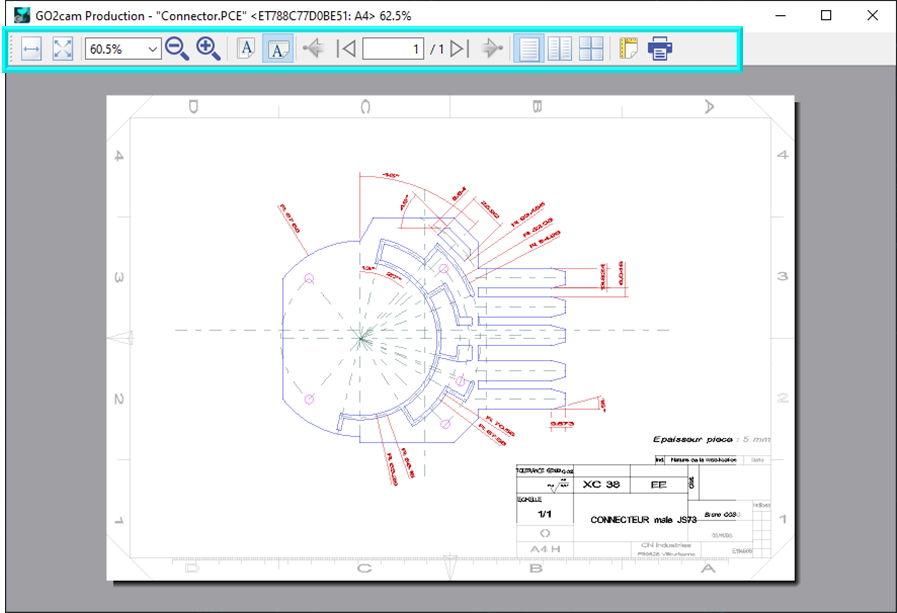
|
|||||

|
Add… |
|
The main function of the commands is to add a GO2cam File or a CAD file on the current PCE file. Click here for more information. |
||||
|
|

|
GO2cam File |
While working with a PCE file, you can add another PCE file on the current one. The main purpose is to add geometry or import a stock shape. Behaviour:
|
||||
|
|

|
CAD File |
While working with a PCE file, you can add a CAD file on it. This is opened with the CAD standard interfaces. There is no automatic positioning, you will have to do it once the part is imported. |
||||
|
|

|
Assignment of Solids |
This enables to access to the table of assignment of solids, where you decide whether a solid is the workpiece, the stock, a clamping element or something else. |
||||

|
Importing Tools… |
In Forming tools/Tools Libraries modules only: this option enables to import tool data stored under GTC format, which is an international standard for tool data exchange. More information, click here: Importing Tools - GTC Standards. |
|||||

|
Save Temporary File |
Safety saving of the current job, even if the file is not saved. |
|||||

|
Recover Temporary File |
Recover the latest saves of the current job. Set automatic saves every x actions in GO2cam's Software Configuration (click the GO2cam logo on the homepage), then the 'Save' page. |
|||||

|
Preview of the page to be printed. The new SVG export feature has improved Print Preview, making it more accurate and adding options. |
||||||

|
Adjust printing options (scale, frame, etc.) and start printing. In Page Layout, users can now select the printer and page format directly. Nearly all print settings are available in GO2cam. |
||||||

|
Working Directory |
Ability to consolidate multiple directories into a single directory:
The folder name appears in the menu. The Project / Reset command restores standard addressing. |
|||||

|
|
Submenu for the management of projects. A project is a set of files: part file (*.PCE), machine files, used tools, material file, symbols, etc. The projects are especially very useful for technical support. |
|||||
|
|

|
Reset |
Ability to reset all the addressing of folders that are done when loading a project file. It is necessary to do it before selecting a new project. |
||||
|
|

|
Select |
Selection of a project that had already been opened, located in the folder Trans. |
||||
|
|

|
Import |
Load of a new project. The different folders and files included are saved into the folder Trans. You can also import a project by drag and drop in GO2cam main window. |
||||
|
|

|
Export |
Save the current part with all the relative data (machine, tools, symbols, post-processor, etc.) into a project file. |
||||

|
Recent Files |
|
List of the files recently opened in the software, with the ability to display up to 10 files. |
||||

|
Back to the Homepage |
To change the environment. |
|||||
Edit
Modification of elements, filters and selection.

|
Undo |
Cancellation of the last actions done. This command allows multiple use. Click here for more details. |
|

|
Redo |
Command linked to the Undo command. Click here for more details. |
|

|
Select All |
Selection of all the elements visible on the screen. |
|

|
Undo Selection |
Cancellation of the current selection. |
|
|
Extra information about the selection of entities are given here: The selection in GO2cam |
|||

|
Group |
Ability to group several components together and be considered as a single component. For example, on moving one of the component, the group will be selected and move together. |
|

|
Ungroup |
Ability to ungroup components and separate them so that they can be modifiable independently. |
|

|
Edit Element |
Modification of the position and topology of the selected element. Display: edited element is shown in purple (color Alternative2), the elements created after the edited element are grey, the elements linked with edited element in white. We invite you to read 2 different pages regarding specific elements: |
|

|
Edit Attributes |
Modification of the attributes of the selected element: the color, the line type and thickness, the layer. The current attributes are defined in the command Management of Attributes : :Palette: Edit Attributes and Management of Attributes have a similar and easy behavior. |
|

|
Cut Geometry |
Those 3 commands enable to cut or copy any types of geometric elements and paste them on another position. The keyboard shortcuts Ctrl+X, Ctrl+C and Ctrl+V can be used. Click here for more information. |
|

|
Copy Geometry |
||

|
Paste Geometry |
||

|
Database |
|
|
|
|

|
Delete Element History |
When a geometrical element is created in GO2cam, the history of creation is kept in database, to enable parameterizing of design. The parameterizing is a powerful functionality of GO2cam. In some cases, the history is not correctly defined and may generate troubles for design. In this case, you can delete the element history |
|
|

|
Retrieve Erased Ref Elements |
You can give a name to a geometrical element thanks to the command Info Entity in the menu Help. If this element has been deleted later, you can recover it thanks to this command, by giving the name of the element or by the name given to the element by the system. For more information about this command, click here. |
|
|

|
Part Update |
When you work on CAD files with dataGO, you can update the model if modifications have been done in the CAD software. The modifications will be taken into account in the current GO2cam part, even if machining cycles have already been programmed. With dataGO, you can also read holes features. The dialog box has completely been renewed. |
|
|

|
Holes Models Update |
For FTE files only: if you modify a hole model which has already been used and positioned in the part, you can do this update to apply the modifications to the elements in position. The plugin to export FTE files from the CAD software is not provided anymore. But compatibility is ensured: you can still import *.FTE files in GO2cam. To replace FTE process:
|
|
|

|
If symbols have been modified in the Components environments, you can update them to take into account these modifications in the current part. |
|
|
|

|
Tools Update |
If you modify a tool which is defined as fixed or prepared in the machine, you can update the database to take the modifications into account in the machine. |
|
|

|
Machine Update |
In the current file, ability to update the *.MCB machine file that had been previously modified. It is the same command as the one in the machine file, the access is more rapid here. |
|
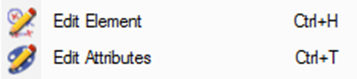
Keyboard shortcuts appear next to most commands in the menu. For example, the frequently used commands Edit Element and Edit Attributes let you modify element characteristics. Their shortcuts are Ctrl + H and Ctrl + T. |
|
Standard shortcut for left-hand users include:
-
Undo: Ctrl+Z or Alt+Backspace
-
Redo: Ctrl+Y or Ctrl+Shift+Z
-
Cut: Ctrl+X or Shift+Del
-
Copy: Ctrl+C or Ctrl+Ins
-
Paste: Ctrl+V or Shift+Insert
Display
Zoom on details, display options and 3D rotation.

|
Display dotted lines |
With this option, you activate the display of dotted lines on the solid. For this, the ‘Display of edges’ in the status bar is automatically set to ‘Realistic’ mode. Read more about this command: click here. |
|

|
Display priority to the solid or wireframe/machining |
If selected, the command gives display priority to the solid compared to other geometric elements and machining operations. These options are also available in the status bar, command ‘Display options’. |
|
|
|
Tools visibility |
Hiding tools has now 3 status: Full tool visible, Tool only visible (holder hidden), Full tool hidden. This command can be added to the Customize Menu. (For more info, watch a video on this option: Click here) This happens only during selection of geometry while defining machining cycles. |
|

|
Hide |
Ability to hide one or several elements. Right-Click in the background to choose this option. You can watch a video (double-click in the video to enlarge it!) |
|

|
See only |
A new See Only option appears in the elements popup via right-click. It displays only the selected part, feature, annotation, or entity. Deactivate See Only mode using the Cancel Hide option. |
|

|
Invert Hide |
After hiding some elements, you can invert the command. |
|

|
Cancel Hide |
The elements hidden are visible again. |
|

|
Cancel All Filters |
Cancellation of all the filters defined on the part (hide command, filters etc). |
|

|
Dynamic Rotation |
Activate the dynamic rotation with the mouse: you can move your part in 3 dimensions by maintaining the left button of the mouse. When the part is positioned as you wish, type the Enter key to block the view on this position. |
|

|
List of Views |
Access to the whole list of views. Click here for more details. |
|

|
User Views |
The User Views enable to create 3 customized views (zoom scale and position). Click here for more details. |
|

Tools
Launching of external applications and macros and customization commands.

|
Calculator |
Access to a standard calculator. |
||

|
Editor |
Access to a text editor, by default it is the GO2cam NC editor. You can choose another editor, define it in Tools>Options>Customization. Click here for more details. This editor has improved options: powerful syntax coloring, management of multi windows for channels, search improved, etc. |
||

|
Visual Keyboard |
This tool is an accessibility utility that displays a virtual keyboard on the computer screen. This keyboard allows people with physical impairments to type data by using a pointing device, a joystick or a mouse. Another functionality of the keyboard is the ability to manage different languages, this is especially useful for the accented letters in languages such as French, Spanish, or German as well as for Russian and Greek. |
||
|
|
Standard Macros |
Special commands such as engraving, creation of text on circle, creation of table of points, formula etc. |
||

|
Specific Macros |
Here you can find the macros developed especially for the customer by the reseller or the editor. |
||
|
|
JavaScript is a modern, easy to use, and easy to learn scripting language. GO2cam provides a JavaScript API to write scripts and improve automation of your process. This API allows to:
Click on the API Help for more information. |
|||

|
Reading Points File |
Ability to read files of points with any file format extension, with choice of separator and the result that we want to generate (points, polygon or curve) You can watch a video on Reading Points File (double-click in the video to enlarge it!): |
|
|

|
Customize Menus |
Creation of customized text menus, more information are given in the previous page. Read the help page: Customize Menus. |
||

|
Customize Toolbar |
For expert users, creation of toolbar with your favorite commands. You can create a different toolbar for each environment (CAD Interfaces, Milling, EDM etc.). Read the help page: Customize Toolbar. |
||

|
Customize List of Operations |
Creation of a user machining list. The machining list displays the cycles programmed on your part and is available in the machining tree, in the machining commands. |
||

|
GO2cam Operator |
Menu dedicated to the configuration and use of the software GO2cam Operator. |
||

|
Traceability of the project |
This command compares files within the same project to identify differences between the original GO2cam program and the modified GO2operator version. It transfers information from the machine shop to the methods department, ensuring project traceability. |
||
|
|
Customization of editing |
This command enables to create users who can have different kinds of rights in GO2operator. |
||

|
Online Help |
Explanation about the software GO2cam operator. |
||

|
Import from Another Version |
Ability to recover users data from previous version, such as files of configurations, tools, tec files, symbols etc. Please click here for more information: Import from Another Version. |
||

|
Options |
Access to many options of the software: customization of the graphic user interface, units and tolerances, display preferences and general options for machining. Many details are given here: Software Configuration. |
||


Help
Documentation, downloading of data and information about the file and the software.

|
Online Help |
You can enter GO2cam online help this way, or press F1 while beginning a command or on the machining dialogs. |
||
|
|
Web Portal |
The web portal offers a unique access to all the websites and services provided by GO2cam International. More information : click here. Download Libraries are also available in the web portal. |
||

|
Remote Support |
When you contact your local reseller for technical support, click this command to allow the technician to remotely access your GO2cam. No installation is required. We use a TeamViewer 13 license. Password for V6.11 and earlier: GO2Support Password from V6.12: GO2camSupport |
||

|
Update Software |
Update of GO2cam by downloading patches. |
||

|
File Info |
The general characteristics of the part file are given here. |
||

|
About |
Information about GO2cam: version, User ID, copyrights, third parties etc. The information regarding Solid CAD interfaces and the license are now available in this command: |
||

|
Interfaces |
List of the solid CAD importers available in GO2cam. The importers which are not available with the current license are noticed with the term ‘not allowed’. The list of 2D interfaces is also given. The full list is given here: List of CAD interfaces |
||
|
|
Options |
List of products and options available with your license. |
||

|
License |
Display of customer license agreement |
||

|
Qt 6.5.3 |
Information about Qt, a C++ toolkit used by R&D for GO2cam development. |
||
