
In Manual milling, a wireframe profile defines the path used by the machining operation. It can be open or closed.
Profile selection has two stages:
-
Define the path
-
Adjust the starting and ending points if required.
|
Element |
One item of the drawing, such as a line or an arc. |
|
Path |
The ordered chain of elements forming the profile. |
|
Intersection |
A location where the path can continue along different branches. |
|
Starting / ending point |
The precise position where the profile starts or ends. Selecting the starting and ending elements does not yet fix these exact positions. |
Methodology
1. Define the Profile
|
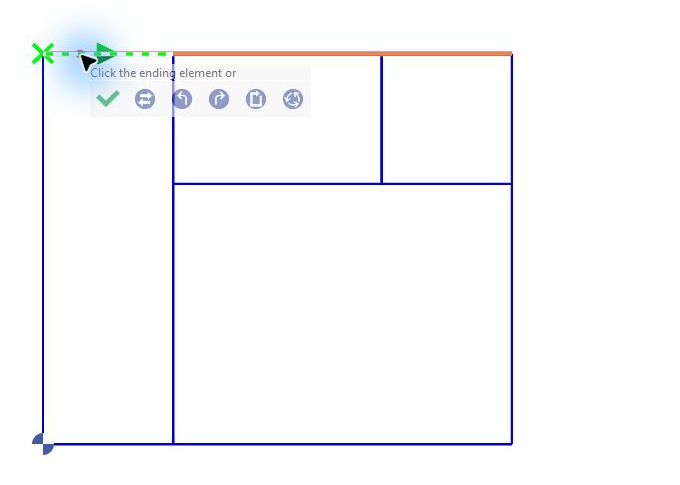
Select the starting element Click the element where the profile must begin. The position of the click determines the initial direction from the nearest intersection. Check the direction arrow before continuing. Then click the ending element of the required path. |
|
|
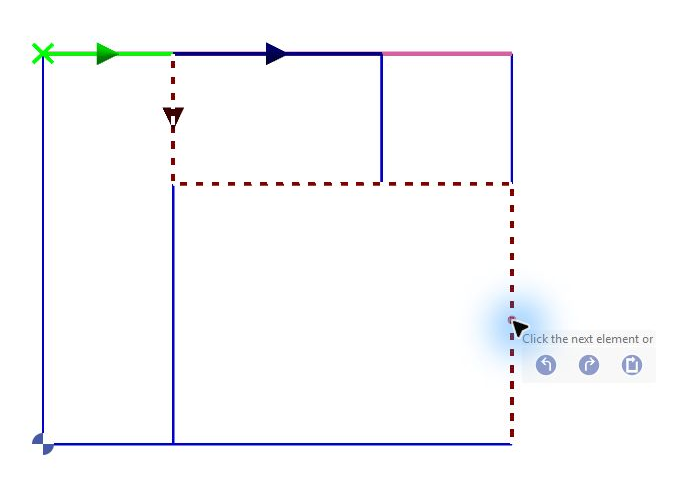
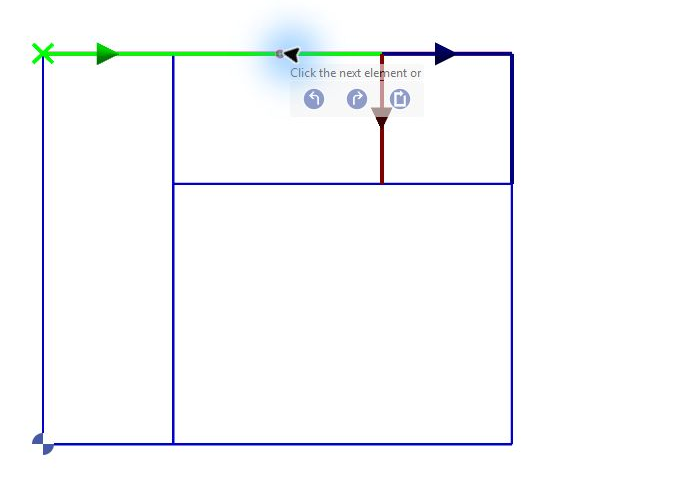
Check the dotted proposal After selecting the starting element, point to the required ending element. Check the proposed dotted path and choose the required branch at each intersection. If the proposal follows the required contour, click to accept it. Otherwise, choose another branch at the intersection or define the path element by element. |
|
|
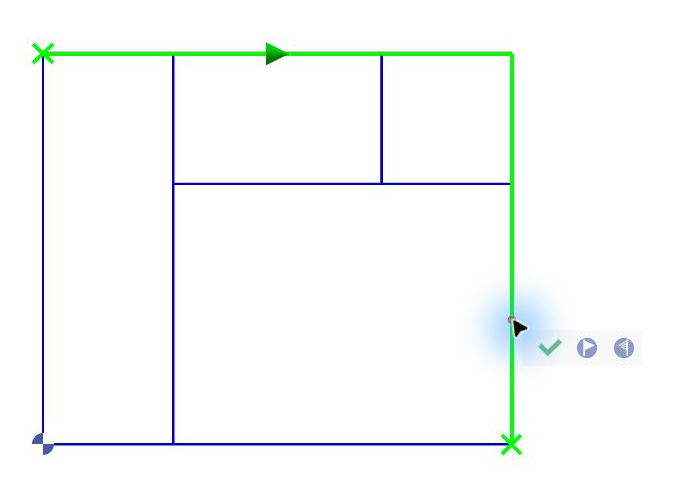
Check and validate the path When the required profile is displayed in green, check its route and direction. Click Profile OK to validate, or continue with the point settings in stage 2. |
|
Chaining Options
Check which branches are included: different chaining choices can produce different profiles from the same drawing.

|
All on left / All on right Choose the left or right branch at successive intersections. Compare the results from the same starting element: the route may follow the outside contour or the recesses. All on left: at successive intersections, follow the branch on the left relative to the current direction of travel. All on right: at successive intersections, follow the branch on the right relative to the current direction of travel. Check the arrow: left and right follow the profile direction; they are not fixed sides of the screen. Check the resulting contour before validating it. |
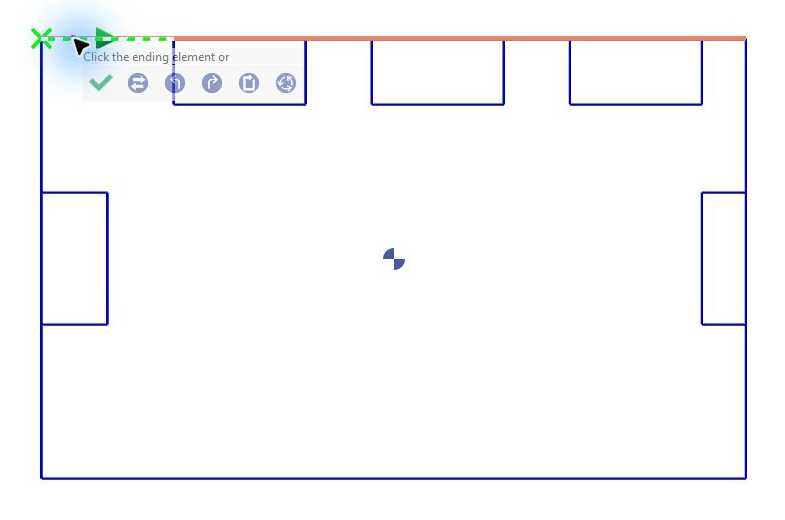
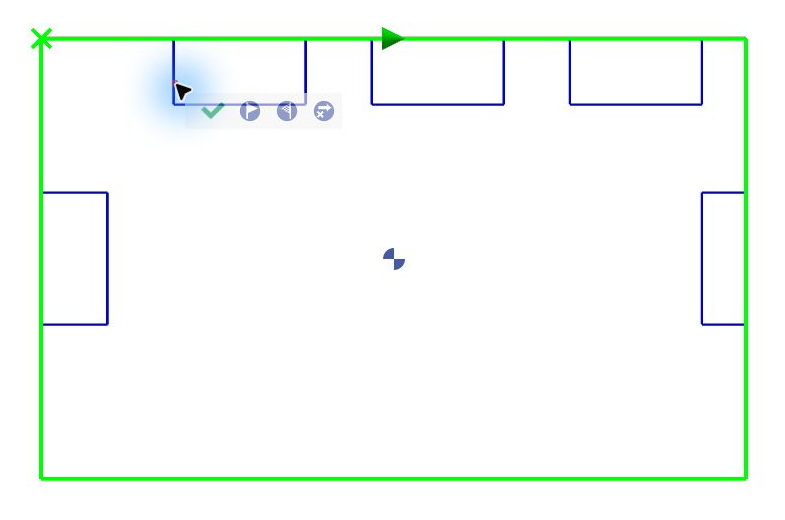
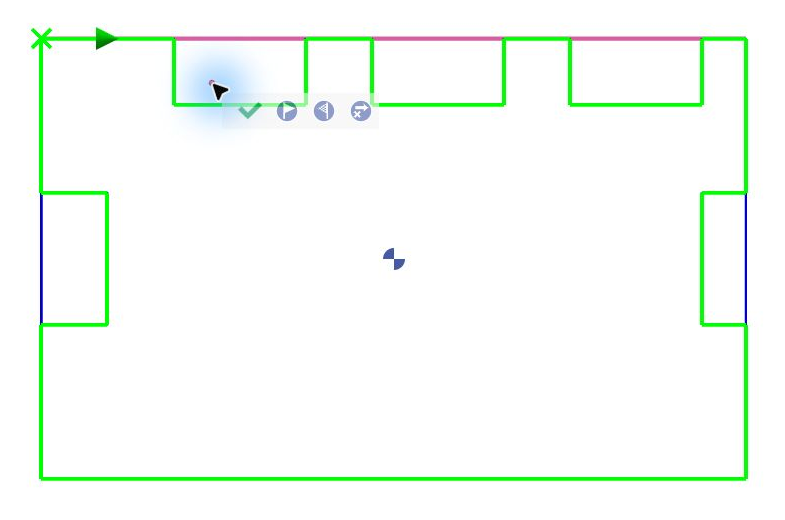
Initial selection and alternative chaining results. |
|
Continuous Select the starting element and check its direction arrow, then click Continuous in the chaining toolbar to complete the chain automatically. In this example, the profile follows the outer rectangle through both junctions; the central branch remains unselected. Check the green path and its direction, then click Profile OK to validate. |
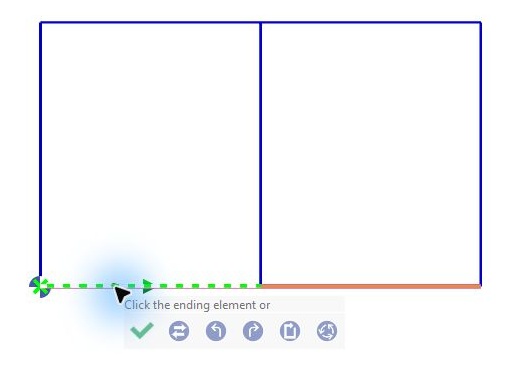
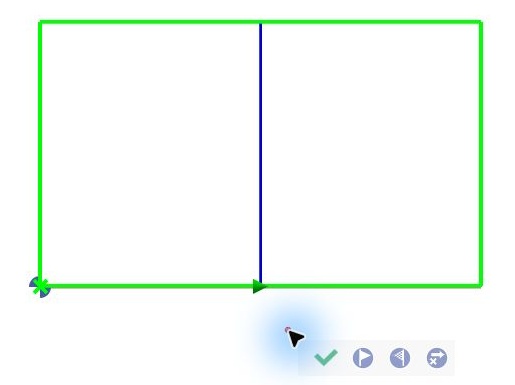
Before: the starting element is dotted green and the arrow points to the right. Choose Continuous (the fifth button in the chaining toolbar). After: the outer rectangle is green; the central branch remains blue and is excluded from the profile. |
|
Invert direction |
Reverse the profile direction when required. Check the arrow after the change. For the available methods during selection and after validation, see Inversion of Profiles – Milling. |
|
Closed profile |
Use this option when a closed contour is required, or continue selecting elements until the path closes. |
2. Define the Starting and Ending Points
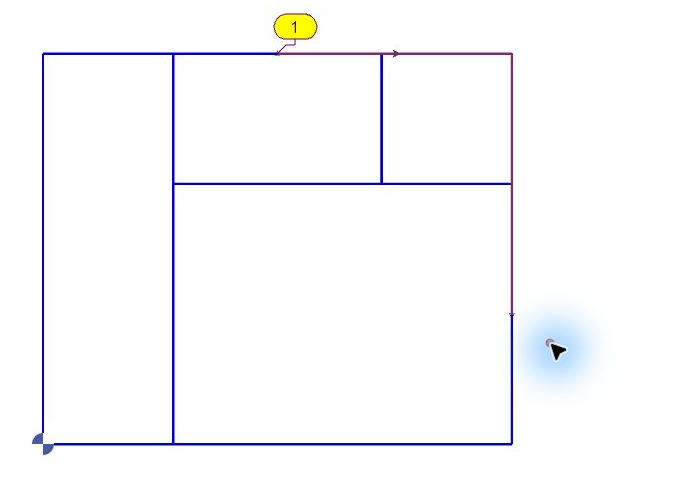
Selecting the ending element chooses the last line or arc in the chain; it does not fix the exact endpoint. After defining the green path, use the following controls to position its ends independently.

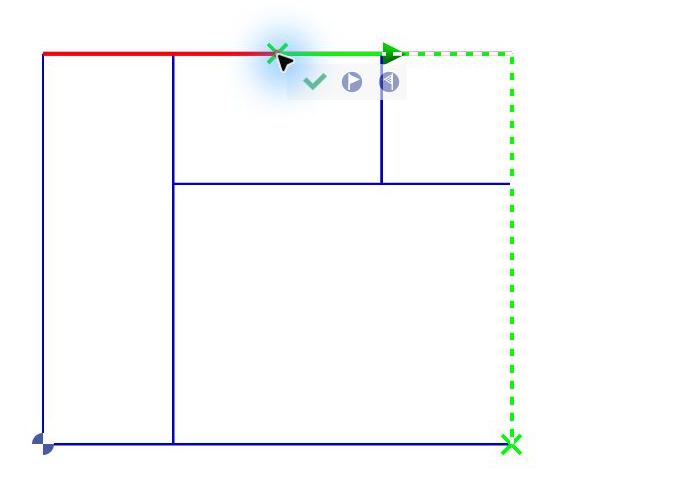
Choose Starting Point. Move the cursor along the top edge to preview the required start, then click to confirm. In this example, the new start excludes the first portion of the top edge. |
|
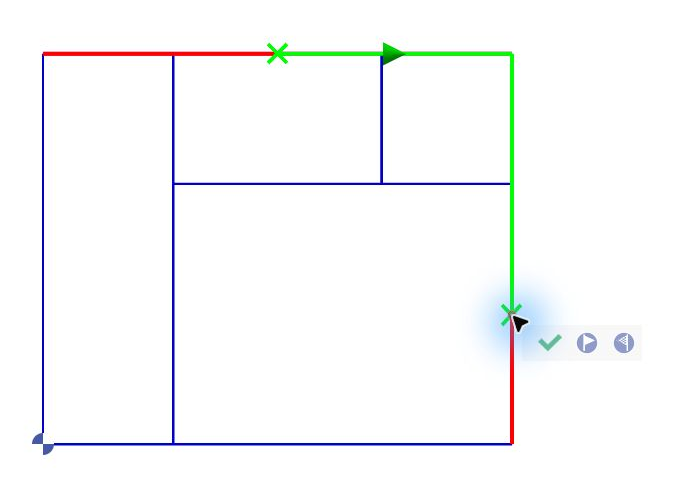
Choose Ending Point. Move the cursor along the right edge to preview the required end, then click to confirm. This changes the end independently of the start. |
|
|
Closed profile |
Use Start/End Point to adjust the common starting and ending position. |
|
Midpoint or arbitrary position |
A midpoint lies halfway along an element; an arbitrary position is another location chosen for the required profile. Hold Ctrl while choosing either endpoint to display the grid as a positioning aid. Move the cursor, check the preview and click the required position. |
Validate: check the green path, direction and both endpoint positions, then click Profile OK. The green crosses in the illustrations identify the adjusted points; the red portions are excluded from the profile.
After validating a profile: click Information 
See Selection Commands and Options for the Information button overview, or Inversion of Profiles – Milling to change profile direction after validation.
Other Wireframe Selection Possibilities
|
Standard |
Creates closed profiles. |
|
Manual |
Can create open or closed profiles. |
|
Rapid closed-area selection |
The workshop shows rapid creation of a closed profile by double-clicking inside a closed area, or by using a selection window. This does not replace the starting/ending-element procedure when a specific open path is required. |
|
Direction |
Check the direction arrow before continuing. |
|
Missing element |
Check the active geometry filters. The profile being created changes according to the active filters; a hidden or filtered element may be excluded from the proposed path. |
|
Undo |
Use Ctrl+Z to undo selection actions. Several actions can be undone during profile creation. |
|
Preview and zoom |
The preview updates dynamically as the cursor moves. Zoom in when necessary to check intersections and precise point positions. |