

|
This function allows the insertion of texts on the program window. The text entity is separate in itself; any text inserted is not considered as a combination of segments and arcs but as a single element in itself. |
Text Insertion
Text insertion is generally considered for two purposes:
-
To simply add a message/information in the .PCE file.
-
For machining the text.
The process is simple and requires only filling the text dialog.
The text dialog with its various functions are described below:
|
|
Provides access to recently entered text values, allowing them to be quickly selected and reused. |
|
Imports text from a .txt file. |
|
|
Inserts special characters into the text. |
|
|
Allows text to be entered and edited directly in the text area. |
|
|
Provides predefined Engraving and Isostatic font styles. |
|
|
Allows creation and customization of user-defined font styles, including text justification settings. |
|
|
Adds frames around the text using the frame option. |
|
|
Applies an overline to the text, with a selectable color. |
|
|
Adjusts the text orientation using the Angle parameter. |
|
Ratio horizontal/vertical enables to stretch the text in the horizontal direction of the written text |
|
|
|
Text Edition: In order to edit a text entity, simply double-click on it to reopen the text dialog and do the required modifications. The Edit element command can also be used for the same purpose |
||

|
As from GO2cam 2026, the Edit Element command now supports multiple text elements editions at once. On launching the command, several text elements can be selected and any modifications made, will be applied uniformly to the entire selection. |
▶️ Watch a video on multiple text selection. 
|
|
▶️ Watch a video showing the various functions of the Updated Text dialog.
|
▶️ Watch a video here showing the various functions of the Text dialog.
|
Text along an Element
A text can also be positioned on a curved element. This can be an existing element/edge on a solid or a drawn element. The text will respect the curvature of the element at all points. |
▶️ Watch a video below. 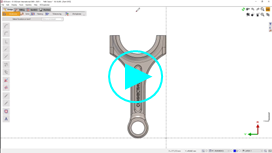
|
Text Machining
To machine a text element, you can:
-
perform engraving using the Text Marking cycle.
-
convert the text entity into geometry for machining by GO2cam.
Text Engraving
The Text Marking cycle machines text entities. The Text function is usually in the Design tab, but you can also access it by selecting Geometry Selection.
|
The majority of fonts generate an outline of the letter and this requires two passes in the machining of a single letter. The process to define a text for single pass engraving is simplified and it just requires selecting the engraving style from the drop down list. This automatically sets the font to OLF SimpleSansOC for single pass text creation. |
|
|
▶️ Watch a video that shows the case of defining a Text within the machining cycle itself and also shows the engraving of an inverted text. 
|
|

|
Single Stroke Font 
When you install a single stroke font, it is not recognized as single stroke by default. To make it possible, we added an option in the Text Command, with a checkbox that must be set ON. |