You can watch a video at the bottom of the page: Selection in GO2cam
Many commands in GO2cam request a selection of elements:
-
Deletion
-
Edit Attributes
-
Move, Copy
-
Hide and filtering commands etc.
The elements selected are displayed in pink color, the validation of selection is done with the popup menu (right-click). Cancel the selection is available in the menu Edit > Undo Selection (Ctrl key + W).
Many modes of selection are available:
Selection of one single element
To select one single element, left-click on the element.
|
Action: 
|
Result: 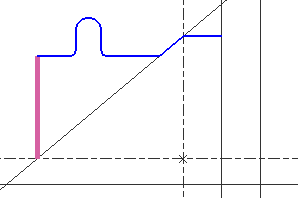
|
Selection of several elements
To select two or more elements, ctrl + left-click on the elements.
|
Action: 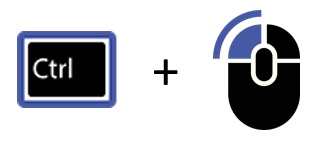
|
Result: 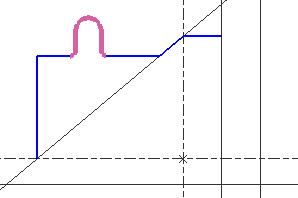
|
Window Selection Right to Left
To select all elements within a window
|
Action: Window with the mouse from the right to the left. The window has a pink background and a dotted line boundary. |
Window: 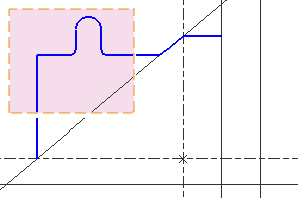
|
Result: 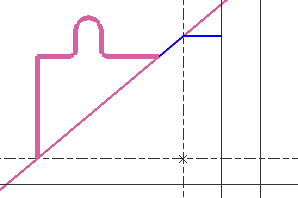
|
Window Selection Left to Right
To select all elements fully within a window
|
Action: Window with the mouse from the left to the right. The window has a yellow background and a full line boundary. |
Window: 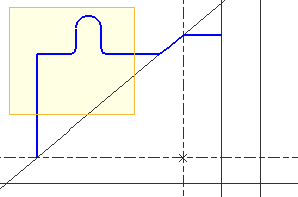
|
Result: 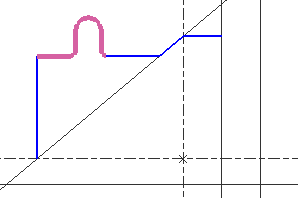
|
Select All
Selection of all the elements visible on the screen.
The filtered and hidden elements are not selected.
|
Action: Command Select All (Ctrl + A) The command is available in the menu Edit, and also in the popup menu |
Result: 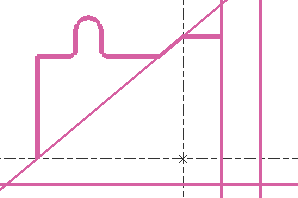
|
You can watch a video on selection in GO2cam: